Subscription & Billing
Learn how to manage the plan and add-ons your company pays Astra, find subscription invoices and resolve a failed payment. This guide explains email and Inbox notices, the grace period and the steps to update your card. For invoices you issue to your customers, see Invoices.
Your saved plan choice
The initial tools, usage and add-on choices save a plan recommendation. Signup does not show prices; Billing is where you compare plans and review the estimate. Review them here before confirming your card. Unpriced extras require a quote and are never charged without confirmation. When at least 49 trial hours remain, confirming your card schedules the first charge for the trial end. Without a confirmed card, there is no automatic charge.
When changing a subscription, review the tools and limits that change. Records are retained; access to features or further creation may be restricted when limits are exceeded. You can remove add-ons or choose a lower plan after acknowledging the warning. Outside the trial, prorated adjustments may apply. See plan selection and estimates.

Where it is managed
There are two screens and they do different things:
- Billing (route /organization/billing) is the one that matters. It is where you choose a plan, add or remove add-ons, manage the payment method and see your subscription invoices. Its title is Billing & Subscription.
- The Plan and subscription section inside Organization Settings is a read-only summary: current plan, usage against limits and the notice matching your situation. Its Manage billing button takes you to the screen above. Preferences shows the full set of Usage and allowances.
Open Settings at the bottom of the main sidebar and choose Administration → Plan and subscription. On a phone, start at More → Organization Settings. The direct Billing link remains in the avatar menu, under your organization name. Each entry appears according to your permissions.
The subscription belongs to the organization, not to the user: if you work in several, each has its own plan, add-ons and charge. Check the organization name shown above the Billing link in the menu.
The plans: Solo Facturación and Contabilidad / ERP
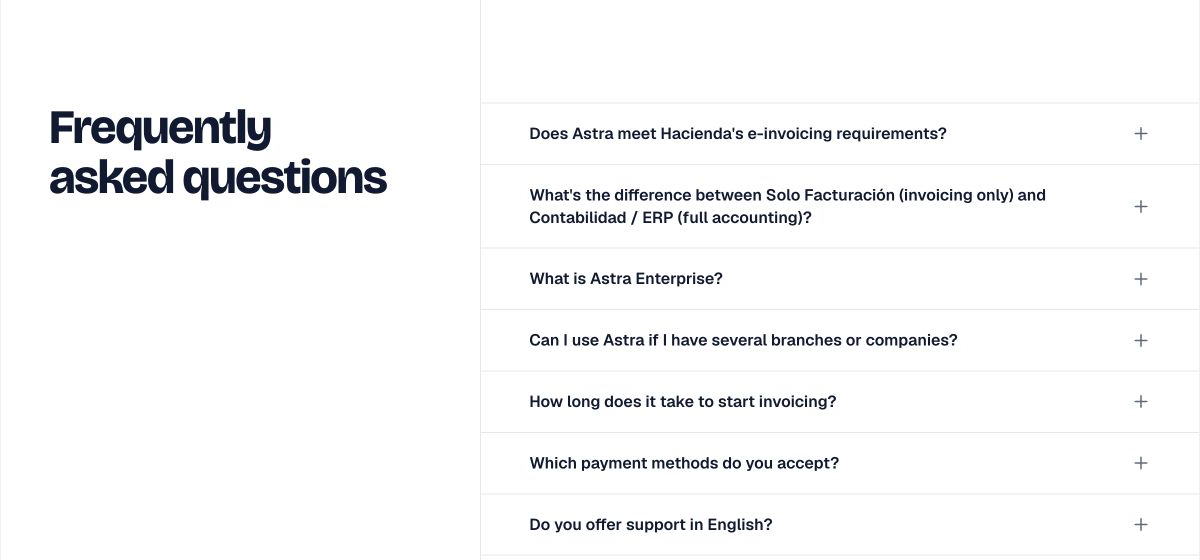
For common questions before choosing a plan, open the website FAQ and select a question to expand its answer. On desktop, the questions share a continuous divider beside the heading; on phones they appear below it.
Astra has two lines of plans, with three plans each. Current prices are on the plans page; every plan is billed monthly, plus VAT.
- Solo Facturación (invoicing only: Facturación Emprendedor, Pyme and Pro) — to invoice electronically, collect and know how the business is doing: invoices, tickets, credit and debit notes, export invoices, quotes, customers, products with stock in one warehouse, payments received, supplier document reception by e-mail, WhatsApp delivery, scheduled e-mails, Sales Pulse and the Business Snapshot.
- Contabilidad / ERP (ERP Pyme, Pro and Plus) — invoicing with no document cap, plus purchases and expenses, the purchase electronic invoice, purchase orders, inventory, banking, the cash register and accounting. ERP Pyme includes the ledgers, financial statements, receivables and payables and cost centers. Contabilidad Pro (D-270, D-101, withholdings, fixed assets with depreciation, receivables aging and AI VAT classification) is included from ERP Pro up. The Solo Facturación plans include no accounting. Work orders, payroll, the calendar and an extra branch are modules added on top of any of these three.
| Plan | Documents a month | Users | Products and services | Attachments | Warehouses |
|---|---|---|---|---|---|
| Facturación Emprendedor | 10 | 1 | 100 | 100 | 1 |
| Facturación Pyme | 50 | 3 | 500 | 100 | 1 |
| Facturación Pro | 250 | 5 | 2,500 | 250 | 1 |
| ERP Pyme | No cap | 2 + your accountant | 500 | 500 | 1 |
| ERP Pro | No cap | 3 + your accountant | 2,500 | 2,500 | 5 |
| ERP Plus | No cap | 5 + your accountant | 5,000 | 5,000 | 10 |
Every screen in this help center has an Availability box that says which plans include it. The full feature list compares them one by one.
On the Solo Facturación plans, the electronic invoice, the ticket, the debit note and the export invoice sent to Hacienda in the calendar month (Costa Rica time) count. Credit notes do not count, and neither do documents Hacienda rejected. The counter resets on the 1st.
Your current plan and its limits

When there is an active subscription, the Subscription tab shows a purple card labelled Current Plan, with the plan name and the price in dollars with its cycle. Below it are three meters in the format used / cap:
| Meter | What exactly it counts |
|---|---|
| Users | Members who take a seat. On the Contabilidad / ERP plans, whoever has the Accountant role does not take one. |
| Documents this month | Electronic documents of the current month, following the rule above. |
| Products and services | Every product and service in the catalog, active or not. |
When a cap does not apply, the infinity symbol (∞) shows in its place on the Subscription tab, or the word Unlimited on the Billing screen. The colour bar is only drawn when there is a cap to measure against. On the Billing screen, under Plan Features, you see users and every cap your plan has, including attachments, warehouses and bank accounts.
Astra stops the next one; it never deletes or disables what you already have. If you reach the month's documents, the next one is not sent to Hacienda: the notice says so before the consecutive number is reserved, and the invoice stays unsent until next month or until you move up a plan. With products, attachments, warehouses or bank accounts, the notice shows when you try to create one more. With users, the invite button stops being available (see Team collaboration).
- The XMLs of the invoices you issue and the documents you receive do not count as attachments. Photos, PDFs and other files attached to invoices, payments, quotes, orders and contacts do.
- During the trial there are no caps. What you created in the trial is kept; caps only stop the next one once a plan is chosen.
- Custom plans and exempt accounts do not have these caps: their agreement defines what they include.
- Need more users without changing plan? Email app@astranexo.com and we add them to your plan.
Status notices
Both the Subscription tab and the Billing screen show a coloured notice matching your organization's situation:
| Situation | What you will read |
|---|---|
| Active subscription | The purple plan card, or the green notice "Your organization is subscribed to the … plan". |
| Agreed price | Custom plan with the negotiated amount, or "Your organization is subscribed at its agreed price: …". |
| Payment past due | "Your subscription has a payment past due. Update your payment method on the billing page." |
| Custom plan | "Your organization is on a custom plan: access to the agreed features and add-ons. Billing is handled directly with Astra." |
| Billing-exempt account | "Your organization has full access to all features — billing-exempt account." |
| Plan paid by SINPE or bank transfer | "Plan … — paid by SINPE or bank transfer, covered until …": the date is how far your plan is paid; each recorded payment moves it one cycle. |
| Trial | "Trial active until …" with the date it ends. |
| No plan | No active subscription and the prompt to pick one. |
| Grace period | The orange strip at the top of every screen with the days left to pay; everything keeps working. |
| Read-only | The red strip "Your account has been read-only since … because of a missed payment." You can view and download everything, but not create or invoice until you pay (see Read-Only Account). |
These are two different things and the wording keeps them apart on purpose. A billing-exempt account keeps every Astra feature with no automatic charge — this covers organizations that were already using Astra before per-plan billing existed. A custom plan is an agreed list: you get exactly the features and add-ons that were negotiated, and nothing else. In both cases billing is handled directly with Astra. If you are exempt and decide to subscribe, the screen warns you: "Subscribing starts real charges; your current access does not change."
Add-ons
The Contabilidad / ERP plans accept modules added to the plan: Work Orders, Payroll & HR, Calendar & Scheduling and an extra branch. Some features come included from a given plan: the AI assistant connection and your accountant's free user on every ERP plan; Accounting Pro (assets, D-270, withholdings and D-101), @mentions, gift certificates and birthday greetings from ERP Pro; the second branch, custom roles and Customer retention with ERP Plus. Maintenance Reminders are offered only to electronics repair, bike shops and water-system services. The Solo Facturación plans do not take modules. The notice at the top of the Billing screen sums this up, and its See plans & add-ons link opens the public pricing page.
The Maintenance Reminders add-on has a guide of its own — what it does, which businesses it is for and how to ask for it. It costs US$20 a month, billed together with the subscription.

The Add-ons section of the Billing screen shows each add-on the way your plan defines it. Each card carries a name, a short blurb and a badge:
- Included in your plan — it comes with your plan at no extra charge.
- Active — you have it on top of your plan: you bought it, or Astra enabled it for your business. If you pay for it separately the card shows its price; otherwise it reads "Enabled for your business".
- Higher plan — your plan neither includes nor sells it. The card names the plan it starts at, for example "Included from ERP Pro" or "Can be added from ERP Pyme", and shows no price.
If your business has an agreed price instead of a plan, the section shows only the modules enabled for it, without list prices. To add another one, use the Message us on WhatsApp link at the bottom of the section.
The action on each card follows from that status:
- Add — offered on add-ons your plan may take and that already have a price configured. It is prorated onto your next invoice and the confirmation reads "Add-on added. It will appear on your next invoice."
- Ask about activation — the add-on is available, but billing still needs assistance. The catalog price is shown even when self-service purchase is unavailable. During the trial, review it alongside your plan.
- Remove — offered on the ones you have active. It asks for confirmation first ("Remove this add-on? A prorated credit will be applied.") and applies the prorated credit when it completes.
Billing and public pricing pages use the catalog managed by Astra. Work orders cost US$40 per month; Calendar costs US$15. Payroll has a US$40 base plus US$5 per month for each employee without app access. Employees who use Astra count toward plan users and do not also pay the US$5 employee charge. If employees are already registered, the estimate counts active employees or those on leave, excluding app users. Extra app users are quoted separately under your plan. Amounts exclude VAT. Changing a selection during the trial does not authorize a charge.
Two more conditions: adding from this screen requires a plan and a live subscription (otherwise the system says "You need an active plan to add add-ons."); and if an add-on becomes included in your plan while you were paying for it separately, the card keeps a Cancel charge (already included in your plan) link so you can stop paying without losing the feature.
How you pay
There are two routes and they do not mix: either your subscription is charged automatically to a card, or you pay it by SINPE Móvil or bank transfer and we record it.
Card (automatic charge)
When you pick a plan, Astra sends you to the payment provider's secure checkout, where you enter the card; we never see or store the number (the foot of the screen states Billing is managed by and the provider's name). On return you land on a welcome screen with the plan activated; if the payment is still being recorded, you will read "Payment received — your subscription is being activated, refresh this page in a few seconds."
With a live subscription, the Current Subscription block shows:
- Status — Active, Past Due, or Cancels … with the date.
- Last payment and Next payment, when those dates are on record.
- Payment Methods — opens the provider's portal to change the card. It only appears once your organization has an account with the provider.
- Cancel Subscription — asks for confirmation and schedules the cancellation: "You will retain access until the end of your current billing period." While a cancellation is scheduled, Resume Subscription takes its place and calls it off.
The status becomes Past Due. Astra emails the owner and creates an Inbox notice; the email also copies the configured billing email when it differs. The notice appears under System, even without permission to view sales invoices. On Home and other screens, the banner explains the issue and lets you expand What to do.
The notice shows when the account becomes read-only if payment is not confirmed. The grace period starts at the first failure and does not restart with every retry. An agreed price or custom plan does not make an organization exempt: only an explicit exemption prevents automatic access restrictions. Exempt organizations still see the outstanding-payment notice.
- Select the organization named in the notice and open Billing.
- Open Payment Methods and check or update your card in the Stripe portal.
- Return to Astra and check that payment has been confirmed. Updating the card alone does not confirm payment. If you already paid this charge by SINPE or bank transfer, don't pay again: use I already paid — report payment (see below). Once the deposit is found, Astra closes the pending card charge so you are not charged twice; the following month is charged to the card as usual.
Only people allowed to manage billing can change the card or cancel the subscription. Other members are asked to contact their administrator. Once payment is confirmed, the status and access update when the page is reloaded.

SINPE Móvil or bank transfer
Any plan can be paid by SINPE Móvil or bank transfer instead of a card: the trial asks for no card, and to pay your plan this way write to app@astranexo.com or on WhatsApp and we set it up.
An agreed price may be charged by card or through a manual arrangement. For manual billing, Astra sends the owner a Payment request or Payment reminder, copying the configured billing email when it differs. It includes the amount, due date and SINPE Móvil number or Account / IBAN with its holder. Follow the email’s instructions to report your payment.
If you already paid and the strip is still orange or red, use I already paid — report payment in the payment box on Billing. Enter the Amount with its currency (₡ or $; SINPE Móvil is always in colones, and your agreed price with today's colones equivalent is shown under the amount), the Payment date, the Method and, if you have it, the Reference / receipt. Astra looks for the deposit at the bank: if it is already there, access is brought up to date at once; if it hasn't shown up yet, Astra asks the bank for an update and applies it as soon as it arrives, even hours later.
When your organization has a plan assigned manually, that plan is what decides your features, even if a card subscription also exists. And if you already have a live subscription with the payment provider, the system stops sending you manual payment reminders — so you are never charged twice, nor chased for a payment that is already being debited automatically.
If you would rather pay an already-agreed price by SINPE or transfer, the agreed-price card says so itself: "Prefer to pay by SINPE or bank transfer? That works too — reply to the payment-request email and we will send you the details."
Invoice history
Further down the Billing screen, Invoice history lists your most recent subscription invoices: Date, Number, Amount with its currency, Status, and a View / Download link that opens the provider's invoice in a new tab.
If your organization has no account with the provider — the case for everyone paying by SINPE or transfer — the section shows No invoices yet. That is expected: those receipts are handled by email with Astra.
After activating a card subscription, the confirmation shows your plan and links to the dashboard, billing details and your company’s next setup steps.

Changing plan

If you saved a guided plan choice, Billing shows its review card instead of asking you to pick a second time. Otherwise, while your organization has no live subscription, the Billing screen shows the Choose a Plan block with the plans grouped by line: the monthly price, the plan's caps, what it includes and a Subscribe button. There is no annual price: every plan is billed monthly. If a welcome offer is running (for example, half price for the first three months), the card shows the promotional price, the regular one struck through and when it renews at list price.
If you have an agreed price with Astra and have not activated it yet, you get a single card instead of the grid — Your agreed price, with your amount and a Subscribe with card button. That is deliberate: showing list prices next to your negotiated price would only confuse. If the payment is late, that card moves up into the payment box at the top, as Credit or debit card with a Pay by card button, next to SINPE Móvil and the bank transfer.
If your agreed price includes a time-limited promotion (say, half price for the first twelve months), the card shows the promotional price, the list price struck through and the date it ends: "Promotional price through …; after that the price returns to …". Subscribing with a card charges the promotional price only for the cycles the promotion has left; after that the card is charged the list price without you doing anything. Paying by SINPE or bank transfer works the same way: each payment request carries that cycle's amount.
For a standard monthly card subscription, choose Change plan to open the guided review. Edit your answers or extras, review the new total and acknowledge lost tools or limits before confirming. It updates the existing subscription and preserves a remaining trial. For annual billing, negotiated prices or extras requiring a quote, contact app@astranexo.com.
What happens to features when the plan changes
Astra's features are enabled in two ways: by the plan (each plan includes everything in the one before it plus its own, and the Contabilidad / ERP plans include everything in Solo Facturación) and by the modules you have active. When your plan goes up, whatever the new plan includes is enabled; when it goes down, whatever that plan does not cover stops being available. For example, moving from ERP to Solo Facturación hides Purchases and Expenses, Accounting, Banking and the Cash Register; Document Reception stays.
A feature you are no longer entitled to behaves like this:
- Its entry disappears from the sidebar. No button is left behind that does nothing.
- If you arrive through a saved link or the browser history, the screen answers "This feature is not available on your current plan."
- In the Add-ons section, that module shows the Higher plan badge.
Losing access to a module deletes nothing. The purchases, journal entries, work orders, employees or certificates you already loaded stay stored in your organization; you just stop seeing the screens until the plan or the module enables them again.
About the caps: if you move down to a plan with lower caps, nothing is deleted or disabled. What you have stays, but you cannot create the next product, attachment or warehouse, or invite anyone else, until you are under the new cap. The month's documents are measured against the new plan's cap from the day of the change.
Billing information
At the foot of the Billing screen, the Billing Information block shows the two details Astra bills you with:
- Billing Email — where billing notices are sent.
- Tax ID — your company's tax identification.
They are not edited here: they come from your company's email and identification in Settings → Profile and contact, and the Update billing information link takes you straight there, to Organization Settings. When either is empty it reads Not set. The right-hand column of the same screen also carries Quick Links to the settings and to your team members.
Permissions
Subscription data is sensitive and access is restricted:
- The organization owner and anyone holding the Administrator role can see and do everything described in this article.
- Other roles need the Subscription permission group (View and Manage) for the Subscription tab to appear in Organization Settings — plus a Settings permission, since without one that screen does not open at all. Roles are edited on the Roles tab (see Team Collaboration).
- View billing permission opens the screen for consultation. Manage billing allows access to Payment Methods and subscription cancellation or resumption. Management buttons are hidden from people with view-only access.
- The Accountant role that ships with Astra is described as full access excluding Subscriptions and user management: it does not see this screen.
Need more help?
Our team is ready to assist you.