Add items to invoices and estimates
Learn how to add catalog products, manual items and custom work. This guide focuses on the Add Line Item window: what to enter in Details, how to review CABYS and IVA, how to use the cost and price calculators, and when to save an item as a reusable product.
- 1. Choose how to add the item
- 2. Open the item window
- 3. Add a catalog product
- 4. Prepare a manual or custom item
- 5. Check CABYS, IVA and the tax-inclusive price
- 6. Calculate a price from cost when needed
- 7. Save as a product only when you will reuse it
- 8. Adjust discounts and taxes where needed
- 9. Add, review and continue
1. Choose how to add the item
A line item is a product or service with its quantity, price and taxes. You do not have to create a catalog product before preparing an invoice or estimate.
| If you need to… | Use this option |
|---|---|
| Sell something already registered. | Search: select a catalog product. |
| Charge for custom work or something you will sell only once. | Details or Create Manual Item: enter a one-off item. |
| Register something new you will sell again. | Prepare a manual item and select Save as product for future use. |
A manual item works for a custom service, a specific repair or something not yet in your catalog. Unless you select the save-as-product checkbox, it belongs only to that document.
2. Open the item window
- Open the invoice or estimate you are preparing.
- Under Items, click Add Line Item. You can also press Shift + N.
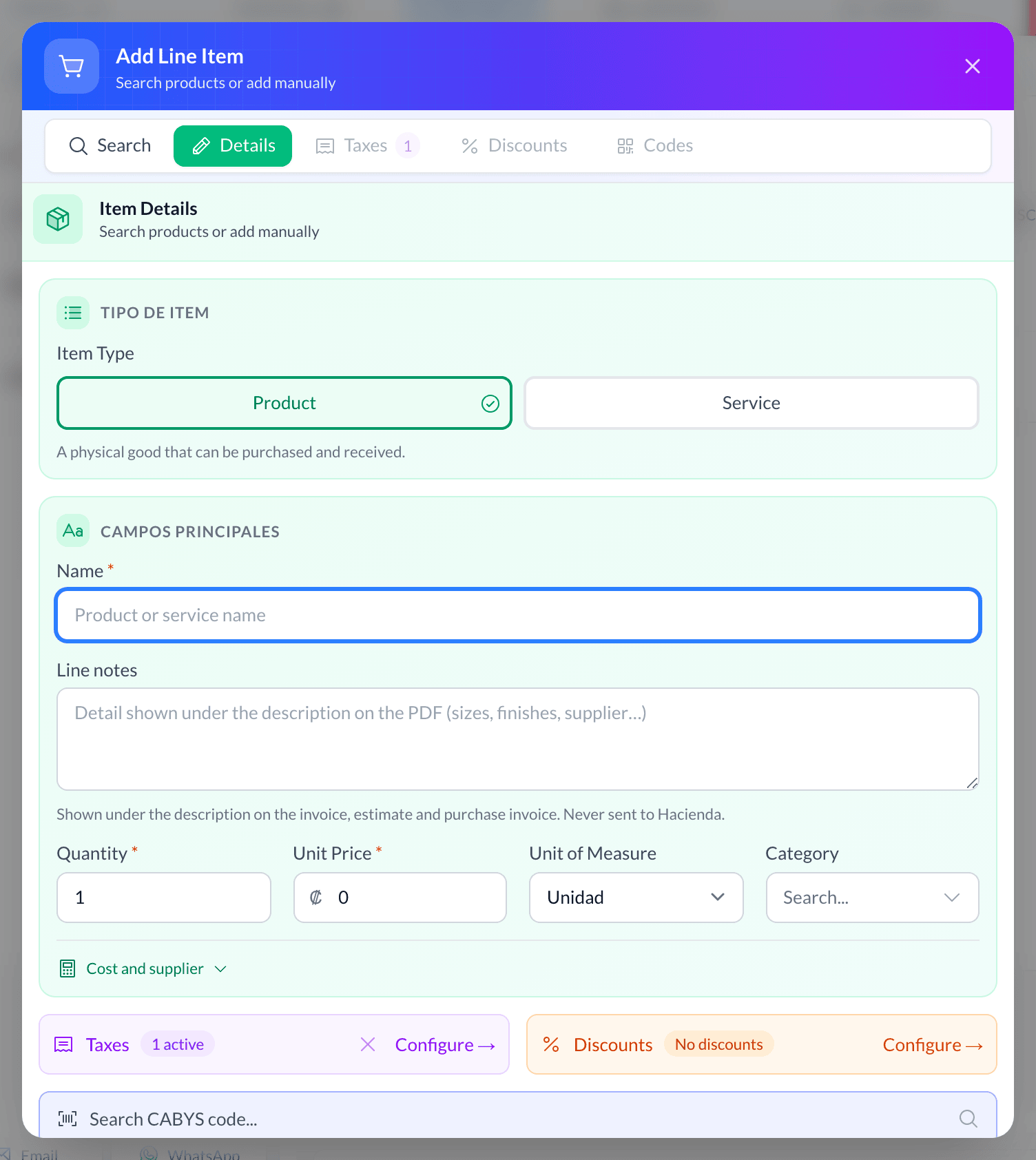
- Choose Search or Details. Both documents use the same window; you do not need to learn two different procedures.
3. Add a catalog product
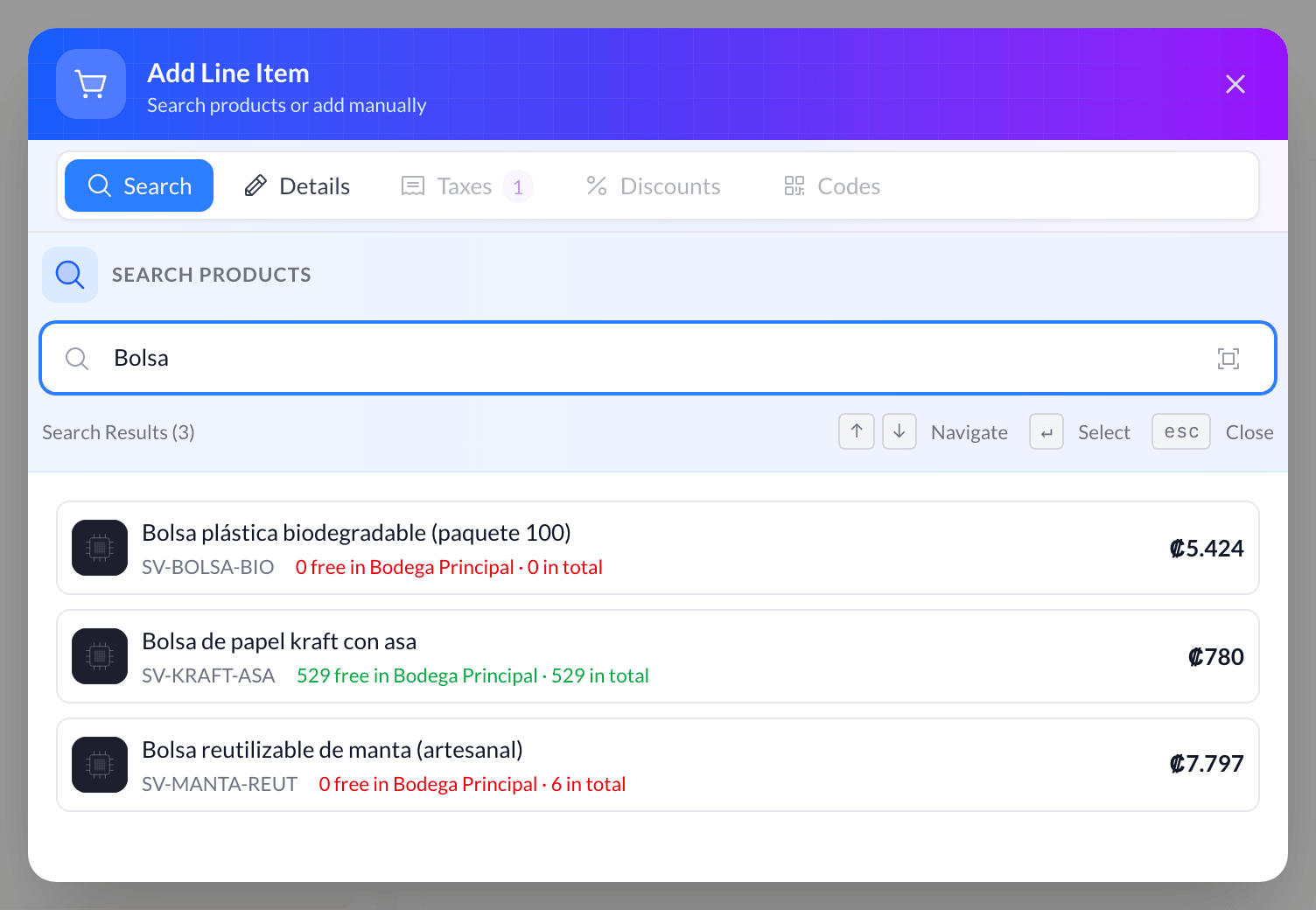
- In Search, enter a product name, category or code. You can also scan its barcode with the button in the search field: the camera reads it (or you can type it in that same window) and Astra searches it as if you had typed it. An exact code goes straight to Details.
- Select the result. If the product has variants, choose the one you will sell.
- Astra opens Details with the product data. Check quantity, price, unit, CABYS and IVA; prefilled fields still need a review.
- Adjust the price charged on this line if needed. Changing the line price does not change the catalog price.
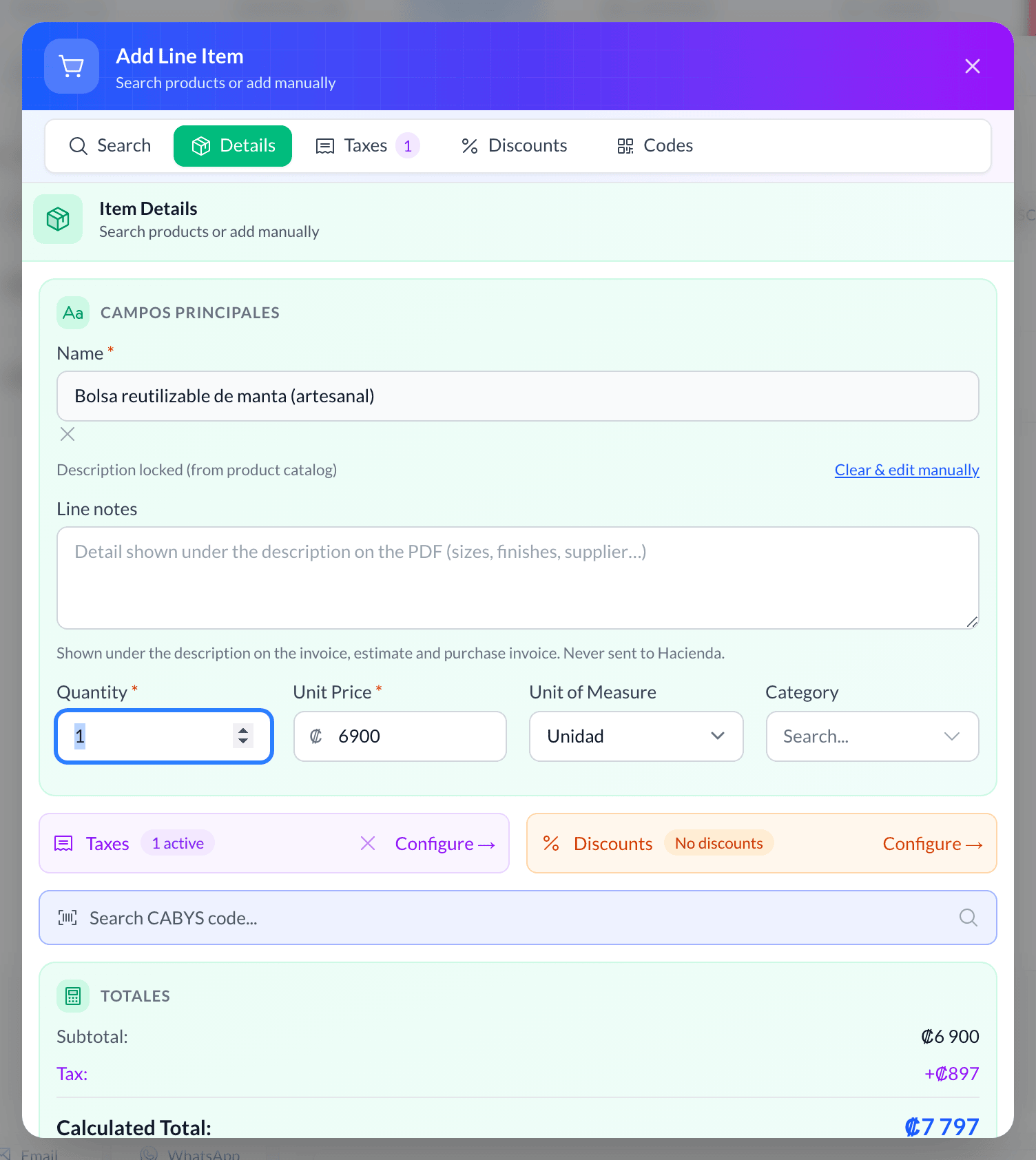
Keep the product selected to preserve its catalog and inventory link. Clear & edit manually removes that link and clears the name and other fields: you must fill them again. It does not rename the catalog product.
For permanent product changes, see Products. For stock, warehouses and movements, see Inventory and Locations.
4. Prepare a manual or custom item
- Click Details without selecting a product, or Create Manual Item from Search.
- Choose Product for goods or Service for work.
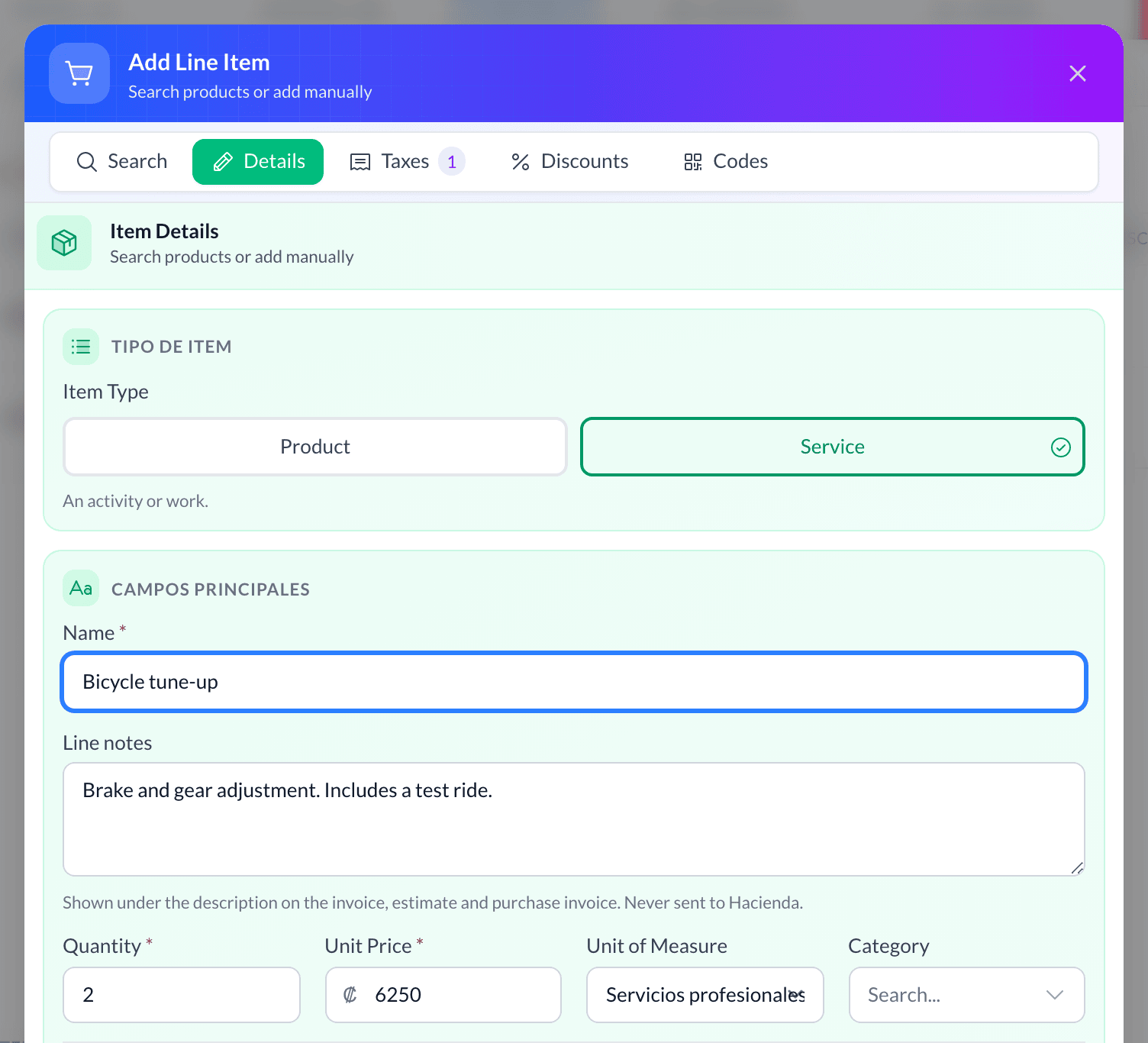
- In Name, say what you are charging for, for example Bicycle tune-up. This is the line description and accepts up to 200 characters.
- Enter Quantity and Unit of Measure. Quantity can be fractional, such as 1.5 hours, and must be greater than zero.
- Enter the pre-tax Unit Price, not the total for all units. You can also start with the tax-inclusive unit price.
- Complete CABYS and check taxes, discounts and the total before adding the item.
Longer details for the customer
If Line notes is available, use it for dimensions, finishes, scope or conditions, such as Brake and gear adjustment. Includes a test ride. Notes accept up to 2,000 characters, appear below the description on the invoice or estimate PDF, and are not sent to Hacienda. The short line description is used in the electronic document.
If the field is missing, ask the organization administrator to review Per-line notes on documents in Organization Settings. These customer-visible notes are different from the internal cost and supplier fields.
5. Check CABYS, IVA and the tax-inclusive price
- In Details, scroll to CABYS and open its selector. Search for a code or description matching what you sell.
- Read the full description and select the code. You can use organization favorites. If a default code was loaded, check it fits this line.
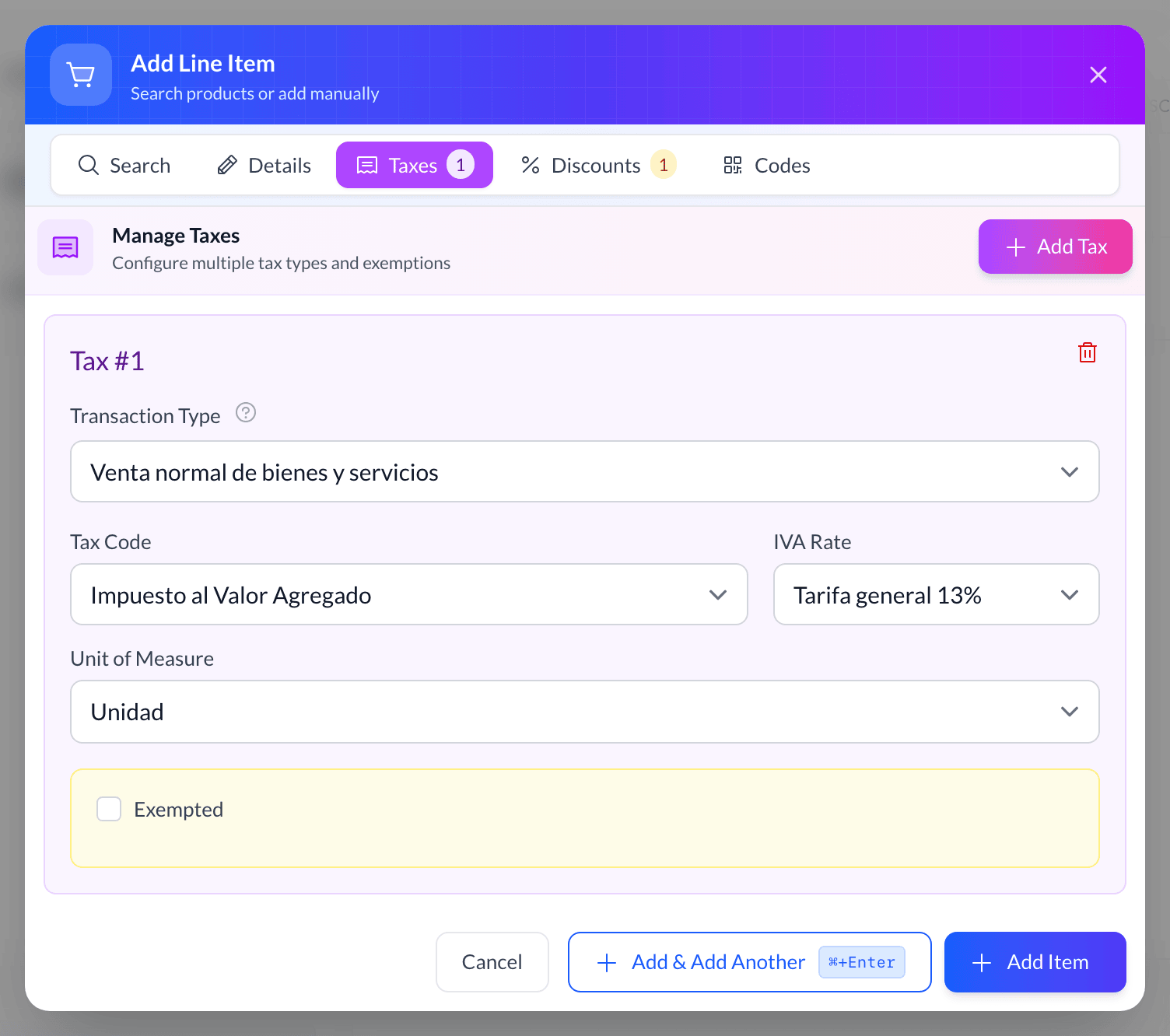
- Selecting CABYS updates the IVA rate. Review it in Taxes, particularly when the customer has an exoneration.
- If you know the final price of one unit, enter it in Price per unit with tax. Astra calculates the pre-tax price and recalculates the line total.
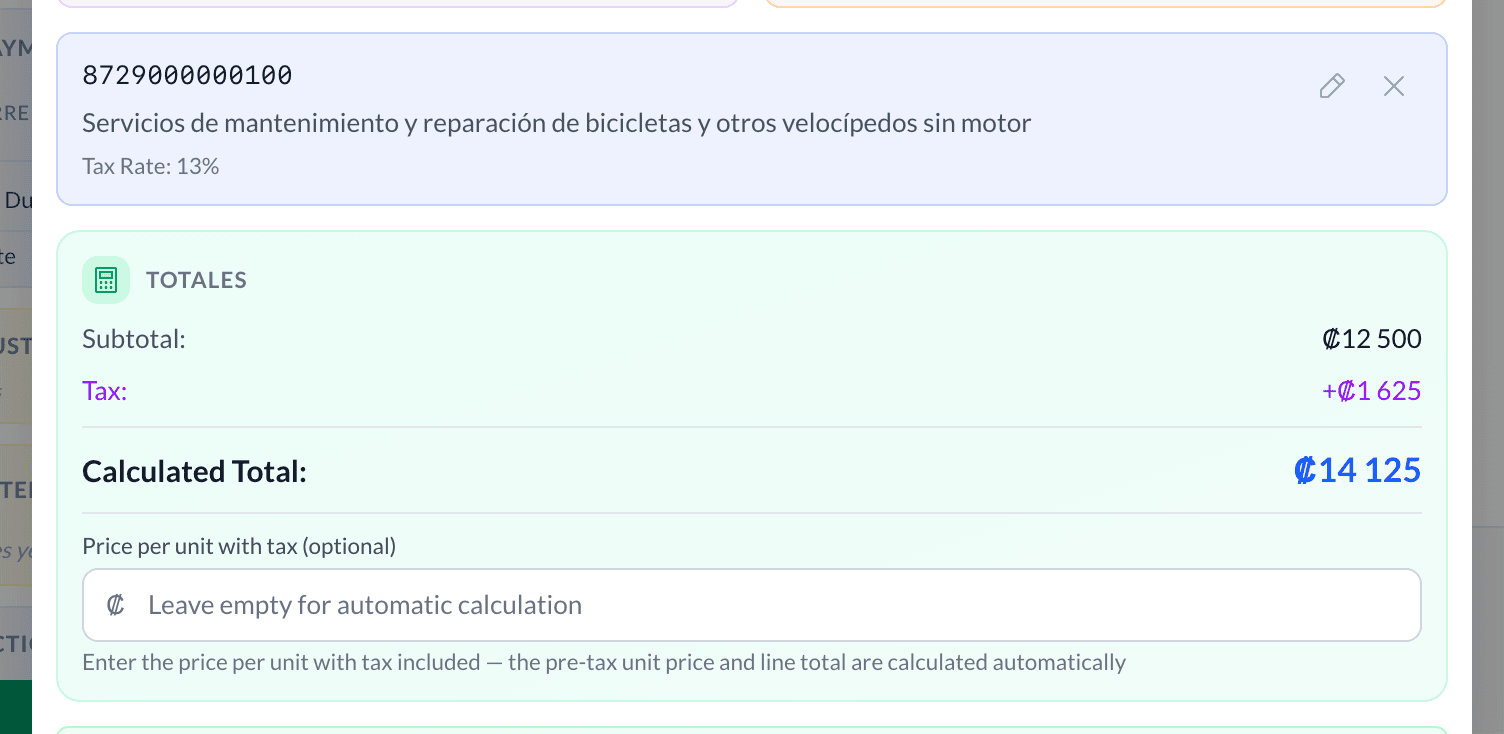
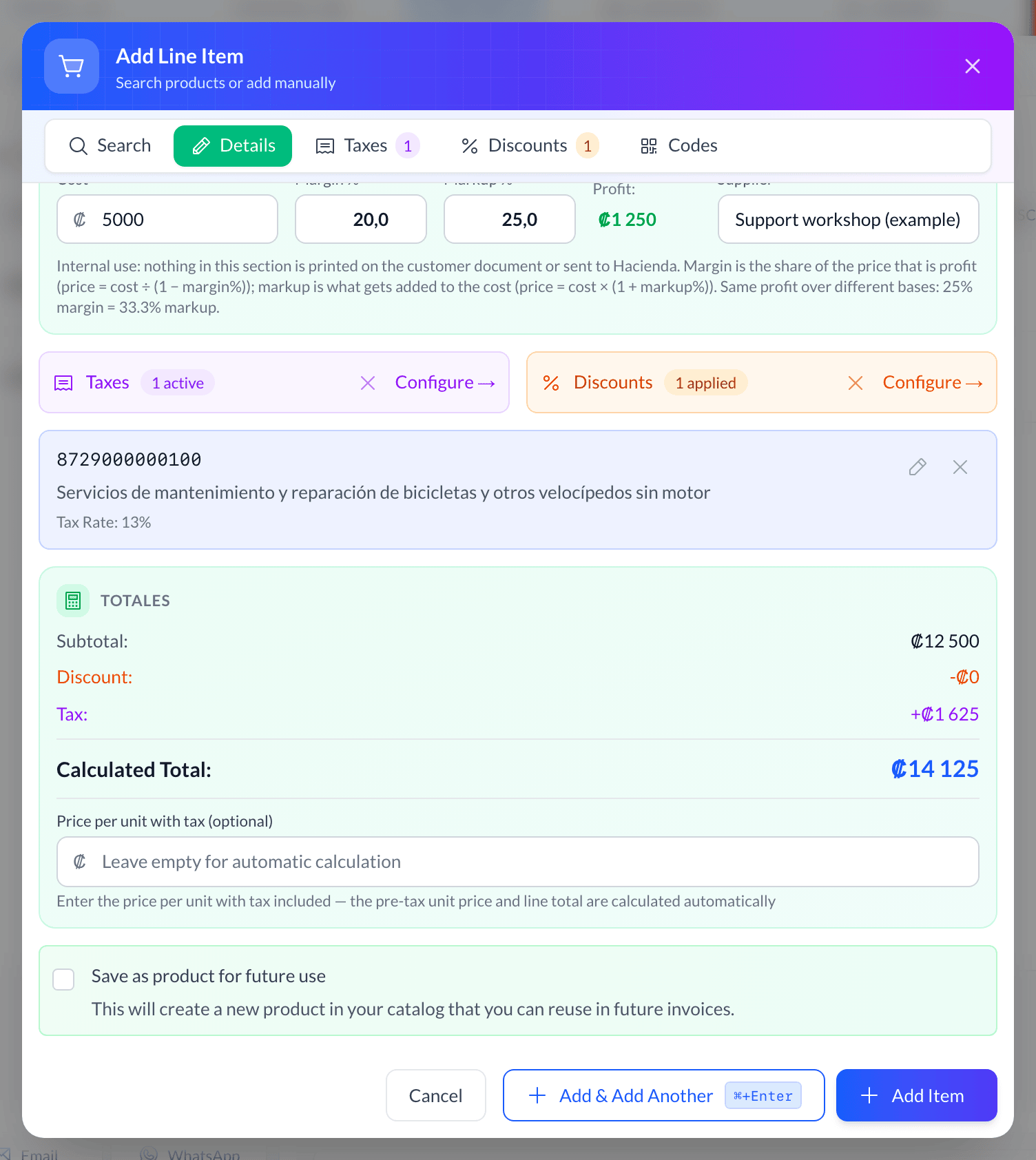
With no discounts or other charges: 2 × ₡6,250 = ₡12,500 before IVA. At 13% IVA, the line totals ₡14,125. When starting from the tax-inclusive unit price, enter ₡7,062.50, not ₡14,125. This is a calculation example, not a tax-rate choice for every service.
Estimates are not sent to Hacienda, but preparing their lines correctly helps when converting them to invoices. See Electronic Invoicing for submission and its validations.
Working in dollars
The document sets the currency. A manual item's CRC / USD switch lets you choose the currency you are typing the price in. Astra converts using the document exchange rate. Always check the currency beside the field and the resulting total; the tax-inclusive unit price is entered in the document currency.
6. Calculate a price from cost when needed
For a manual item, expand Cost and supplier. If it is missing, the organization must enable Price-from-cost calculator in Organization Settings.
- (A catalog product with a cost already shows the Profit bar under the price, with the Margin and Markup over that cost; typing a percentage changes the line's price.) Enter the Cost of one unit. On a dollar document, cost has its own currency switch: you can enter a colón cost while selling in dollars.
- Enter a Margin or Markup percentage. They are different percentages: changing one calculates the price and the other.
- Review the calculated profit and selling price. This calculation uses the pre-tax selling price.
- Optionally enter the Supplier. It is internal reference text, not a purchase record or payment to the supplier.
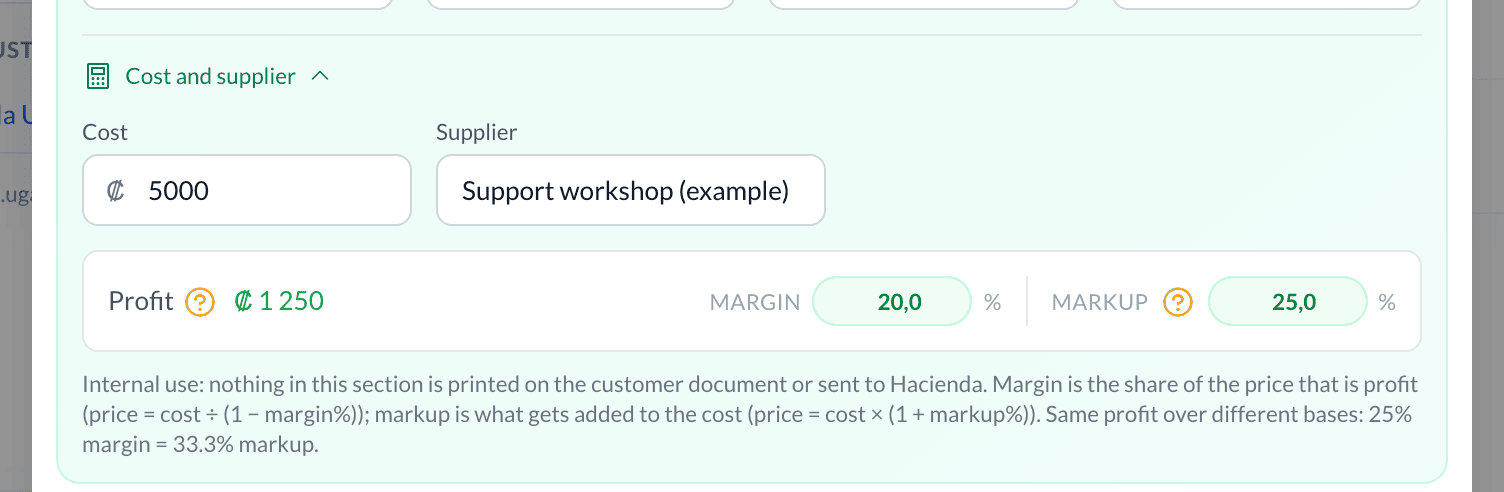
| With a cost of ₡5,000 | Price before IVA |
|---|---|
| 20% margin: profit is 20% of the selling price. | ₡5,000 ÷ 0.80 = ₡6,250. |
| 20% markup: add 20% to cost. | ₡5,000 × 1.20 = ₡6,000. |
Use your business's pricing method and review the result. A colón cost keeps its currency when the document currency changes; its converted equivalent changes with the exchange rate. See also Margin and markup in Products.
7. Save as a product only when you will reuse it
Your catalog does not need every one-off job. Save an item when you want to find it again, keep its fiscal data or track stock for goods.
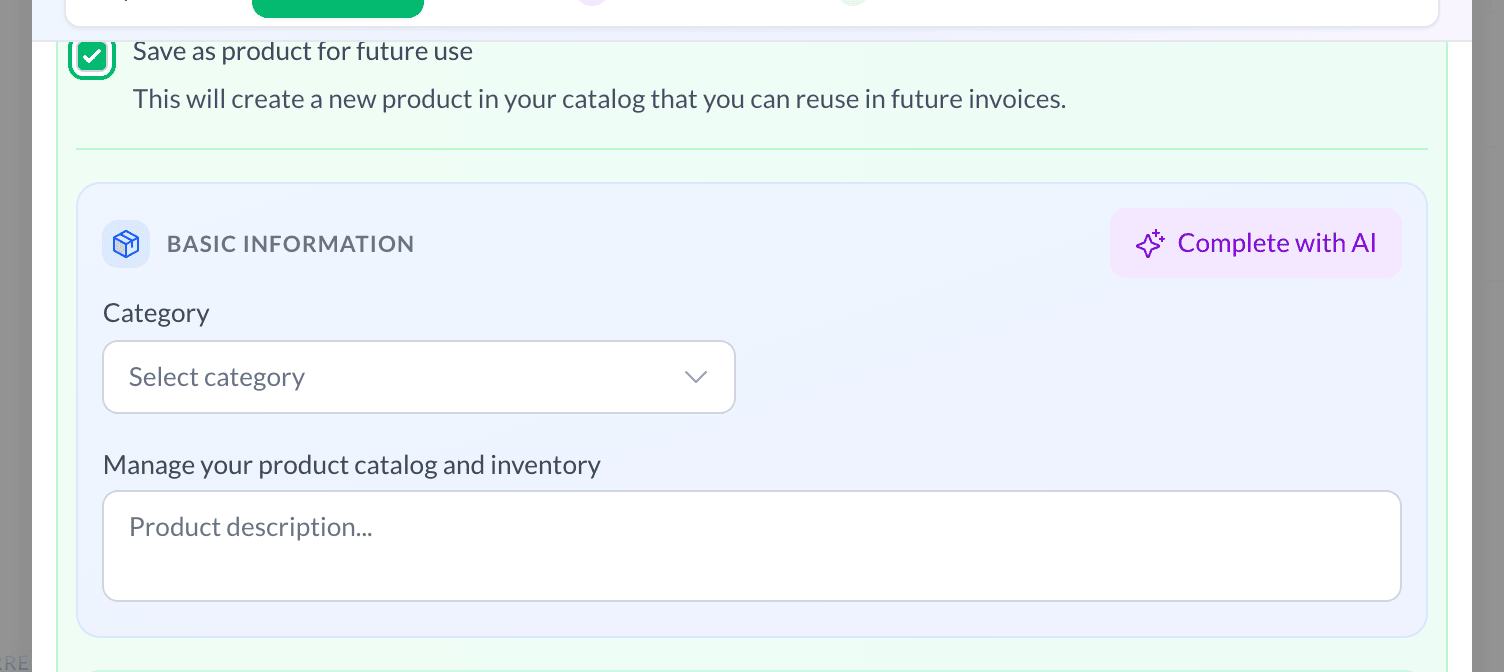
- With the manual item ready, select Save as product for future use in Details.
- The product form opens inside the same window. The line description becomes the new product's name. Complete category, SKU or additional description if useful. If entered, the SKU must be unique within your organization; if left empty, Astra assigns one. Complete with AI suggests the line's name, one of your categories and the CABYS; check what it highlights.
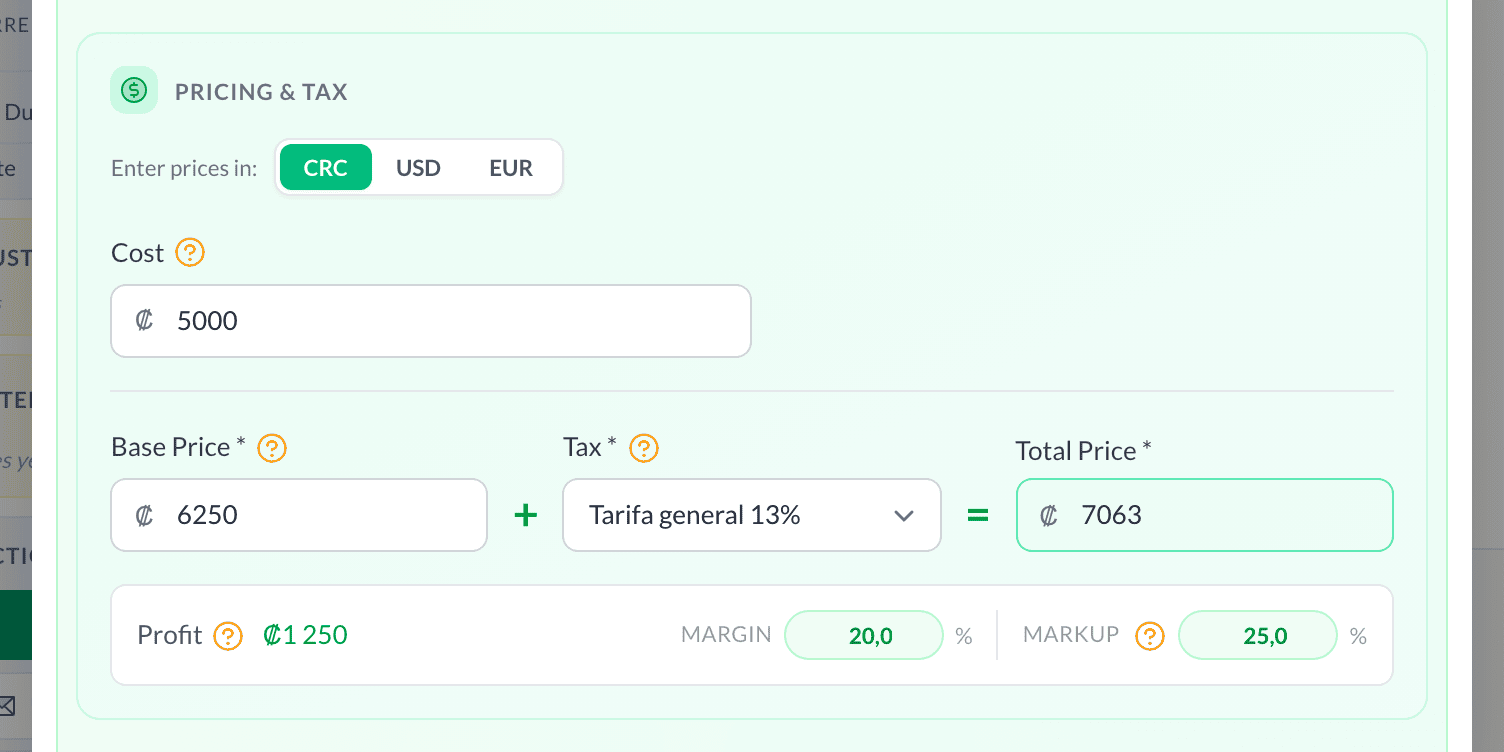
- In the product calculator, review cost, price, IVA, margin and markup. This form includes the calculator even when the manual-line cost helper is disabled. Enter your actual cost; if you leave it empty, the product has no cost until its first purchase. On a dollar document, the product is saved in colones at the document's exchange rate.
- For physical goods, enable inventory tracking only if you will track stock in Astra, and enter actual quantities by warehouse. A service does not need inventory. For fuller configuration, see Products and Inventory and Locations.
- Review all fields and click Add Item. Astra creates the product and adds the line to the document. Selecting the checkbox alone does not save it.
Creating products requires the Create products permission. If your role lacks it, ask the administrator or add the manual item without saving a catalog product. See Team Collaboration.
8. Adjust discounts and taxes where needed
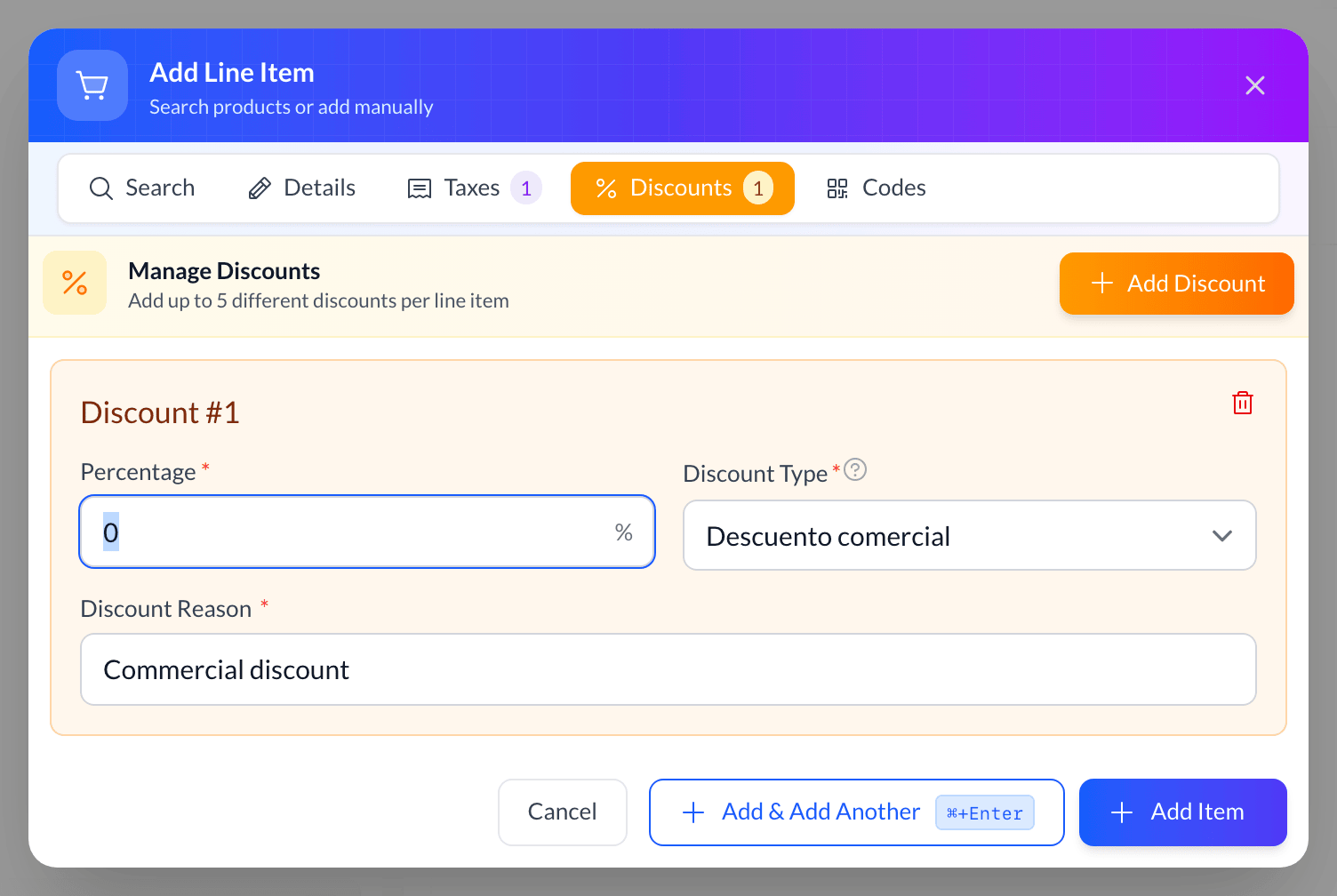
- Under Discounts, add a line discount and choose percentage or amount. Complete the type and reason when requested. This is separate from the document's global discount.
- Under Taxes, check the rate and any customer exoneration. Fill the requested details when registering an exoneration.
- Return to Details and review subtotal, discount, tax and calculated total.
9. Add, review and continue
- Click Add Item to save the line and close the window, or Add & Add Another to enter another item.
- Check the line in Items and the document total. To correct it, click the line's edit button and return to Details.
- For another item, review its taxes and discounts again: add-and-continue retains some choices from the previous line.
- Once the items are ready, follow Invoices or Estimates to review the document and share or issue it.
Saving an item does not submit the invoice to Hacienda or send it to the customer. Issuing and sending are separate steps. A locked invoice or estimate does not allow commercial line changes; read the document's notice before trying to edit.