Purchase Orders
A purchase order (PO) is a formal request to a vendor. It helps you plan before spending, receive goods into inventory, and speed up invoicing when they arrive. When you add items, the To order tab shows what is running low, and the Purchase History panel (Purchase Intelligence) suggests how much to order of each product based on sales, current stock and incoming POs.
Purchase orders are on the Contabilidad / ERP plans (ERP Pyme, ERP Pro and ERP Plus). On Solo Facturación they do not appear in the menu.
What is a PO?
A PO is a document you send to a vendor to request goods or services. In Astra it lets you:
- Plan purchases — document what you need before committing.
- Communicate professionally — hand the vendor a detailed order as a PDF.
- Track status — Draft → Sent → Confirmed → Received (or Partial while goods are still missing); Cancelled if it won't be fulfilled.
- Receive into inventory — receiving the PO adds the stock to the warehouse you choose.
- Speed up billing — convert the received PO to a purchase invoice with one click.
- Keep procurement history — every PO per vendor, which feeds the Purchase History panel.
Create a PO
- Go to Expenses → Purchase Orders and click New Purchase Order. Astra creates a draft and opens its detail with the edit window.
- Fill in the order number (Astra proposes the next one), the Order Date, the Expected Delivery Date, the vendor and notes (delivery instructions, conditions). Save.
- Check the Currency: the PO starts in your organization's default currency, or in the vendor's billing currency if they have one. Change it in the Currency menu; a foreign-currency PO needs a real exchange rate before it can be confirmed.
- Add the lines (see below) and review totals. The PO stays in Draft.
In organizations with the production and supplies module, the list offers Create from PDF (supplier invoice): upload the invoice and the AI builds the draft PO with its lines. It needs the AI Features add-on.
Lines: add or import
In the Overview tab, the Order Lines card has two buttons:
- Add Item — opens the Add Item to Order window. Under Search you add one line at a time: catalog product or free description, quantity, unit price, tax rate and notes. Under To order you tick several products that are running low and add them together.
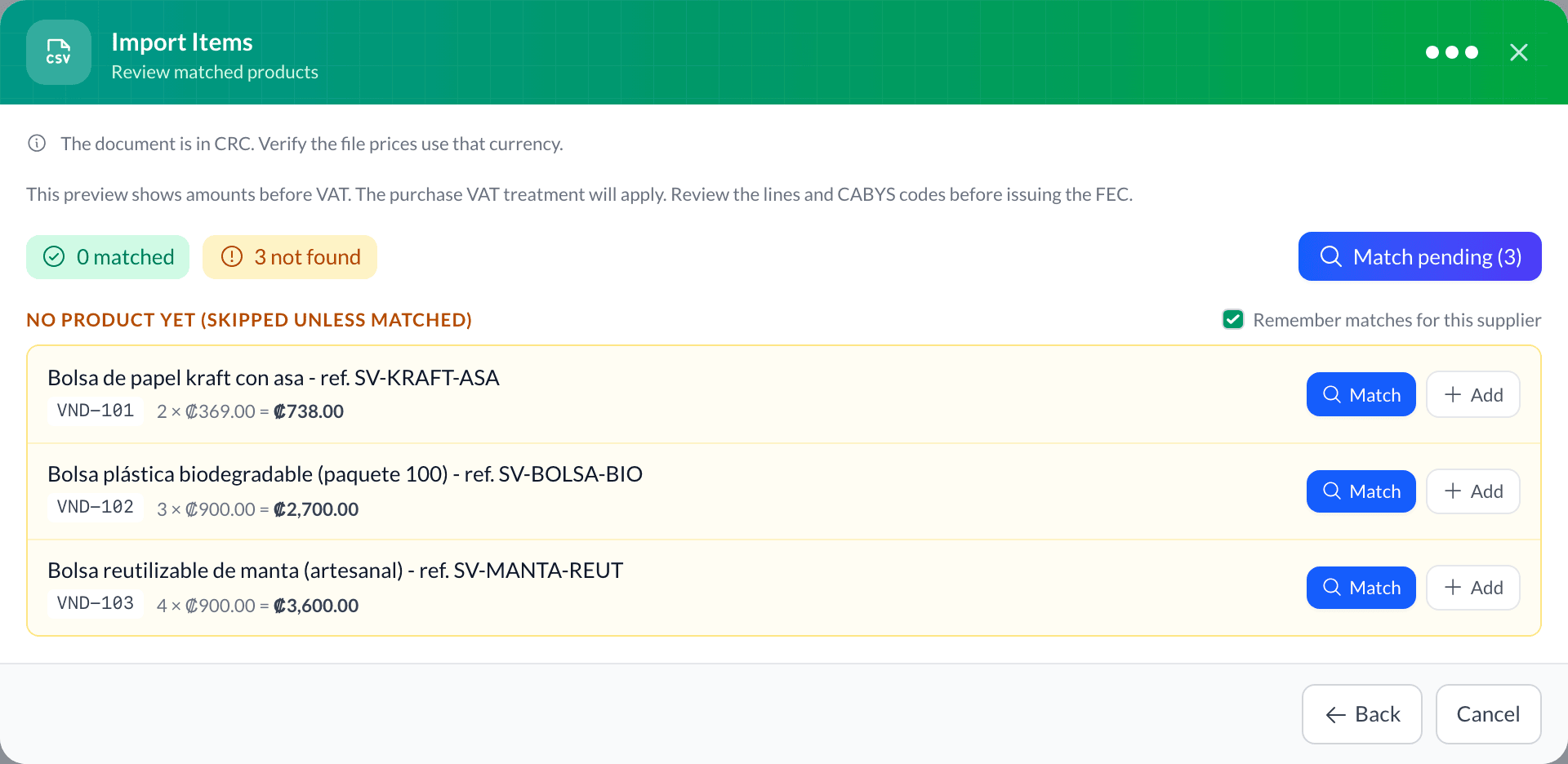
- Import — loads several lines at once from a CSV or Excel file (.xlsx/.ods), the vendor's PDF or FE XML, or by pasting the text of the order-confirmation email. CSV and Excel are read the same way: Astra shows you the columns it detected so you can confirm which is the code, the quantity and the price, and it spends no AI on it. PDFs and pasted text do go through the AI (the AI Features add-on; Hacienda XML does not use it), which extracts items, prices and the shipping cost (added as a separate "Shipping" line). If the document is in another currency, Astra offers to switch the PO's; if it detects the vendor, it offers to assign or create them.
This wizard also serves purchase invoices and FECs. Fractional quantities are preserved, only strong active-product matches are preselected, and confirmed manual matches are remembered per supplier. A currency mismatch must be resolved before importing; the wizard cannot change the currency of an order that already has lines.
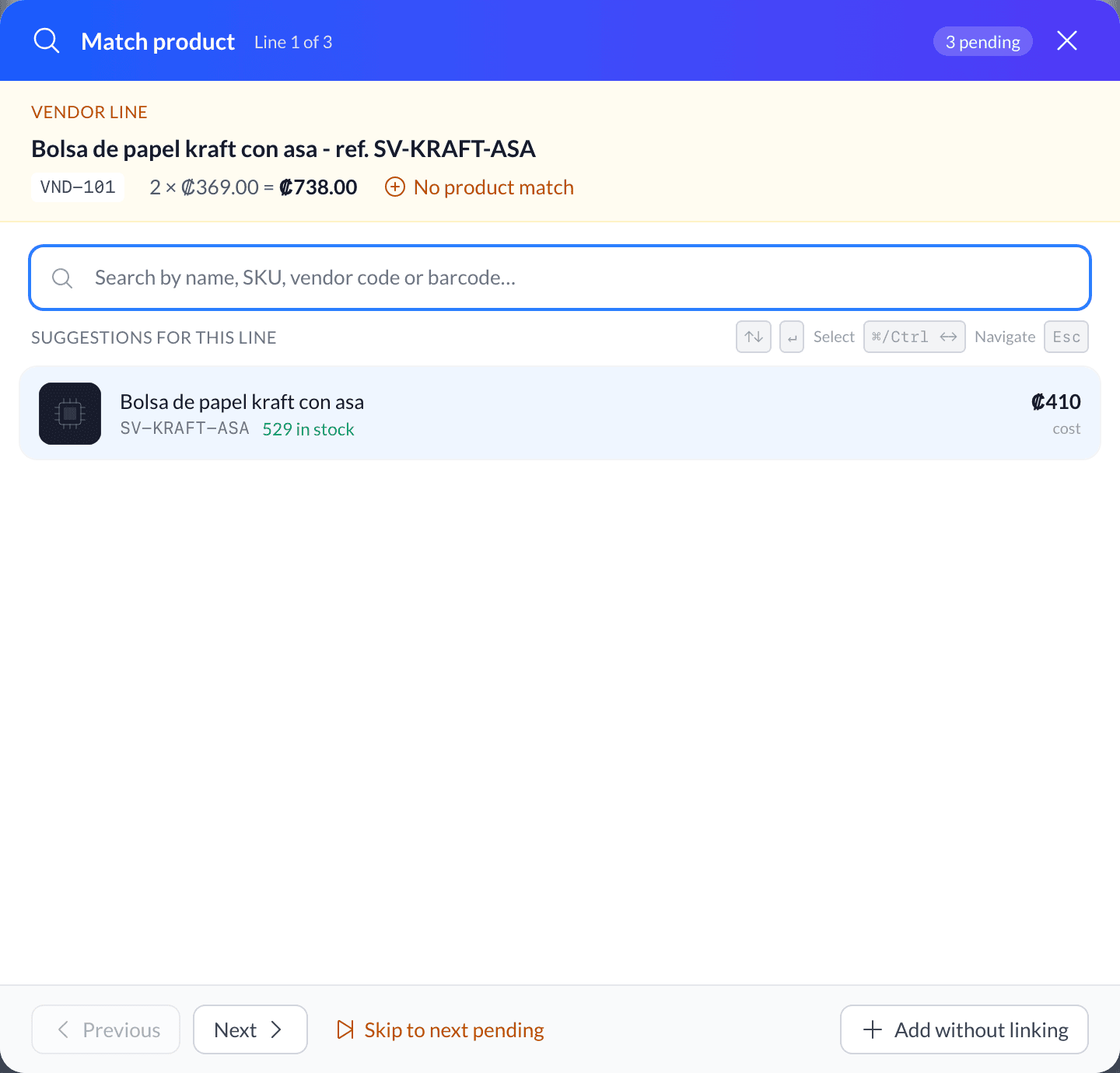
In the review, lines that found no product are listed first, with the supplier's code and price. Click Match pending (or Match on a line) and Astra opens the supplier's line next to the products that look most like it: those already carrying that supplier code first, then the ones sharing model numbers and words. ↵ picks the first one and moves on to the next pending line; if it isn't there, type a name, SKU or barcode (accents don't matter). Add without linking keeps the line as a free description. If an automatic match is wrong, use the magnifier on that line to change the product, or the broken-link icon to send it back to the pending list.
If the vendor sells you a box of 50 tempered glasses and you sell them one by one, add the line as 1 box at the box's cost and, in Comes in a box or pack of, type 50. Below it Astra tells you how many go into stock and at what cost each (“50 units go into stock, at ₡500 each”). The PO still says 1 box at ₡25,000, like the vendor's quote and invoice.
When you receive it, the line brings 50 units at ₡500 and the box counts as received on the PO. If fewer came (for example, 1 of 2 boxes), type the units that came: each keeps its cost and the rest stays pending. Astra remembers that vendor's box for that product: the next PO and the next electronic invoice from that vendor bring it already filled in.
Inactive products don't show up when you add lines and aren't matched automatically on import: a line for one stays as a free description until you reactivate the product and assign it.
To order: what is running low
The To order tab of the Add Item to Order window lists the products that are running low, each with a suggested quantity. You tick the ones you will order and add them to the order in one go. It appears when you track stock for at least one product.
Opening it
- On an order with no lines, click See what needs ordering. (Add Item to Order, next to it, opens the window on Search.)
- On any order, click Add Item on the Order Lines card: the window opens on To order when something is running low, and on Search when nothing is.
- From the Inbox, the Monday summary Products to reorder has the Create purchase order button: confirm with Create and the new order opens directly on To order.

What each row shows
The list runs from most to least urgent. Each product shows Sold 3 mo (and the monthly rate), In Stock, Coverage (the months the stock lasts at that rate), Incoming (what is on sent or confirmed orders), Min, Max, Order (the suggested quantity, which you can change) and Cost.
- Cost is the vendor's cost on the Vendors tab of the product, when there is one; otherwise the product's cost. On a dollar order it is shown converted. Whoever has the View costs permission of Purchase Orders sees it.
- Box of 36 (or whatever the number is): that vendor sells you the product by the box. The Order quantity is in boxes, the cost is per box, and below it you see how many units that is.
- If the vendor has a minimum order for that product, the suggestion never goes below it.
- No sales in 6 months: there are units in stock and none sold in the last 6 months. Astra suggests buying no more, even when the product is below its minimum or sold well before. The row is left out of What is needed; under Below minimum and All products it shows with Order at 0, and if you still want it you type the quantity. It doesn't apply to a product that is out of stock, has been in the catalog less than 6 months or received goods in the last 6 months: it is too early to tell whether those sell.
- Already on this order (n): the product is already a line of this order and can't be added again. Those rows go last.
- Also on draft OC…: the product is on another draft order. Drafts don't count in Incoming yet; check that order before ordering it twice.
Narrowing to what you want to order
- Filter by name or SKU — type part of the name or the code. Accents don't matter.
- Supplier — the list starts on the order's own vendor. A product belongs to a vendor when it is on the product's Vendors tab or when its last order went to that vendor. All suppliers shows the rest too.
- Show — What is needed (what won't last the months in Stock for, or is at or below its minimum; never what is in stock and has gone 6 months without a sale), Critical (under 1 month), Below minimum or All products.
- Stock for — 1, 2, 3 or 6 months. It changes the suggested quantities: how much to order so the stock lasts that long.
- Categories — one button per category, with how many products of the list it holds. All clears them.
- Type — one button per product tag (the Tags on the product page).
Example: you want to order only iPhone screens, without the screen protectors. Click the iPhone category and, under Type, Screen. Only the iPhone screens that are running low remain.
A product shows under a Type only if it carries that tag. If a screen protector carries the tag Screen, it comes up together with the screens: give it Screen Protector and remove Screen. Tags are changed on each product page.
Tick and add
Nothing goes into the order by itself.
- Tick the box of each product you will order. Typing a quantity in Order ticks the row for you. The checkbox in the heading ticks every row on screen that has a quantity.
- At the bottom you see how many units are ticked and the estimated amount.
- Click Add N items. Each ticked product becomes a line of the order.
- The window stays open: switch category or type, tick and add more. When you're done, click Close.
- A ticked row that a filter hides is not added; the window tells you how many are left out.
- New lines start with the tax rate of the lines already on the order; if there are none, with the rate of the last order to that vendor; failing that, 13%.
- On an order with no vendor yet, pick one in the list: adding makes it the order's vendor.
- To see a product's history or adjust its cost before adding it, click its name. Details opens with the Purchase History of that product and the row's quantity; Add & Continue adds it and returns to To order.
Min and Max
With the Adjust permission of Inventory, you change a product's Min and Max right in its row. The figure is the total across all locations.
Auto Min/Max works them out from sales. Choose the Sales Period and the Stock Coverage; Astra shows the new levels next to the current ones, without changing anything yet. Apply N changes saves them; Back to the list leaves without changing anything.
The minimum becomes what sells in a month and the maximum what sells in the months of coverage. A product with stock that sold nothing in the period loses its minimum and maximum (both go to 0), and a note above the list of changes says so: a minimum set when the product still sold stops asking for a purchase. Products that are out of stock, joined the catalog inside the period or received goods in that time are left alone.
Purchase History (Purchase Intelligence)
When you pick a catalog product on a line, or click a product's name under To order, Astra shows the Purchase History panel with what you need to decide how much to order of that product:
What the panel analyzes
- Last order — quantity, cost, date and vendor of the product's last PO, and how many days ago it was.
- Units Sold — in the last month, 3, 6 and 12 months, to detect trends and seasonality.
- Sales rate — units per month; Astra uses the shortest window that has data.
- Stock coverage — days or months of inventory at that pace.
- Incoming — units on sent or confirmed POs, so you don't double-order.
- Cost trend — percentage change between the price of the last order and the one before it. Both are compared in colones, each at its own order's exchange rate, so an order in dollars and one in colones compare correctly. The warning Current cost is X% vs last order is worked out the same way.
- Avg lead time — average days between order date and actual delivery on received POs.
Suggested quantity, one click
The Suggested order qty covers about 3 months of sales at the current pace, minus what you already have on hand and what's incoming. Click Order and the quantity fills into the line; adjust it before saving.
When the product has units in stock and has gone 6 months without a sale, there is no suggested quantity and the stock box says so: "In stock and nothing sold in the last 6 months: no purchase is suggested."
The panel helps you avoid two typical mistakes: over-ordering (capital trapped in slow inventory) or under-ordering (stockouts that cost sales and force rush orders). It accounts for seasonality because it looks at 1, 3, 6 and 12-month windows.
Products without history
If the product is new (no sales or purchases recorded), the panel shows no suggestion. Enter the quantity manually. After the first sales, future POs will have data.
PO list

Reach it from Expenses → Purchase Orders. Each row shows order number, vendor, order date, expected delivery, total, status and whether it's already invoiced.
Status filters
- Draft — created but not sent.
- Sent — marked as sent to the vendor, awaiting confirmation.
- Confirmed — the vendor confirmed; ready to receive, or to convert to invoice if you already paid it.
- Received — goods received; ready to convert to invoice.
- To be billed — sent, confirmed or received orders that have no purchase invoice yet and weren't closed. It's the same list Accounts Payable shows apart: an order isn't debt until the supplier's invoice arrives.
Cancelled and partial POs show with their status under All.
Close several at once
With the To be billed filter on, every row gets a checkbox and an amber bar appears above the list. Use it to clear old orders that will never be billed (ordered by phone and bought elsewhere, the vendor didn't deliver, the purchase was already recorded from its electronic invoice):
- Tick the orders, or Select this page to tick every one you see.
- Click Close (N) and confirm.
- Each order is closed with a follow-up note saying where it was closed from, and leaves the list. If you got one wrong, open it and use Reopen Order.

You need permission to edit purchase orders. Companies with the production module don't get the bar: there an open order is still part of the accounting.
Search
Search finds by PO number, vendor invoice number, or vendor (name, company, trade name or ID number). For complex combinations use Advanced Search.
PO detail
Clicking a PO opens its detail. At the top, the number and the Edit button; the tabs are Overview (lines, with what came in out of what was ordered and what is pending per line, and the Receipts card), Activity and Files (see below). In the sidebar:
- The status progress: Draft → Sent → Confirmed → Received.
- Supplier — with Change Supplier while the PO isn't received or cancelled.
- Dates — order date and expected delivery (editable inline) and Delivered once received.
- Currency and amounts (subtotal, tax, total).
- Linked Invoice once converted, and Source document if the PO was born from a received document.
- Import Costs (see below), internal notes, and Link work order if you use work orders.
- PDF — opens the PO PDF in a new tab.
The available actions depend on the status: Send to Supplier (Draft), Confirm Order (Sent), Mark as Received (Confirmed), Receive what is pending (Partial), Verify with Invoice (Confirmed or Partial), Convert to Invoice (Confirmed, Partial or Received), Cancel Order (until it's received) and Close Order / Reopen Order.
Files
The Files tab keeps the supplier's documents with the order: the quote, proforma or invoice you built the PO from, and whatever comes later, like the shipping note. Upload File takes any file up to 50 MB; from the same list you can view or download them.

Seeing the files needs permission to view purchase orders; uploading or deleting them, the Purchase Orders Edit permission. When an AI assistant builds the PO from an email or a PDF, it offers you a link to upload the supplier's document there.
Receive the goods
Receiving is what puts the stock into inventory. It goes by quantity: you can receive part of what was ordered today and the rest another day. With the PO in Confirmed (or Partial):
- Click Mark as Received (on a Partial PO, Receive what is pending). Receive goods opens with the lines that still have something pending.
- Each line shows Ordered, Received (what came in on earlier receipts) and Pending. Receive now starts at what is pending: change it to what arrived, for example 6 of 10.
- Under What to do pick To inventory (adds the quantity to stock), Receive only (received without touching inventory: shipping, freight, a service) or Did not arrive (it didn't come in this delivery and stays pending on the PO). A line with no product starts as Receive only; if it is merchandise, click Match on the line to link it to an existing product, or Create Product to create one, and it switches to To inventory.
- Under Location pick the warehouse for each line going to inventory. Astra suggests where that product came in last time.
- Click Record receipt. The confirmation says what goes into inventory, how much and where, what is received without inventory, and what stays pending on the order.

A line ordered by the box (bought by the box, sold by the unit) is received in units: Ordered, Received and Pending show units and Box of 50 appears under Receive now. If a box holds a different amount, change it there. On a line not marked as a box, click Comes in a box? and type how many units it holds.
Below, Total received adds up what comes in today: the lines' subtotal, each PO line's VAT, and the total.
Once recorded, the PO moves to Received if nothing is left pending; otherwise it stays Partial, and in the detail each line shows what came in out of what was ordered (for example 6 / 10) and Pending: 4. To receive the rest, click Receive what is pending again: the new receipt brings only what is missing. What is pending still counts as on the way.
There is one receipt in progress per PO, and it belongs to the company: anyone with the Purchase Orders Receive goods permission continues it from the Continue receipt notice.
Close shortfall
If the supplier won't send the rest of a line, open the line's menu in the PO detail and choose Close shortfall. Enter the reason (for example, the supplier has no more stock) and confirm. What was pending on that line is no longer expected, the line shows Shortfall closed, and a follow-up note records who closed it, when and why. If no line has anything pending, the PO moves to Received.
If the PO already has its invoice (you converted it before the goods arrived), what won't come is still invoiced: when you close the shortfall Astra opens the FEC's credit note with that line and quantity.
Annul a receipt
In the PO detail, the Receipts card lists each receipt with its date, who recorded it and how many units it brought. Annul Receipt on one of them takes what came in with that receipt back out of the warehouses (if it hasn't been sold or consumed yet), reverses its effect on the average cost, and returns those quantities to Pending. The PO stays Partial if another receipt still stands, or goes back to Confirmed if nothing received is left. Annulling is available to every company, as long as the PO hasn't been converted to a purchase invoice.

If the PO's goods already came in through an import of the supplier's document (the document's XML in Document Reception or a Purchase Import document linked to it), Mark as Received says so and opens no other receipt; to redo it, annul that receipt first. The other ways to bring goods in are in How stock gets into inventory.
If you deactivated a product after ordering it, the receipt marks it Inactive. The stock still comes in; reactivate it if you'll sell it again.
Verify with Invoice: instead of receiving blind, upload the vendor's invoice (PDF or XML) linked to the PO; Astra compares quantities and prices against what was ordered, and you receive from that same screen.
Receiving, continuing a receipt, closing a shortfall and annulling a receipt need the Purchase Orders Receive goods permission (Administrator and Assistant have it).
Receive before the invoice arrives
When you receive a PO that doesn't have its purchase invoice yet, the goods are already on the shelf and already owed to the vendor, even though they haven't billed you. The books show it like this:
- The receipt books the goods in Inventory and what you owe in Mercancía recibida por facturar (goods received not invoiced), at the PO's cost (on a dollar PO, at the PO's exchange rate).
- When the invoice arrives (you convert the PO, or the vendor's electronic invoice comes in and is linked to the order), the purchase settles Mercancía recibida por facturar and moves the debt to Accounts payable, without booking Inventory again. If the invoice's price or exchange rate differs from the PO's, the difference goes to Inventory.
- If the vendor never bills, the balance stays in Mercancía recibida por facturar: it's what you owe. Its ledger in Accounting lists each receipt with its PO.
- This applies to companies with automatic purchases whose chart has the Mercancía recibida por facturar account, from the day it was added. Without it, the receipt books nothing and the invoice books Inventory as before; add it in Accounting with Configure suggested accounts.
Import costs
If the purchase carries extra costs — freight, customs/DUA, other — record them in the Import Costs card on the PO detail with Add Cost. Each component has a Type (Goods, Freight, Customs / DUA or Other), description, amount, currency and exchange rate (prefilled from the PO's own rate, or from the rate configured for your organization).
- Received e-invoice (optional): if the freight or customs company sent an electronic invoice, pick it in that field — the amounts prefill from the real document and Astra prevents recording the same expense twice.
- What do these costs do? They add to the order's total cost and appear in the product page's Purchases section as part of the final cost per unit — so you know what each unit really cost. Organizations with the production module additionally prorate them automatically into the inventory average cost on receipt.
- The costs lock once the PO is received or cancelled.
Convert to purchase invoice
Once the vendor confirmed the PO (Confirmed, Partial or Received), convert it to a purchase invoice with one click — all lines carry over.
- Open the PO (no linked invoice, not closed).
- Click Convert to Invoice.
- Astra creates the purchase invoice with the PO's vendor, lines, currency and exchange rate, today's issue date and a due date 30 days out, and opens it.
- Fill in the vendor's invoice number and adjust dates or lines if prices changed.
Converting doesn't delete the PO. Both documents stay linked — the PO records what was ordered, the invoice what you were actually charged. If the expense is already recorded another way (for example the vendor's FE came in through Document Reception), use Close Order with a follow-up note instead of converting; Reopen Order undoes the close.
Invoice before the goods arrive
When you pay as you order — parts bought abroad, for example — the purchase and its FEC belong on the payment date, not the arrival date. Convert the PO as soon as the vendor confirms it; receiving stays open and adds the stock when the parts arrive, as always.
- In the books, what hasn't arrived yet sits in Mercancías en tránsito (goods in transit), not Inventory. Each receipt moves what came in to Inventory at the invoice's cost. Whatever had already arrived when you invoiced skips transit: it's already in Inventory, and the invoice settles what that receipt left in Mercancía recibida por facturar.
- This applies to companies with automatic purchases, where the purchase invoice books stocked products to Inventory, and whose chart has the Mercancías en tránsito account. Without it, the invoice books Inventory as before; add it in Accounting with Configure suggested accounts.
- While the PO has its invoice, its lines can no longer be edited: whatever doesn't come is credited with a credit note.
What never arrives on an order already invoiced
If part of the order won't come (out of stock, discontinued), use Close Order on the invoiced PO:
- Click Close Order. The window lists what is still pending; enter the reason and confirm. Those quantities become a closed shortfall and the PO moves to Received.
- Astra opens the FEC's credit note with those lines and quantities already ticked and the reason filled in. Review it and issue it. That leaves nothing in goods in transit.
- If the FEC was already paid, what the note credits becomes a credit balance with the vendor: record the money they return with Refund on the note's Credit note card, or leave it for Astra to apply to that vendor's next purchase in the same currency. See FEC for what you paid when ordering.

If only part won't come and the rest is on backorder, don't close the order: use Close shortfall on the line that won't come and leave the rest pending; the PO stays Partial until it arrives. If Hacienda hasn't accepted the FEC yet, or the invoice is the vendor's own, Astra says so: issue the note once Hacienda accepts the FEC, or ask the vendor for their credit note.
When the vendor's invoice arrives on its own
In companies with automatic purchases, the electronic invoice you accept becomes the purchase by itself, and Astra looks for the order that purchase bills: same vendor and currency, still to be billed, dated from 60 days before the invoice to 7 days after, for a total that agrees within 2% (as is, or adding the 13% IVA the order left out). If there is exactly one such order, they are linked and the order closes. With two or more, or a partial invoice, none is linked: the order stays in To be billed for you to review. If that vendor has orders received without an invoice, the purchase waits in Purchases to review as Invoice for a received order: press It's the invoice for the right order, or Not from any order. Until you link it, those goods count twice in Inventory. Received orders still without a purchase also show in Expenses → Purchases to review, with how many days they've waited and Close without invoice for when you know the invoice won't arrive.
The order an import leaves
When you bring a document's XML into inventory with Import XML into inventory, Astra leaves a purchase order already Received with what came in and at what cost. It is not an order to place: there is nothing to send, confirm or receive. Its page says so in the green box Record of what came into inventory, with View purchase invoice FC-… or, if it doesn't exist yet, Create the purchase invoice from the comprobante. That is why this order has no Verify with Invoice or Convert to Invoice: the debt to the supplier is on the purchase invoice.

Send to the vendor
Astra doesn't email the PO. The flow is:
- Open the PO and click PDF: it opens in a new tab with your logo, vendor data, lines, totals and notes. Save or print it and get it to the vendor through whatever channel you use.
- Click Send to Supplier to mark it Sent (the PO needs at least one line).
- When the vendor confirms, click Confirm Order. If the PO is in a foreign currency it needs a real exchange rate first — set it in the Currency menu.
Ordering on the supplier's website: cart file
Many suppliers' websites have a quick order or an upload by file: instead of looking up product by product, you upload a CSV or Excel with their codes and the quantities, and the cart fills itself. In the order's sidebar, click Cart file:
- In Layout the supplier's website asks for, pick the one that site takes: CSV: sku,qty, Excel: SKU | Qty, CSV without header, CSV with semicolons or Detailed Excel. If the site asks for other columns, click Adjust columns: choose the file type, the separator, whether the first row has headers, and each column (supplier's code, our code, barcode, quantity, description, cost, line total, product link or order number), with the exact header the site asks for.
- A product without that supplier's code shows in yellow: type the code and it is saved for the next order. Until it has one, it goes with our code or stays out of the file, as you choose in When a product has no supplier's code.
- Check the Preview and click Download CSV or Download Excel. Upload it on the supplier's website.
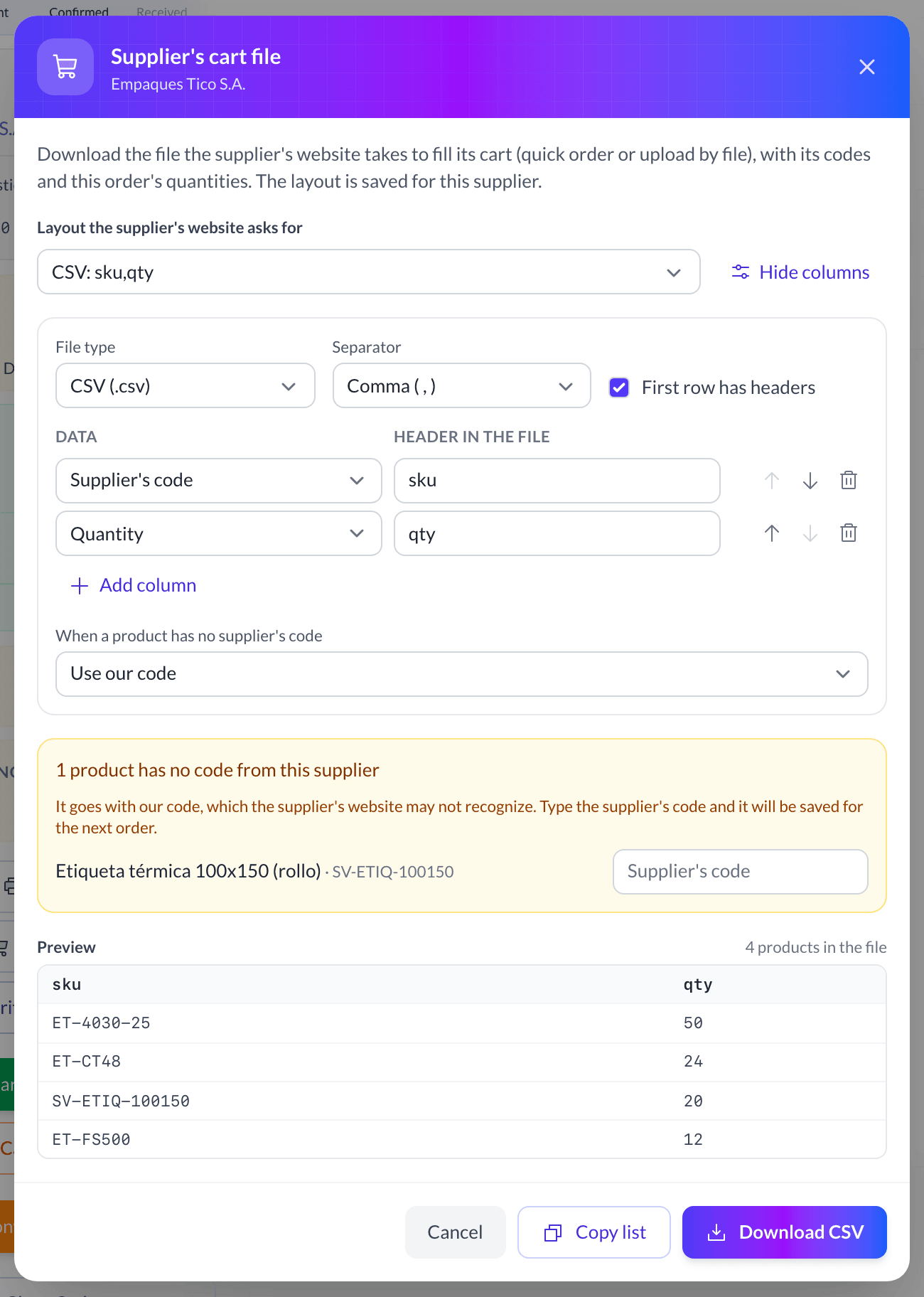
If the site asks you to paste the list into a box instead of uploading a file, click Copy list: it copies code and quantity, one line per product. A code repeated in the order goes once with the quantities added up, and lines that are not products (freight) stay out of the file.
Even if you communicate informally with vendors, creating a PO in Astra gives you an auditable record, puts the stock into inventory on receipt, simplifies billing when goods arrive, and feeds the Purchase History panel with data for future suggestions.
Need more help?
Our team is ready to assist you.