How to record a purchase
Every supplier invoice follows the same path in Astra: it is accepted with Hacienda, becomes a purchase invoice, gets a category, has its VAT reviewed, goes into inventory if it is goods, and gets paid. This guide is the map of that path, for a company with automatic purchases and for one without them. It also covers what to do with purchases that don't come with an electronic invoice and what to check at month end. The details of each screen are in the linked articles.
Recording purchases is on the Contabilidad / ERP plans (ERP Pyme, ERP Pro and ERP Plus). On Solo Facturación your suppliers' documents arrive in Document Reception and are accepted with Hacienda, but they are not recorded as a purchase or an expense.
Depending on what you have
| What happened | What you do in Astra |
|---|---|
| The supplier sent you the electronic invoice | Accept it in Document Reception and follow that purchase's path. The purchase invoice creates itself if your company has automatic purchases, or takes one click if not. If the purchase was already recorded, the document attaches to it instead of creating another. |
| You paid something on the spot: a store, parking, an online purchase | A Paid purchase, from the + menu: with the electronic invoice to come, a ticket or nothing. |
| You paid it with cash from the till | In Cash Register, Record Movement → Purchase or expense: the purchase is paid from the till. |
| The payment is already on the bank statement and you didn't record it | In Reconciliation, Pay the open purchase Astra offers, or + Paid purchase if there was none. |
| You bought from someone who does not issue a Costa Rican electronic invoice (abroad, or not registered) | The purchase with its foreign invoice and, when it applies, the FEC you issue from the purchase. |
| You paid it with your own card or account | A purchase paid from your personal account: the company owes it to you and you see it under To reimburse. |
| You are going to order goods from a supplier | A purchase order. The purchase comes with the supplier's invoice. |
| The supplier sent you a credit note | It applies by itself to the purchase it corrects; anything left over stays as supplier credit. |
| A supplier who leaves goods on consignment billed you for what sold | Link their invoice to the settlement in Consignment. See A consignor's invoices. |
| A bank fee or a State tax with no invoice | Not a purchase: an adjustment in Reconciliation. |
The path of a purchase
The page of every accepted document, and of every purchase invoice made from one, has the box This purchase, step by step. It is the map: the steps in order, which are done, which one is next and which are still to come. The next step is highlighted, and its button takes you to the screen where it is done. At the top right, 2 of 5 done says how much is left; when everything is done it says All done.

| Step | What it is | Where it is done |
|---|---|---|
| Accepted with Hacienda | Your answer to the document (the Mensaje Receptor). Due by the eighth business day of the following month. | Document Reception |
| Purchase invoice | What you owe the supplier. It is what puts the expense in your books. | Document Reception |
| Classify the purchase | Three decisions together: the category (what the expense was for: parts, rent, fuel…), the purchase class if your company uses it (Tax Review's own classification, for example Supplier or Expense) and the VAT: how much is credited and whether it is a business expense for income tax. Below, it says which are done and which are missing. | The Classify purchase window, right there |
| Bring into inventory (optional) | Only if it is goods you sell or use. | Import XML into inventory |
| Consignment settlement (consignors only) | The invoice that bills what sold of goods left on consignment. | Consignment |
| Payment | The money that went to the supplier. | The purchase invoice |
The path only shows the steps that apply to you: the VAT appears if your plan has accounting and you can see it, the purchase class when, on top of that, your company turned it on under Settings > Sales and purchases, the inventory step if the document is an electronic invoice with its XML, and the consignment step if the supplier leaves goods with you on consignment.
Category, class and VAT go together in Classify the purchase when the window can decide them: the document carries its lines with VAT, you can change tax adjustments, and that month's VAT return isn't due yet (or its VAT is already decided). Otherwise they are separate steps — Choose the category, Choose its purchase class and Review the VAT condition — each leading to its card: for example on a document from a month already filed, or on a credit note, which takes the category of the purchase it corrects.
The Reception row says what's next
In Expenses → Document Reception, the button on each row doesn't say Manage: it names the step that document is missing and takes you straight to it, without opening the document. A click anywhere else on the row opens the document's page, with the whole path.

| The row says | What it means | Pressing it |
|---|---|---|
| Answer | The document is waiting for you to accept or reject it with Hacienda. | Opens the response window. |
| Create purchase | It is accepted and has no purchase invoice yet. | Astra creates it and takes you there. |
| Being created… | With automatic purchases: the purchase invoice shows up in a few seconds. | Opens the document's page. |
| Check purchase | The purchase invoice no longer adds up to the same as the document (see When the purchase no longer matches). | Opens the purchase invoice. |
| Classify | It is missing its category, its purchase class or its VAT condition. | Opens the Classify purchase window over the same list, with what Astra suggests already selected. |
| Choose category, Choose class, Review VAT | The same on a document the window doesn't decide whole: from a month whose VAT return is past due, a credit note, or when you can see the VAT but not change it. | Opens the purchase invoice at its card, or the window to look at the VAT. |
| To pay | Everything is done except the payment. | Opens the purchase invoice with its payment window. |
| Done ✓ | It has its purchase invoice, category and reviewed VAT (and its purchase class, if your company uses it), and it is paid. | Opens the document's page. |
| Manage | No step left on the list: it is rejected, Hacienda is still processing it or returned an error, its purchase invoice is voided, or your plan doesn't record purchases. | Opens the document's page, which says where it stands. |
To see together every document waiting for the same step —all the ones without a category, all the ones still to pay—, use the Missing strip above the list.
Day to day, step by step
The path is the same in every company. What changes is who takes some of the steps: with automatic purchases, Astra creates the purchase invoice as soon as you accept and gives it a category when it already knows the supplier; without them, you take each step with one click from the path. Both ways are complete: pick yours.
If the Expenses menu shows Purchases to review, it does. Another sign: after you accept a document, the path says The purchase invoice is being created on its own (it has them) or Create the purchase invoice (it doesn't). They are switched on and off in Settings → Sales and purchases → Automatic purchases; new companies start with them on. See Switching them on or off.
Without automatic purchases
- Accept the document. In Expenses → Document Reception, the row says Answer: press it and choose Accept, Partial accept or Reject in the window. To review the lines first, open the document with a click on its row: its Response to Hacienda card has the same three buttons. See Accept, partial, or reject.
- Create the purchase invoice. Once accepted, the row says Create purchase: press it (on the document's page, the same step is Create purchase invoice, on the path). It is one click: it brings the supplier, the lines and the amounts from the XML, and nothing is sent to Hacienda. For several at once, tick their boxes in the list and press Create purchase invoices. See Create the purchase invoice.
- Classify the purchase. Classify with Astra on the path (or Classify on its Reception row) opens the Classify purchase window right there: the category, the purchase class if your company uses it, each line's VAT condition and whether it is a business expense, with what Astra suggests already selected. Check it, change what doesn't fit and press Confirm: it all saves together. With Remember ticked, that supplier's next purchases already arrive with their category. See The Classify purchase window.
- If it is goods, bring them into inventory. Import XML to inventory opens the Purchase Import review with the XML's lines. When you confirm, a purchase order is left already Received, as a record only: there is nothing to send or receive. See Import the XML into inventory.
- Pay it. Record payment on the path opens the purchase invoice's Payments tab. See Record a payment.

Without automatic purchases there is no Purchases to review screen. What's missing is shown by each Reception row's button, each purchase's path and, at month end, My accounting.
With automatic purchases
- Accept the document, or let automatic acceptance do it.
- The purchase invoice creates itself. A few seconds after you accept, the row says Being created… and then the next step. If you had already recorded that purchase with the supplier's number, the document attaches to it. If it only looks like one that exists, it is held as a possible duplicate in Purchases to review. If Astra couldn't create it, the row says Create purchase and the path says why. See Automatic purchases.
- The category. If Astra already knows the supplier, the purchase arrives classified. If not, it waits in Expenses → Purchases to review, under To classify: classify one supplier at a time, with Remember for this supplier ticked. On the purchase invoice, the picker is in the amber To classify notice above the lines; the Category card only says Choose it in the notice above. See Classify your purchases.
- Classify the rest, the same as without automatic purchases: Classify with Astra on the path opens the Classify purchase window, with the category already set and the rest suggested. If that supplier already has its VAT remembered, the path says Purchase classified and Remembered for this supplier: nothing to do, unless you Change it.
- If it is goods, bring them into inventory, the same: Import XML to inventory.
- The payment. If the invoice is cash (contado) and under Expenses → Suppliers you told Astra which account you pay that supplier from, the payment is already recorded. If not, Record payment on the path.

At month end, Purchases to review should be at zero.
The Classify purchase window
A document's category, purchase class, VAT and income-tax answer are decided without leaving where you are: Classify with Astra on the path, the Classify button on its row in Reception or, on the document's page, a click on any line's condition opens the Classify purchase window over the same screen. Astra fills it in with what it can tell — the category and class the supplier's other purchases have, or the ones it reads in the lines, and each line's VAT condition — and you check it and press Confirm once: it all saves together.

- The supplier, by the name you know it by. The header shows its commercial name when the document carries one («iGenius» instead of «3-102-837269 S.R.L»), with the legal name beside it. Astra reads both.
- What Astra leaves selected. If you already confirmed that item from that supplier with Remember, the same condition comes. With ERP Pro, when nothing is remembered, Astra reads each line by what it is — its CABYS, its description and the supplier — and leaves its suggestion selected at medium or high confidence, a 04 No credit included. It presumes what was bought in the company's name is for the business: office, cleaning or packaging items from a supermarket are credited too. What Astra selected shows in purple, with its confidence and its reason. You always decide: nothing is saved until Confirm. What Astra read does stay on the comprobante: close the window without confirming and open it again, and the same suggestions come back without spending another AI read; Review the month's VAT with AI in Tax Review uses that same reading.
- When Astra is not sure, it selects nothing: the line stays on Choose condition with Astra suggests 04 · No credit · low confidence and its reason, which puts it in one click. Likewise the category and the class: they stay amber with Astra suggests «…» · Use. So what shows as chosen never contradicts Astra.
- Without AI. Without ERP Pro, or once the month's AI reads are used up, the window works the same without Astra's suggestions: what you saved with Remember comes in, and so do the category and class of the supplier's other purchases; you choose the rest. Next to the cards it says why there is no suggestion, and on the journey the button just says Classify. The reads renew on the 1st (see AI token budget).
- The lines. Each with its description, its CABYS, its amount and its VAT. Lines without VAT show in grey as No VAT: they take no condition. Next to each line with VAT is its condition, with a coloured dot, and below it where it came from: Remembered for this supplier, As it was saved last time or Astra's reason. If you change it, a link takes it back to the remembered or suggested one.
- Apply to every line. All the lines almost always take the same condition: one click on a card on the right (or keys 1 to 4, or 5 if your VAT profile says your company also sells exempt; if it only sells exempt, the one card is 04) puts it on all of them. You can still change any line afterwards. When the lines end up different, no card shows selected and it says Different conditions per line.
- Several at once. Tick the boxes of the lines that go together (for example, a compressor for the workshop among parts for sale) and choose the condition for the marked ones.
- The VAT credited. The bar on top adds up, as you choose, how much of the document's VAT is credited and how much is not, in colones and as a percentage. With 02 each line asks for the percentage credited; for a business vehicle also used for personal life, the Vehicle: 50% button sets it in one click, as Hacienda's guide says. With 05 the line is credited with the year's provisional percentage, which the bar shows (see mixed use). If your company sells at a reduced rate (4% or 2%, in its VAT profile), each line is credited only up to that rate and the bar says so: from a line with 13% VAT, a company that sells at 2% credits the part 2% would give, and the rest stays as cost. While a line still lacks its condition, the bar says so and it cannot be confirmed.
- Purchases Hacienda doesn't credit. Hacienda's guide «Crédito fiscal del IVA» says jewelry, food and drinks, tobacco, entertainment, travel, hotels and restaurant meals give no credit unless they are part of your activity. If a line's CABYS is one of those kinds, the line warns in amber with Use 04 · No credit, and on the right a box gathers those lines with a button to set 04 on all of them. It is only a suggestion: the condition doesn't change until you choose it, because a restaurant's food does give it credit. If your company sells that same kind of thing (its sales of the last 12 months say so), Astra doesn't warn.
- The category. The purchase's own comes; without one, the one the supplier's other purchases have, or the one Astra reads in the lines, marked Suggested. A click changes it, and it saves with Confirm. Personal puts 04 on every line and No on the income-tax question; Fixed asset, 03. When Astra reads the lines as another kind of purchase than the one saved — a fixed asset, or something personal filed as an expense — the category glows amber; It's fine keeps it.
- Purchase class and observation. If your company uses the Purchase class, the document's own comes; without one, the one the supplier's other documents have (it says Like this supplier's other documents) or the one Astra suggests, and it saves with Confirm. The Observation is a note: it saves as you type it, and alone it doesn't count as reviewed VAT. Both are the same ones as on the document's page and in Tax Review (see Purchase class and observation).
- A category per line. When the lines are different things (at the supermarket, meals and cleaning), press By line next to the category: each line carries its own category, starting from the one Astra suggests for it, and it saves with Confirm, together with the VAT. The button glows when Astra reads the lines as different things. A line in Personal goes to 04 and one in Fixed asset to 03; if you choose another condition for that line, yours stays. Lines of stocked products go to Inventory and don't change. One for the whole purchase goes back to a single category, and later it changes on the purchase invoice with Split by line. If the document has no purchase invoice yet, No purchase invoice · Create it creates it right there so you can choose its category.
- Is it a business expense? This is the income-tax question. No marks the purchase invoice «Not deductible»: it stays in the books but is not deducted in the income tax return. Astra's answer comes when it is sure; when Astra says it isn't but has doubts, or some line is credited (what is credited is the business's), the question stays unanswered until you choose Yes or No. A purchase in the Personal category is always No.
- Remember for this supplier's next purchases? sits at the bottom, beside Confirm, with three options, and the window opens on the one you last picked for that supplier (the first time, Remember):
- Remember: that supplier's next invoices arrive with this category (and this purchase class, if your company uses it), and those with the same items with their VAT already reviewed; that supplier's ones waiting in the same month are decided when you confirm (see Remember VAT conditions). The documents you already had keep their class: to change them all, use the question on the Purchase class card.
- Don't remember: only this document is saved, and next time the window opens on Don't remember. What you remembered for that supplier before stays.
- Ask each time: nothing is saved either, and next time the window opens with nothing picked, in amber: choose one of the three before confirming. Useful for a supplier where every purchase is different, like a hardware store or an online shop.
- Confirm and next pending (or the Enter key) saves and opens the next document with VAT to review, oldest first. Only months whose VAT return isn't due yet count: last month until its deadline (the 15th) and the current one. A document from a month already filed can still be reviewed from its page, but that only corrects your books. From Purchases in Tax Review, it walks the month on screen instead, in the list's order. If you opened the window from a document's page, moving on opens the next one's page too, so what you see behind it is the document you are deciding. Previous goes back to the one you just saved.

The window closes with the Esc key or its X; a click outside doesn't close it, so you don't lose what you were choosing. Changing it needs the Accounting tax adjustments permission; without it the window can be seen but not changed, and in a closed month it cannot change. Condition 05 (proportionality) only appears if your company sells both with VAT and exempt. To review the whole month at once there is still Tax Review's Purchases tab.
What changes between the two
| Without automatic purchases | With automatic purchases | |
|---|---|---|
| The purchase invoice | You create it with one click, one or several at a time. | It creates itself when the document is accepted. |
| The category | Chosen on the Category card, or the one you remembered for that supplier comes with it. | Arrives set if Astra knows the supplier. If not, it waits in Purchases to review. |
| Purchases to review | Doesn't exist. What's missing is in Reception and on the path. | Gathers what needs a person: no category, notices, duplicates and orders without an invoice. |
| Cash payment | Always with Record payment. | Recorded by itself if Astra knows which account you pay the supplier from. |
| A consignor's invoice | You link it to its settlement in Consignment. | Links itself if it matches a single open settlement. |
| In the books | Every purchase goes to the Purchases account. The category feeds the expense-by-category reports. | Each line goes to its category's account. |
A consignor's invoices
If a supplier leaves goods with you on consignment, their invoice bills what sold, and sometimes also things you bought from them outright. Don't delete lines to make the invoice match the settlement. Link the whole invoice to its settlement in Consignment and, under Lines, tick which lines bill the settlement: Astra separates the consigned part from the rest. That purchase's path shows the step Link it to its consignment settlement, with the button to get there. See Linking the consignor's invoice.
The four records
Each thing is kept in its place, and only the purchase invoice creates the expense and the debt:
| Record | What it is for | In the books | In accounts payable |
|---|---|---|---|
| Purchase order | What you plan to buy; sent to the supplier. | Nothing. | Never: shown apart, as an order to be invoiced. |
| Purchase invoice | The supplier's document: what you bought, what you owe and what VAT you paid. | Expense or inventory, plus VAT, against accounts payable, on the document date. | Yes, until paid. |
| Payment | Money that left a real account: the bank, a card, the till or a personal account. | Lowers accounts payable against that account. | Settles it. |
| Goods receipt | What physically arrived. See How stock gets into inventory. | Inventory quantities and cost. | — |
Accounts payable is the sum of the purchase invoices with a balance: neither orders nor credit notes count as debt.
What backs each purchase
Each purchase has a single fiscal backing, shown as a chip in the Purchase Invoices list:
- The supplier's electronic invoice: gives VAT credit.
- Electronic invoice to come: a paid purchase waiting for its invoice; when it arrives it attaches, and then gives credit.
- FEC you issue, for a supplier who does not invoice: gives credit while it is accepted.
- Electronic ticket, foreign invoice, customs declaration or no backing: the purchase counts, but its VAT stays in the expense.
How a purchase gets paid
- From the purchase invoice, with Record payment, or several from the same supplier at once with Pay several.
- By itself, only in companies with automatic purchases: if the invoice is cash (contado) and you told Astra which account you pay that supplier from (in Expenses → Suppliers), Astra records the payment when the purchase is created.
- From the bank statement, in Reconciliation, or with cash from the till.
- Credit notes and advances to the supplier apply by themselves to its purchases, and each application shows in the purchase's Supplier credit box.
Every payment is listed in Expense Payments, and each one opens its purchase.
At each month end
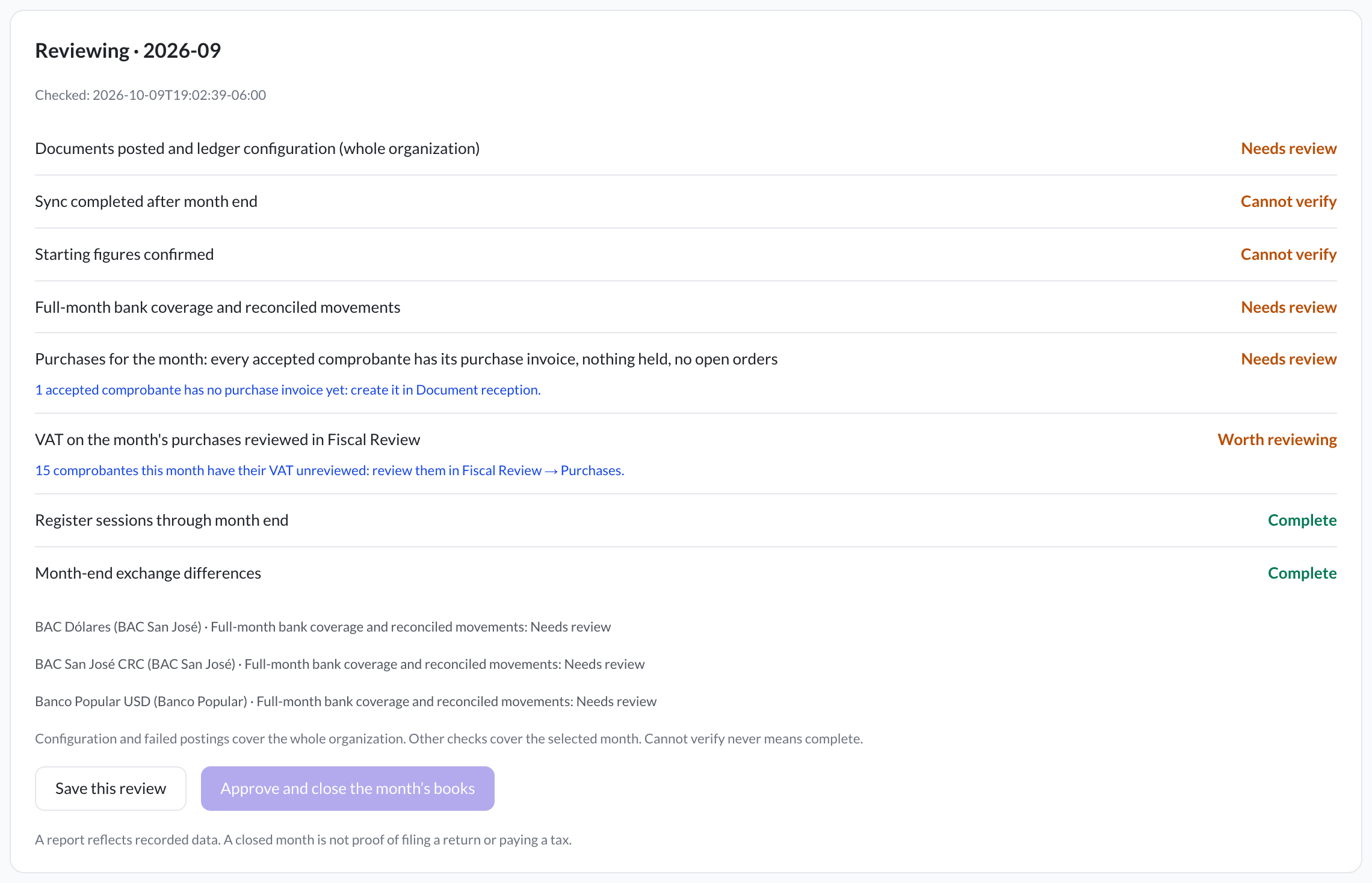
- Open Accounting → My accounting: the month's review says what's missing. Purchases for the month counts the accepted documents that still have no purchase invoice, in every company: create them in Reception. VAT on the month's purchases says how many documents have their VAT unreviewed; it shows as Worth reviewing and doesn't stop you closing the month. See Review and close the month.
- If your company has automatic purchases, bring Expenses → Purchases to review down to zero: classify the purchases waiting for a category (Classify your purchases goes step by step) and settle the possible duplicates, the amounts that don't match and the orders received without an invoice.
- Confirm each document on time in Document Reception: the deadline is the eighth business day of the following month.
- Issue the pending FECs for purchases from those who don't invoice.
- Reconcile each account with its bank statement in Reconciliation, and pay there the purchases that already left the bank.
- In Cash Register, classify the movements left to classify and record the close deposits.
- Settle what the company owes owners and employees under To reimburse.
- Use the Tax Summary for the monthly VAT return (D-150). The Inbox reminder goes over what's missing first. Once a year come the income tax return (D-101) and the D-270 informative return.
Need more help?
Our team is ready to assist you.