Document Reception
When a Costa Rican vendor invoices you electronically, that document is registered with Hacienda and you owe it an answer: accept it, accept it partially, or reject it. That answer is the Receiver Message. In Astra the documents arrive by email or you upload the XML yourself, you review them from one list, you send your answer to Hacienda, and you turn each one into a purchase invoice with one click.
Document reception is on every plan, including the Solo Facturación (invoicing-only) ones, with automatic acceptance if you turn it on. Turning a document into a purchase, linking it to a purchase order or classifying it by expense category belongs to the Contabilidad / ERP plans (ERP Pyme, ERP Pro and ERP Plus). On Solo Facturación, each document's page shows its details, its lines and the answer to Hacienda, without the purchase steps.
- What this screen does
- How documents arrive
- Reception by email
- Uploading the XML yourself
- Automatic acceptance
- The document list
- Finding what you bought
- Accept, partial, or reject
- Create the purchase invoice
- Automatic purchases
- The document's page
- Purchase class and observation
- When an XML won't go in
What this screen does
This is where the electronic documents your vendors issued to your tax ID live: electronic invoices, credit notes, and debit notes. Astra does three things with them:
- Receives them — by email at your reception address, or by you uploading the XML.
- Sends your answer to Hacienda — the Receiver Message: accepted, partially accepted, or rejected.
- Turns them into purchase invoices — by itself, if your company has automatic purchases, or with one click, with the lines already loaded from the XML.
The Electronic Purchase Invoice (FEC) is a different document: it is the one you issue yourself when you buy from someone who can't invoice you electronically (a foreign vendor, a simplified-regime supplier). That is done from the purchase invoice — see Electronic Purchase Invoice. This screen is the opposite: documents others issued to you.
Document types
- Electronic Invoice (FE) — the vendor's sale. This is the one that becomes a purchase invoice.
- Debit Note (ND) — the vendor increases the amount of an earlier document.
- Credit Note (NC) — the vendor reduces the amount of an earlier document. A credit note lowers what you owe, never raises it: it becomes a purchase credit note that applies by itself to the purchase it corrects, and anything left stays as credit with the supplier (see Supplier credit notes). With automatic purchases it is created on acceptance; otherwise, with the same button that converts an invoice.
Receiving and storing documents always works. What needs electronic invoicing configured (digital certificate and Hacienda credentials) is sending the Receiver Message. If something is missing, the response window tells you before you try. See Electronic Invoicing.
How documents arrive
- The vendor issues the invoice, credit note, or debit note to your ID and Hacienda validates it.
- The XML reaches Astra: by email at your reception address, or you upload it.
- Astra reads it, confirms you are the receiver and that it wasn't already loaded, and leaves it as Pending.
- You respond: Accept, Partial accept, or Reject.
- Astra signs and sends the Receiver Message to Hacienda.
There is no automatic download of "everything issued to you". A document enters Astra only if its XML arrives — by email or uploaded by hand. That's why it pays to have vendors always send to your reception address.
Electronic payment receipts (REP)
When a supplier sells to you with the VAT on credit up to 90 days (sale condition 10), it collects that VAT when you pay and issues an electronic payment receipt for each payment. A REP is not a purchase: Astra receives it like any document — by email or uploaded by hand — but doesn't put it in this list, sends it no Receiver Message, and counts it neither in the Tax Summary nor in expenses. It keeps it with the invoice it collects, and it shows on the purchase invoice, in the VAT on credit (90 days) box.
Reception by email
Astra assigns you a unique address based on your ID:
{your-id}@fe.astranexo.com
Any email that reaches that address with an XML attached and issued to your ID goes straight into the list. Nothing to create, nothing to type: Astra reads the XML, checks that you are the receiver, and leaves it ready to answer — or accepts it right away if automatic acceptance is on.

The recommended routine
The safest way to work is not to change where your vendors send invoices, but to add one step:
- Keep asking for the invoice at your usual mailbox — the company's or your accountant's. You see it arrive, check amounts and detail, and keep the PDF at hand.
- Forward that email, attachments included, to your reception address. Use Forward, not Reply: a reply does not carry the XML. You can forward several emails in a row; each one goes in on its own.
- Astra does the rest. Within seconds the document shows up in the list with the issuer, the total and the XML lines; if automatic acceptance is on, it is also accepted before Hacienda without you touching anything.
What Astra does with every email it receives:
- Takes the attached .xml files — there may be more than one, and those that are not documents (Hacienda's response, for instance) do not go in.
- Checks that the receiver ID is your organization's and that the numeric key isn't already loaded.
- Stores which address it came from, the subject line and the text of the email: they stay visible in the Email tab of the document's page, in case it has to be traced later.
- Leaves it in the list as Pending — or as Accepted, with the Receiver Message already sent, if automatic acceptance is on.
An email that arrives without an XML attachment is silently ignored: nothing shows up in the list. That happens when the vendor sent only the PDF, when the XML sits behind a download link instead of being attached, or when the mail client forwards "inline" without the files. If a document never appeared, open the original email and confirm the .xml is among the attachments; if it isn't, ask the vendor for it or upload it yourself.
For vendors that invoice you often, ask them to add your reception address in CC or BCC on the email they send invoices with. Each document reaches Astra directly and you still get your usual copy. Copy the address from Settings with the Copy button and send it to them as is.
Automatic forwarding from Gmail
If invoices reach a Gmail or Google Workspace inbox, Gmail can forward them on its own:
- In Gmail, open Settings → Forwarding and POP/IMAP → Add a forwarding address and paste your reception address.
- Gmail sends a confirmation link to that address. Astra leaves it for the organization's owner as a notice in the Inbox: Confirm the email forwarding in Gmail. Open the notice and press Confirm on Google's page.
- Back in Gmail, select Forward a copy of incoming mail to, pick your reception address and press Save Changes.
Several companies in one inbox. Gmail forwards everything to a single address. For each company to get its own, add and confirm each company's reception address and create one filter per company (criterion Has attachment, action Forward it to that company's address). Sending everything to every company is fine: each one keeps only the documents issued to its cédula and drops the rest.
Uploading the XML yourself
If the XML reached you some other way — WhatsApp, the vendor's portal, your accountant's inbox — upload it directly:
- Go to Expenses → Document Reception.
- Click Upload XML in the list's action bar.
- Drag the files onto the dashed area or click Choose files. You can drop several at once.
When it finishes, Astra shows a file-by-file summary: the ones that went in (with issuer and total), the ones already loaded, and the ones that failed with the reason. See When an XML won't go in.
What is accepted is the XML: .xml files and also .txt, because some mail clients and banks hand the XML over with that extension. The invoice PDF is a graphical representation: the tax document is the signed XML. If the vendor only sent the PDF, ask for the XML.
Automatic acceptance
If your volume is high you can let Astra accept on its own instead of reviewing one by one. It ships off.
Enable
- Go to Settings → Electronic Invoice → Technical Configuration.
- Turn on the Aceptar documentos automáticamente switch.
- A second option appears below it, Enviar confirmación al emisor por email. Tick it if you want the vendor to get an email telling them their document was accepted.
- Optionally, enter an amount in Only auto-accept up to. A document above that total (in its currency) stays Pending for you to review; left empty, every document is accepted.
- Save.
Automatic acceptance runs on the documents that land at your reception address. An XML you upload by hand always stays Pending waiting for your answer, switch on or off.
You can go back to manual mode any time. The answer is per document, so flipping the switch doesn't touch the ones you already responded to.
If a vendor issues an incorrect document and it's accepted automatically, you can no longer fix it by rejecting: you have to ask the vendor for a credit note. That's why many businesses turn it on only after validating the workflow with their accountant. If unsure, keep manual mode.
The document list

Reach it from Expenses → Document Reception. The received electronic invoices that still have no purchase invoice (rejected ones don't count) are your real backlog, and it only drops as you convert them.
A click on a row opens the document's page. There, the ↑ ↓ keys take you to the previous or next document in the list, in the same order and with the same filters (see Keyboard Shortcuts). Back on the list, the last one you opened is marked with a blue stripe.
Columns
- Type — FE, ND, or NC.
- Issuer — the vendor's trade name, legal name, and ID.
- Date — when the document was issued.
- Status — Pending, Accepted, Partially accepted, Rejected, Processing, or Error.
- Total — in the document's currency, with the VAT in small print underneath.
- Accepted — the date you responded.
- Actions — a button naming the step the document is missing: Answer, Create purchase, Being created…, Check purchase, Classify, To pay or Done ✓ (Manage when there is nothing left to do). The button does that step without opening the document: Answer opens the response window, Create purchase creates the purchase invoice and Classify opens the Classify purchase window, with the category, the purchase class (if your company uses it) and the VAT Astra suggests; To pay opens the purchase invoice with its payment window ready; Check purchase takes you to the purchase invoice. On a document from a month whose VAT return is past due, or on a credit note, the row says Choose category or Choose class and takes you to that card. Being created…, Done ✓ and Manage open the document's page; so do Answer and Create purchase when you lack the permission for that step. What each one means: The path of a purchase.
Filtering and searching
- Three status buttons above the list: Pending, Accepted, and Rejected.
- The search box matches issuer name, trade name, ID, numeric key or the detail of any line in the document.
- For any other combination — date range, amounts, document type, currency, or the Line detail field crossed with the rest — use Advanced Search from the filters button next to the search box.
While a filter is on, an Active filters bar sits above the list with Clear all to see everything again.
Missing: working the list step by step
Under the status buttons, the Missing strip filters the accepted documents by the part of their path they still lack, and says how many there are of each:
- Purchase invoice — accepted, still without one.
- Category — their purchase invoice has no category (one split by line already has it).
- Purchase class — only if your company uses it: the ones without their class.
- VAT — VAT not reviewed yet, in months whose return is not due yet.
- Payment — with a balance still owed to the supplier.
- All done — the ones that have everything: the rows that say Done ✓.
A document missing two things is under both. One click filters the list; another click, or the ✕ in Active filters, removes it. It combines with the search box and Advanced Search, and stays on when you come back to the list. That is how you work in batches: Category or VAT and each row's Classify, which opens the Classify purchase window and walks the rest with Confirm and next pending; Payment and To pay, which opens the payment window.

The purchase class and VAT show with the permission to view Accounting. Solo Facturación has no strip: that plan doesn't record purchases. Tax Review, in Accounting, stays as it is: the month's review, FECs included.
"When did I last buy this?"
The name of what you bought is not in the invoice header: it is in its lines. That is why the search box also reads the detail of every XML line. Type the item the way the vendor wrote it on the invoice — cinta adhesiva, tóner, flete — and the list keeps only the documents that carry it, with their vendor, date and total. A click on the row opens the document's page: the line with the quantity and the price you paid, and the button to download the XML. That's what you need for a warranty claim, to compare prices, or to remember who you last bought something from.

The search box in Purchase Invoices reads the lines too, and so does the one in the Purchases tab of the Fiscal Review in Accounting. Whichever one you open, type the item and it shows up. Case and accents don't matter — unas finds uñas.
Accept, partial, or reject
For each document you decide how to respond. Your answer travels to Hacienda as the Receiver Message. Three options:
Accept (full acceptance)
- You acknowledge the transaction as issued.
- The VAT on the purchase can be claimed as input credit, if it applies to your taxable activity.
- No justification is required.
Partial accept
- You acknowledge the document with reservations — price differences, quantities that never arrived.
- You must write the detail: it's required.
Reject
- You dispute the whole document.
- You must write the reason: it's required.
- It's for unexpected, fraudulent, or wholly wrong documents.
Once sent to Hacienda it can't be changed: Astra never re-enables the response buttons on a document you already answered. Review before you click.
What it declares about VAT
On acceptance (full or partial), the Receiver Message tells Hacienda how you take the document's VAT: the tax condition, the VAT you credit and the part that goes to the expense. Astra takes it from the document's classification in Tax Review: if all its VAT lines share a condition, that one; if they differ, 02 (partial credit) with each line's amounts; and if nobody has classified it yet, 01, with all the VAT as credit — what Astra counts by default. Since VAT is reviewed after accepting, it usually goes out as 01. If your company sells at a reduced rate (in its VAT profile), the credit only goes up to that rate, so that 01 goes out as 02, with the part credited and the part that goes to expense. What goes into your VAT return (150) is the condition you decide afterwards, in the document's Classify purchase window or in Tax Review: the Tax Summary is built from that.
The deadline to answer
The Receiver Message is due on the eighth business day of the month after the document's date (weekends and public holidays skipped). If you answer by hand, the response date column shows Answer by … on pending documents — amber when three days or fewer are left, red once it's past — and the ones you answered after the deadline are marked Answered late. With automatic acceptance, Astra answers as soon as they arrive and none of this is needed.
Who can answer
Answering is a decision about the purchase, so it takes the Classify purchases permission on Purchase Invoices, on top of View, which opens the page. Someone with View alone can review the documents, but instead of Accept, Partial accept and Reject they see a note that this permission is missing; the same on the phone. Automatic acceptance depends on no permission: Astra does it by itself. Each role's permissions are set in Organization Settings.
How to send your response
- Click the document's row. Its page opens, with the lines, amounts, and taxes to review.
- On the Response to Hacienda card, to the right of the lines, press Accept, Partial accept, or Reject. If you have already reviewed it, Answer on the list row opens the same window without going through the page: choose the answer there, under Response type.
- A window opens with the document summary — issuer, type, date, total, and VAT.
- For partial and reject, write your text in Message / Detail. Maximum 160 characters; a counter shows how many you've used.
- If you want the vendor to hear about it by email, tick Notify … of your response via email.
- Click the confirmation button. The document moves to Processing and then to its final status once Hacienda answers.
When Hacienda or the signature returns an error, the document lands in Error and its page shows the exact message on the Hacienda card, on the left. Once the configuration problem is fixed you can answer again from the same page.
Waiting for Hacienda
If Hacienda answers that the supplier's invoice «no se encuentra registrado» (code -29), it doesn't have it yet: the document shows Waiting for Hacienda and Astra sends your answer again by itself after an hour and after 3, 6, 12 and 24 hours. What it means and what to do if it is still missing: Hacienda says the supplier's invoice isn't registered.
Create the purchase invoice
Turning the document into a purchase invoice is what makes the expense exist in your books and in accounts payable. It's one click and there is nothing to type: everything comes from the XML. With automatic purchases it creates itself; without them, you create it.
It can be created once the document is accepted (fully or partially). A pending one can still be rejected and a rejected one isn't yours, so neither is converted. Only people with permission to create purchase invoices see the button, and the checkbox to create several at once.
- On the document's row, press Create purchase. On the document's page, the same step is Create purchase invoice, on the path.
- Astra creates the purchase invoice with the vendor, the document number and date, the sale condition and credit term, the currency and exchange rate, and every line with its CABYS, quantities, prices, and taxes. The document's other charges (the 10% service charge, stamps) come in as one more line, so the invoice adds up to the same total as the document. If the supplier isn't one of your contacts yet, Astra creates it with the Hacienda registry data, as the magnifier would (see Contacts); one that already exists stays as it is. Nothing is sent to Hacienda.
- It takes you straight to the new invoice. Its path says what's next: the category, the VAT, inventory if it is goods, and the payment.
From then on the two stay linked: on the document's page, the Linked card opens the purchase invoice and the path shows where it stands; on the purchase invoice, View comprobante takes you back to it. A document that already backs a purchase invoice can't be rejected: void the invoice first.
Possible duplicate purchase
Sometimes the purchase is already recorded: you created the purchase invoice from the purchase order or typed it in, and then the vendor's document arrives. If there's a purchase invoice from the same vendor, for a similar amount (±2%) and a nearby date (±15 days), the row and the document's page show the amber Possible duplicate purchase notice:
- Same purchase — link it joins the document to that invoice. The purchase counts once, and the invoice can no longer issue a FEC, because the vendor already invoiced.
- If you click Create purchase anyway, Astra stops and asks you to confirm. If it really is a different purchase (a monthly service for the same amount, say), confirm with It's a different purchase — create anyway.
Astra looks for a contact with the issuer's ID. If it finds one, it uses it. If not, it creates the supplier contact with the name, ID, email, and phone the XML carried — it never asks you to pick. Revisit that contact afterwards if you want to fill in more details.
Several at once
When you're working through a backlog, you don't have to go one by one:
- Tick the checkbox at the start of each row. It only appears on accepted electronic invoices that don't have a purchase invoice yet.
- A blue bar lights up above the list with the count of selected documents.
- Click Create purchase invoices. Astra processes up to 100 per run and tells you how many it created; if more are left, run it again. The ones with a possible duplicate are skipped: review them one by one on their rows.
- Credit notes. A vendor credit note reduces what you owe — it doesn't become a new payable.
- Documents already used as an import cost. If that invoice is already linked as a cost on a purchase order and your organization has the production module, the cost is already recorded there and Astra blocks the conversion so the expense isn't duplicated. Link it from the order's cost card, not from here.
- Foreign-currency documents with no exchange rate. If the XML doesn't carry the rate and Astra can't resolve it, the conversion is refused with a notice: record that expense manually.
Automatic purchases
With automatic purchases you don't need to create the purchase invoice: as soon as Hacienda confirms your acceptance (or the automatic acceptance), Astra creates it on its own. They are switched on and off in Settings → Sales and purchases, and new companies on a plan that includes purchases start with them on. With each accepted document, Astra:
- If you already entered that purchase with the supplier's invoice number (from an order or by hand), links the document to it instead of creating another.
- If it only looks like a purchase that already exists (same supplier, similar amount, nearby date), creates nothing: the document is held as a possible duplicate until someone decides in Expenses → Purchases to review.
- Otherwise, creates the purchase with the category noted on the document or, if it has none, the one Astra remembers for that supplier. If the supplier is new, the purchase is left to classify. It also links it to its purchase order when exactly one fits, links it to the consignment settlement it bills when the supplier is a consignor and it matches a single open settlement, and if it's a cash purchase and Astra knows which account you pay that supplier from, it records the payment.
To have them arrive classified from the start, tell Astra what each supplier sells you and how you pay them in Expenses → Suppliers; whatever arrives without a category is classified in a few minutes from Expenses → Purchases to review. Both screens are explained step by step in Classify your purchases.
While it is being created, the row says Being created… and the path, The purchase invoice is being created on its own. If it's held for another reason (an error, an invoice in euros with no exchange rate), the row says Create purchase and the path, on the document's page, shows the reason next to the button to create it by hand. Possible duplicates are flagged on the row itself (see Possible duplicate purchase). Every half hour Astra checks that no accepted document was left without its purchase.
Switching them on or off
They live in Settings → Sales and purchases → Automatic purchases, and whoever can edit that section of the settings changes them. New companies on a plan that includes purchases start with them on; on Solo Facturación they don't appear, because that plan doesn't record purchases.
- Click the Create the purchase invoice when a document is accepted switch and confirm with Switch on. It applies to what you accept from that day on: the card says On since and the date.
- This year's purchase invoices that were already in the books are recorded again by category, without touching closed months. If you used the fiscal purchase types, they become what they mean now: Activos the Fixed asset category, No Deducible the Non-deductible mark, and Compra Deducible no category.
- If documents accepted this year still have no purchase invoice, the card says so and offers Create the purchase invoices, with how many there are. Astra creates them just as it does for a document accepted today, within a few minutes. Cash ones stay unpaid: record each payment with the account you paid from. Closed months are not touched.
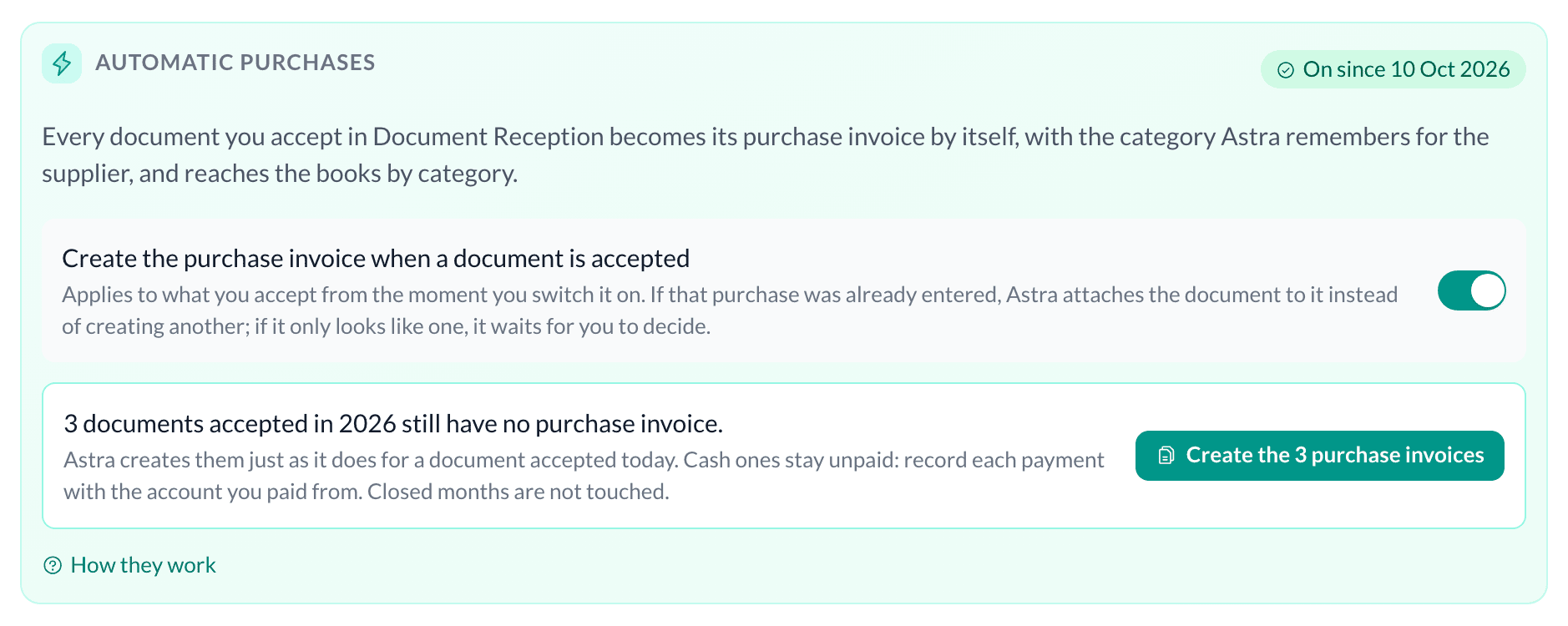
To switch them off, the same switch and Switch off. Documents you accept from then on no longer become purchases by themselves: you create each purchase invoice with a click (see Create the purchase invoice). The ones that already exist stay as they are. With the production module the switch is locked: its orders already record purchases in the books, and an automatic purchase invoice would count them twice.
The document's page
Every document has its own page, like an invoice or a purchase order. It opens with a click on its row in the list, or from the purchase invoice that came out of it, with View comprobante on its path. The left bar puts what you decide about the document first and what you only look up after. The supplier shows by its commercial name when the document carries one («iGenius»), with the legal name under it («3-102-837269 S.R.L»); the list does the same. Its name opens its contact. Once the document has its purchase invoice, its Category (with Split by line) and Tax treatment cards show there, the purchase invoice's own cards; and under them, the Purchase class and the Observation, the same ones as in Tax Review. What you change in one place shows in the other.

What it shows
- At the top — the supplier, the consecutive number, the total with its VAT, the status and the type. In the corner, Download XML and, if it came by email, the envelope that opens that email.
- On the left — the supplier, with their ID, email and phone, and the link to their contact; the issue, received and answer dates, with the sale condition and the credit term; the Amounts, only when the document is in another currency (in colones, the total and the VAT are already at the top and under the lines); under Linked, the purchase invoice, the purchase order or, on a note, the document it corrects; the purchase invoice's cards, the Purchase class and the Observation (see Purchase class and observation); and last, what Hacienda has on record: the numeric key, the consecutive number, the answer, the message Hacienda returned and whether the document came by email or was uploaded by hand. At the bottom, Download XML and, while there is no purchase invoice, Create purchase order.
- Overview — the lines exactly as they come in the XML: the detail, quantity times unit price, VAT, discount, CABYS and total of each one, with other charges and the totals underneath. Once the VAT is decided, each line with VAT shows its condition (Full credit, No credit, Partial credit 50 %…), and a click on it opens the Classify purchase window. If Tax Review left a line without one, that line says No condition yet; with every line decided, the totals add up the VAT credited.
- To the right of the lines — the Response to Hacienda card, while the document is waiting for your answer (see Accept, partial, or reject), and This purchase, step by step, with the next step highlighted and its button.
- Email — a tab that only appears when the document came by email: who sent it, the subject, when it arrived and the text of the message.
If the document is in a foreign currency, the Amounts card shows up, with the Invoice Rate (the one the vendor put in the XML) and the BCCR Rate for the issue date, with the colón total each one produces. It makes it obvious at a glance when a vendor billed at a rate that isn't the official one.
What comes next once the purchase exists —the category, the VAT condition (in its own window, without leaving here), the goods into inventory and the payment— is laid out in order in Day to day, step by step.
Purchase class and observation
These are the two fields Tax Review shows next to each purchase's VAT. On the document's page they are the same ones: what you note here shows there, in its search and in its Excel, and the other way round.
- Purchase class — only if your company turned it on under Settings > Sales and purchases, with its own options (for example Supplier and Expense). Pick one, then Save: it goes on this document. Right away the card asks whether it goes for that supplier's other documents too, and says how many it would change:
- Yes, all of them — that supplier's documents with no class yet take it, and the next ones arrive with it; the card says so with "This supplier's documents arrive with it". A document that already has another class keeps it, unless you tick Also change the … with another class.
- Just this one — the others stay as they were.
- Observation — a free note: how it was paid ("Company card", "Petty cash"), which project it belongs to, whatever you need to remember. Edit opens the field and Save keeps it.


While your company uses the purchase class, a purchase without one is not done: the path asks for it within Classify the purchase, which opens the window where Astra suggests it; in a month already filed it asks for it apart, with Choose its "Purchase class", and its Choose button brings you to this card. The purchase invoice has it too, under Category (without the observation: the invoice has its own notes). On a purchase Astra reported with a FEC, the class is that FEC's, and nothing is asked there: your company issues the FEC, not a supplier.
The Classify purchase window has them too, under its header. The class is the document's own; without one, the supplier's other documents' or the one Astra suggests, and it saves with Confirm, together with the VAT. The observation saves as you type it. Walking the documents with Confirm and next pending leaves them done in one go. An observation doesn't decide the VAT: the path keeps asking for it until someone picks the condition.
They show with the permission to view Accounting and change with Tax adjustments, as in Tax Review. On Solo Facturación they don't appear.
The page shows the same, except the purchase's path: that plan doesn't record purchases. In its place, whoever has the Subscription permission sees a card with the plans that do; everyone else sees nothing there.
Import the XML into inventory
Only for goods you sell or use: a service, rent or an asset don't go into inventory. On the document's page, once it's accepted, the path's Bring into inventory step carries the Import XML into inventory button, which opens its XML in Import purchases; an invoice that only bills services doesn't show it. No download or re-upload is needed, and it uses no AI. Review matches, quantities, and the location before confirming stock receipt. The purchase invoice and its payments don't change.
Each line comes in at the cost you paid: the line's subtotal divided by its quantity, with the discount already taken off. A line that bills consigned goods, which already came into inventory through their agreement, arrives marked Consigned: already in and set to Skip, so it isn't counted twice (see Linking the consignor's invoice).
What comes in is kept on a purchase order:
- If the document already has an order (you created it with Create purchase order, or automatic purchases linked its purchase to an order), the import receives that order, which moves to Partial or Received.
- If it has none, Astra creates an order with the document's supplier and the lines it processed, already Received (or Partial if you leave lines for later; the next ones are added to the same order). It links the order to the document and its purchase.
That order is only the record of what came in: there is nothing to send, confirm or receive. Its page says so in a green box and links the purchase invoice, which is where the debt is (see The order an import leaves).
Astra reuses an existing import of the same XML or an open receipt of its linked order instead of starting another. Credit notes, rejected documents, and purchases whose order is already received cannot be imported through this action. The other ways to bring goods in are in How stock gets into inventory.
When an XML won't go in
If Astra rejects a file on upload, the reason appears in the summary. The most common ones:
| Message | What happened |
|---|---|
| Receptor ID does not match your organization | That document was issued to another company. Check it isn't for another of your organizations, or that the vendor didn't use the wrong ID. |
| This document was already uploaded | The same numeric key is already in your list. The message tells you when it went in and from which issuer. |
| Electronic Tickets cannot be used as deductible expenses | The vendor gave you a ticket, not an invoice. Ask for an Electronic Invoice made out to your tax ID. |
| This file is a Hacienda Response / a Receptor Message | The vendor's email usually carries several XMLs. Upload the original document, not the response. |
| The file does not correspond to an Invoice, Credit Note, or Debit Note | It's an XML of another kind. Only those three are received. |
| The file is not valid XML / is empty | The file got damaged on download or on forwarding. Ask for it again. |
If your plan includes Purchases and you have permission to create orders, press Create purchase order at the bottom of the left column, on the document's page. Astra opens a draft with the supplier, date, currency, and XML lines for you to review. It is only there while the document has no purchase invoice, and not for credit notes or rejected documents. Once the order exists, or if the purchase was already linked to an order, the order shows on the Linked card and the button is gone. Importing the XML into inventory afterwards receives that same order.
Need more help?
Our team is ready to assist you.