Move to Astra from another invoicing provider
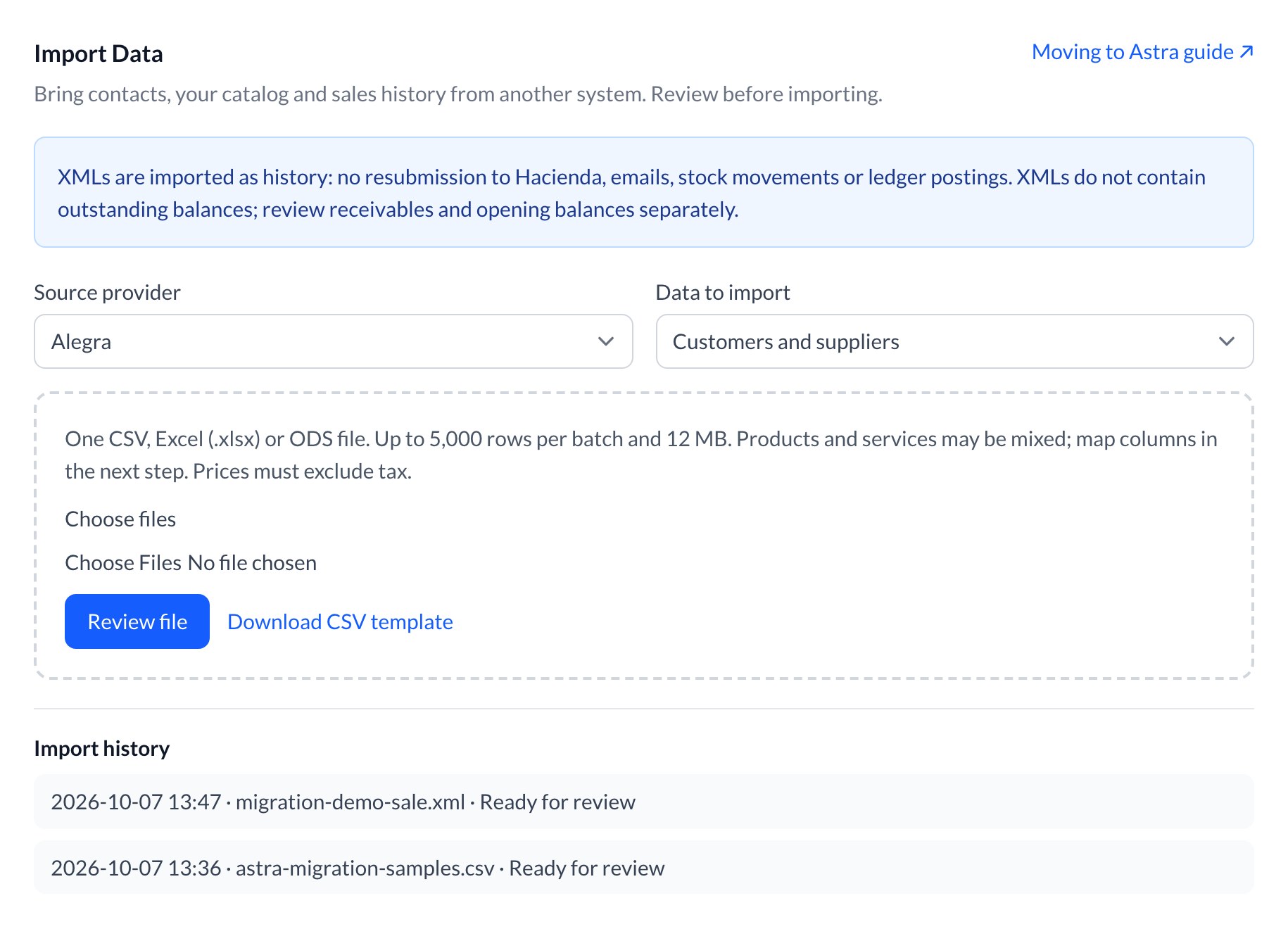
Bring customers, suppliers, products, services and historical sales from Alegra, GTI or another Costa Rican electronic invoicing provider. Use Settings → Import data to review a batch before creating records and resume saved imports.
In this guide
1. Prepare your cutover and backup
- Agree a cutover date with your accountant. Record which documents were issued in the previous system and where subsequent transactions will be recorded.
- Keep untouched copies of all exports. Request contacts, the product catalog with prices before VAT and CABYS codes, signed issued XMLs, Hacienda responses and closing reports. Include invoices, tickets, credit/debit notes and export invoices.
- Keep receivables, payables, current stock by warehouse, bank balances and a trial balance. An invoice total does not establish what is still owed; opening balances need separate review.
- Check the selected Astra organization, issuer ID, currency, timezone and branch/terminal. You need permission to manage organization settings and create the selected records. XML sales also require creating contacts; the optional product creation requires its own permission.
- Try a small batch covering different currencies and document types first. Preview creates no business records; confirmation does. Keep your original backup: there is no bulk undo.
2. Export from your previous provider
Menus vary by plan and version. Confirmed paths below were checked on October 7, 2026. If a download is unavailable, request your files from support before cancelling the service.
Alegra
- Export customers and suppliers with their details from Contactos → Más acciones → Exportar a Excel. Keep a contact-type column. Official contacts guide; country versions may differ.
- Export sale items from their report. Use Reportes for sales, balances and inventory. The reviewed account offers invoice export under Ingresos → Facturas de venta → Más acciones → Exportar, for dates or all records. Alegra export guide.
- Use sales spreadsheets to reconcile. Astra creates historical sales from original XMLs: obtain signed documents and responses from document downloads, archived emails or support. Importing a spreadsheet template is a different operation.
- Select Alegra in Astra, import contacts and catalog, then historical XML sales. Compare totals by period against your saved reports.
GTI Factura Electrónica
- Sign into the correct issuer account and collect original issued XMLs and responses by period. Request a bulk download from GTI if your account has no visible option.
- Request customers/suppliers and products/services in Excel or CSV, including issuer/customer IDs, email, code, description, price before tax, currency and CABYS. Keep sales and closing-balance reports.
- Select GTI in Astra, map each catalog, then upload a ZIP of XMLs as historical sales. Save old .xls spreadsheets as .xlsx or CSV first.
- A public bulk-export menu path has not been verified. GTI’s official portal publishes manuals and customer service contact details; confirm the available download with them.
Factura Profesional
- Export the general sales report at cutover. Its documented export menu can include other text from XMLs as extra Excel columns. Keep these references for reconciliation. Provider documentation.
- Obtain signed XMLs and Hacienda responses separately; a spreadsheet is not the signed document. Request complete catalogs if their export is unavailable.
- Select Factura Profesional in Astra and import catalogs and XMLs. Check document counts, amounts and credit notes.
Factúrele and Facel
- Collect issued XMLs and original responses from your Factúrele or Facel account. If you only have PDFs, request the XMLs or retrieve archived email attachments.
- Request catalogs and closing reports as Excel/CSV. No public bulk-download menu path was verified for these providers; confirm it with their support.
- Select the provider in Astra. Keep catalog files separate from documents. Use a ZIP containing XML files, without nested ZIPs.
Hacienda’s invoicer, other providers and Excel
- Collect XMLs downloaded at issuance and their Hacienda responses. Recover archived copies if the current system cannot export the full history.
- Use Astra’s CSV templates for catalogs (Download CSV template: its columns carry the field names, such as “Identification” or “Credit terms (days)”, and Astra recognizes them by itself on upload) or save provider files as .xlsx, ODS or CSV. Select Hacienda invoicer or Other provider / Excel. This also covers Factoa, Samsatec, Softland and providers delivering compatible Hacienda XMLs.
- If files are unavailable, ask support: “Please provide my issuer’s backup as of [date]: customers and suppliers, products and services, signed issued XMLs with Hacienda responses, and sales, receivables, inventory and trial-balance reports. Please confirm the formats and how to download the entire period.” Send this request yourself from your provider account.
3. Import contacts and catalog
- Open Settings → Import data, select the provider and contacts or products/services. Upload one .csv, .xlsx or .ods file. The first sheet is read; its first row must contain headers.
- Check the detected column mapping. Select Do not import for unrelated columns. Name is required; you can map the vendor’s own headings.
- For contacts, review identification, email, customer/supplier/both role, currency and credit terms. Text addresses are preserved as address detail; verify geographic fields before issuing new invoices.
- For products, review description, SKU, barcode, price before VAT, cost, currency, CABYS, unit, product/service type and tax percentage. Products and services may share one file. Store identifiers and codes as text to preserve leading zeros.
- Validate the preview. Filter errors, duplicates and ready rows. Correct, save and revalidate a row or skip it. Existing contacts are matched by identification, email or name; products by SKU, barcode or name. Existing records are not overwritten.
- Acknowledge your review and confirm. Processing continues in the background. Resume under Import history, correct failed rows and confirm the remaining ready rows. Already imported records are not recreated.
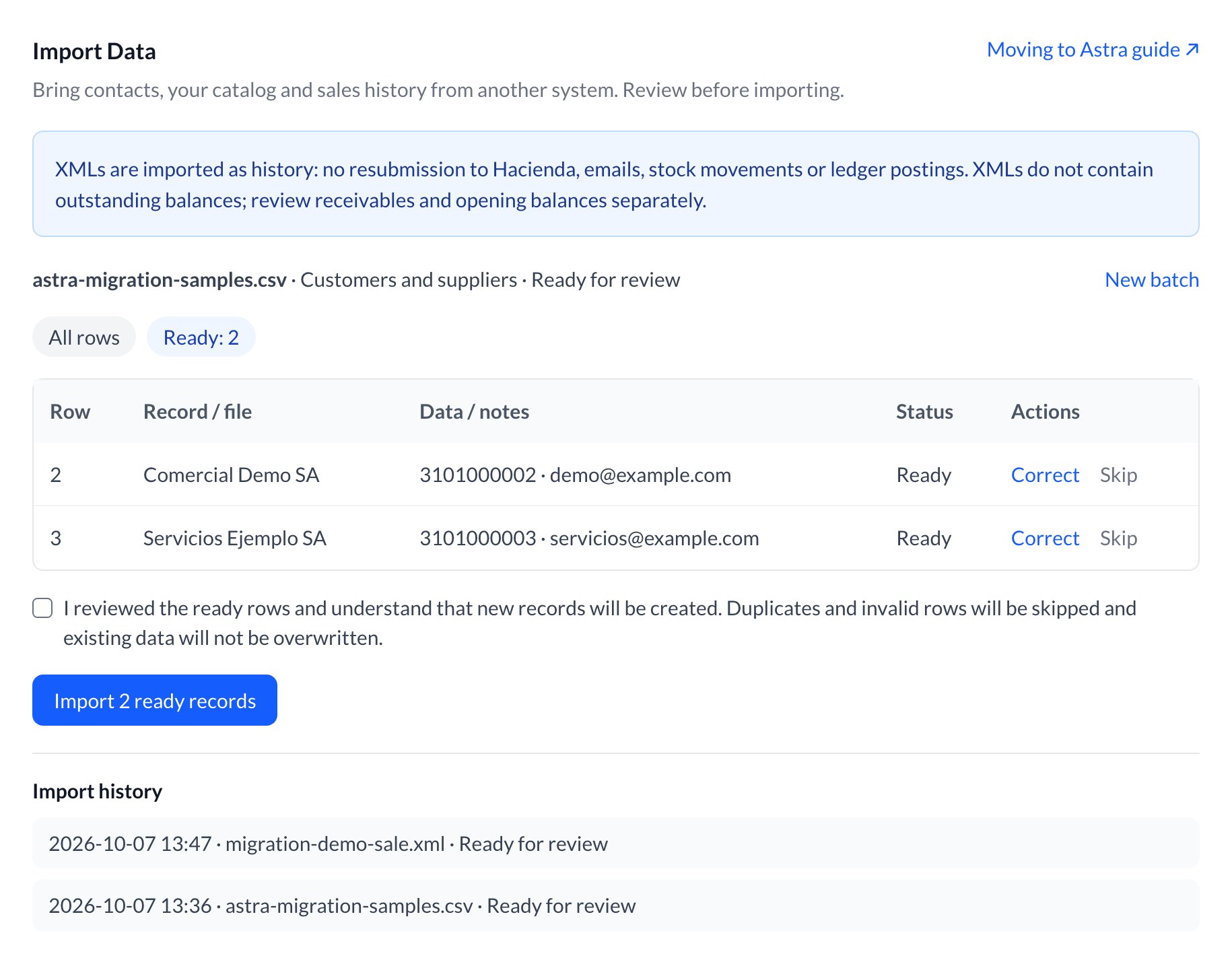
Stock, movements, additional price lists, credit balances and unmapped fields are not imported. New products start with inventory tracking disabled and zero stock. Review the catalog and record opening stock separately. Your plan’s product limits still apply.
4. Import historical sales from XML
- Select Historical sales from XML. Upload individual XMLs or one ZIP containing signed documents and Hacienda responses. Import each issuer into its own organization.
- Astra checks issuer identification, key, sequence, type, date, currency, lines and total. Supported sales roots are electronic invoices, tickets, credit/debit notes and export invoices. Supplier purchase documents, receiver messages and electronic payment receipts need separate handling.
- Review date, customer, currency, amount and Review invoice lines and product candidates. Hacienda responses are paired by key. Rejection or conflicting responses block the sale. Without an acceptance response, the document remains imported history without an acceptance claim. Upload does not verify signatures or query Hacienda.
- Optionally enable Create new products or services from XML lines. Existing catalog entries are reused; new entries use historical description, commercial code, CABYS, unit and price. Existing prices are unchanged. Costs and current stock cannot be reconstructed. Review current prices, type and tax before using new products; multiple taxes on one line require catalog review.
- Confirm ready rows. Documents retain their original number, date, currency, tax, customer and lines. The original XML and response are archived. The XML's other texts (warranty, serial number, order) become the invoice's Notes. Credit/debit references are linked when the parent historical key is available.
- The invoice list marks them Imported history. The invoice report includes that status and Excel export; select the original date range to reconcile. Export and backup XML exports also include historical originals.
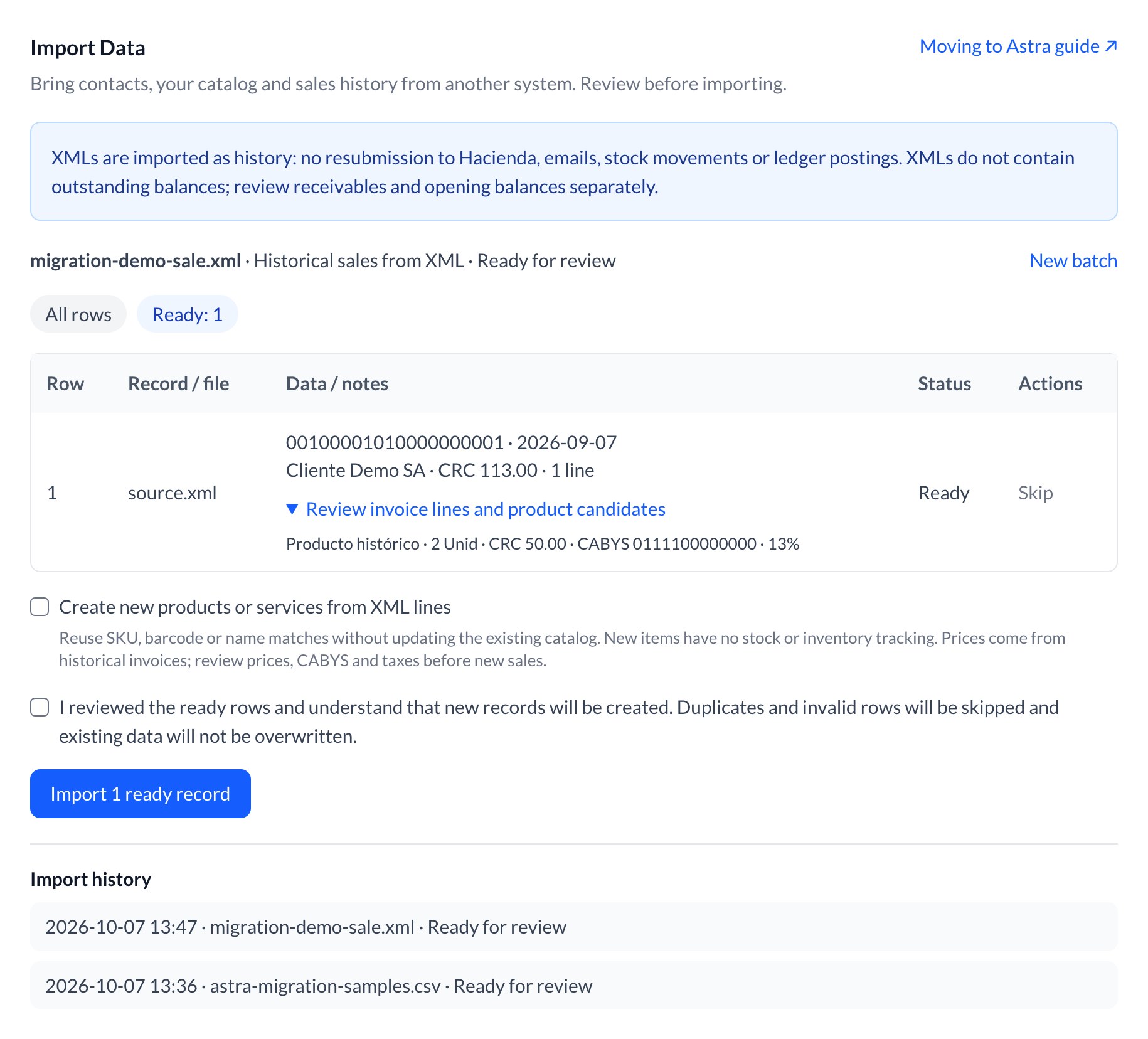
No reissuance or Hacienda submission. Import does not automatically email, collect payments, alter stock or post accounting entries. It does not mark sales paid or outstanding: XMLs do not establish the remaining balance. History is excluded from receivables and automatic ledger posting. Review opening receivables, bank and accounting balances separately with your accountant.
5. Reconcile and start operating
- Compare imported, duplicate, skipped and failed counts with the source. Reconcile sales by month, currency and type, accounting for credit notes. Review existing Astra records before treating duplicates as missing documents.
- Check a document sample: sequence, key, date, customer, quantity, discounts, tax/exemptions, currency and total. Download the original XMLs for details not shown on screen.
- Agree opening balances with your accountant without duplicating recorded amounts. Verify physical stock and warehouses; historic sales do not establish current inventory.
- Configure electronic invoicing, activities, CABYS, certificate and credentials through Astra’s setup. Confirm branches, terminals and sequences before your first new sale. History import neither advances sequences nor copies credentials.
- Keep a complete Astra backup and your original provider files. Cancel the previous subscription only after confirming your backups, reports and retention obligations with your accountant.
Limits and troubleshooting
- Files: up to 5,000 rows or XMLs per batch; 12 MB per file, up to 50 individual XMLs and 100 MB per upload. Expanded ZIP content is limited to 200 MB and each XML to 5 MB. Split large periods into smaller batches. No .xls, PDF, encrypted ZIP or nested ZIP import.
- Wrong issuer: select the correct organization and check its registered identification. Do not edit a signed XML to make it match.
- Occupied sequence: inspect the existing document and originals. A repeated key is a duplicate; a number used by a different document requires review.
- Currency or precision: CRC, USD and EUR are supported. Documents with more than 1,000 lines, quantities beyond two decimals, out-of-range amounts and structures that cannot be represented are blocked for review instead of silently rounded.
- Other data: rejected documents are not turned into valid sales. This flow does not import purchases, payroll, work orders, journals, provider PDF attachments or payments. Keep those files and arrange separate treatment.
- Partial failure: imported rows remain and failed rows are identified. For an interrupted job, choose Resume review: retry validation or review the remaining rows and confirm again. Resolve access or subscription issues first. Reimporting the same XML key cannot create a duplicate. Existing records are not overwritten.