Purchase Invoices
Purchase invoices record the invoices your vendors issue to you — what you bought, how much you owe, when payment is due, and the VAT you paid. The fastest way to load them is from Document Reception, which creates them in one click from the XML. If the supplier cannot issue you a Costa Rican electronic invoice — typically a foreign supplier — you have to issue the Purchase Electronic Invoice (FEC) yourself. It covers line discounts, Personal purchases and VAT and income-tax treatment; closed months are protected before figures can change.
- What does a purchase invoice hold?
- Purchase invoice list
- Purchases to review (automatic)
- Create manually
- Paid purchase
- Lines and VAT
- This purchase, step by step
- The purchase\'s category
- When the purchase no longer matches
- Invoice detail
- Record a payment
- Supplier credit notes and credit
- Statuses
- Create from a received document (recommended)
- Foreign suppliers: issuing a FEC
Purchase invoices, the Purchase Electronic Invoice (FEC) and withholdings are on the Contabilidad / ERP plans (ERP Pyme, ERP Pro and ERP Plus). On Solo Facturación your suppliers' documents arrive in Document Reception and are accepted there, but they are not recorded as purchases.

What does a purchase invoice hold?
A purchase invoice is the accounting image of a document you received from a vendor. Astra uses it for:
- Accounts payable — knowing how much you owe and to whom, and when each payment is due.
- Purchase VAT — keeping the VAT rate of every line for your filings.
- Expense reports — full picture for accounting and tax filings.
- Vendor history — every purchase from each vendor in one place.
If your organization issues FE, Astra automatically receives the documents your vendors invoice you electronically. Converting them to a purchase invoice is one click — no retyping. See Create from a received document.
Purchase invoice list
Reach it from Expenses → Purchase Invoices. Each row shows the reference (Astra's internal one and, below it, the vendor's invoice number: the last ten digits of its consecutive, with the full number on hover), vendor, description, issue date, due date, status, whether it has an electronic document (FE column), and the total with the amount due. FEC credit and debit notes appear in the same list, tagged NC or ND next to the reference.
Under the reference, a tag says what backs the purchase when it isn't the supplier's electronic invoice: FEC, Customs, Foreign invoice, No support — or, in purple, Needs FEC when you should issue one (see below).
Filters and search
- Status — Pending, Paid or Voided. Overdue invoices are highlighted in the list.
- Search — by internal reference, vendor invoice number, vendor name, or the text of any line on the invoice.
- Needs FEC — only the purchases you should back with an FEC: from suppliers that issue no e-invoice and with neither an FEC nor another support marked yet.
The funnel button opens Advanced Search with the Show totals option — useful for answering "how much do I owe this vendor in total?" or "how much did I spend on supplies this quarter?".
Finding a purchase by what you bought
"When did I last buy toner?" is answered from the search box: type the item the way it appears on the invoice line and the list keeps only the invoices that carry it, with their date, vendor and total. Case and accents don't matter. In Advanced Search the same field is called Line description, in case you want to cross it with a date range or a vendor.

If the expense hasn't been turned into a purchase invoice yet, look for it in Document Reception just the same: there the search box reads the lines of the XML the vendor sent. And the Purchases tab in Accounting searches by line too.
Actions from the list
- Pay (on the row) — opens the Mark as paid confirmation: records a payment for the full balance from the default bank account for the invoice's currency (or "Cash / no account"). If there is no default account in that currency, Astra asks you to set one up.
- Pay several — one payment spread across several invoices from the same vendor. See Payments.
- New Purchase Invoice — creates a draft (see below).
Purchases to review (automatic)

In companies with automatic purchases, purchase invoices appear on their own, and whatever Astra couldn't finish by itself waits in Expenses → Purchases to review. Above this list, an amber strip says how many things there are and takes you there. Purchases to review has five sections:
- To classify — purchases with no category, one supplier per row, with the suggested category and where it comes from. Use applies it to all of the supplier's purchases when it's a safe one; Start classifying opens a window that shows you one supplier at a time, with what it bought, and moves on to the next when you pick. Until then they post to Gastos por clasificar.
- Purchases with warnings — purchases that add up to something other than the document, documents accepted only in part, cash purchases whose automatic payment couldn't be recorded, and a consignor's invoices that may be the bill for a settlement. Open each one, fix what's needed and click Mark reviewed.
- Possible duplicates and held documents — accepted documents that didn't become a purchase. If it's the same purchase you already had, It's FC-… — link; if it's another, It's another purchase — create. Those held because of an error have Retry.
- Orders received without an invoice — received purchase orders that don't have their purchase yet, with how many days they've waited. Close without invoice takes one off the list when you know the invoice won't arrive. They don't add to the menu count.
- Credit applied automatically — the credit notes and advances Astra applied to a purchase in the last 14 days, each with Undo in case it didn't belong (see Supplier credit). This list doesn't add to the menu count.
The step by step — the classify window, the suggestions, the keyboard and who can do what — is in Classifying your purchases.
The same information shows on the purchase invoice: an amber strip below the tabs says why it's in Purchases to review. If it's to classify, the category picker is in that strip, and the Category card only points to it (see The purchase's category); for any other reason, fix it and click Mark reviewed (with permission to edit).
Suppliers: what each one sells you and how you pay them
In Expenses → Suppliers (formerly Set up suppliers) you tell Astra, once, the category of each supplier's purchases and the account, card or cash box you pay their cash purchases from. Astra suggests the category most of their purchases have and the account you nearly always paid them from — one click on Use, or Set up one by one to go supplier by supplier — and saving a category also classifies that supplier's purchases that were waiting in To classify. Those that sell you a bit of everything, like a supermarket, get Varies: each purchase gets its own category.

Goods you resell go to Mercadería para la venta (inventario); equipment and furniture to Activo fijo; and what isn't the company's —an owner's household groceries— to Personal (no es de la empresa), which doesn't count as an expense or credit IVA (see A purchase that isn't the company's). If you buy on credit, or don't know how you pay them, leave On credit / don't know: the purchase stays in accounts payable until you pay it. Details in Step 1 — Tell Astra about your suppliers.
Create manually
When the vendor doesn't issue FE (still common), create the invoice by hand:
- From the list, click New Purchase Invoice. Astra creates a draft and opens its detail.
- Click Select Supplier and pick the contact.
- Click Edit and fill in the Supplier Invoice Number exactly as it appears on their document, the Issue Date, the Due Date and notes. Astra proposes the Internal Reference; you can change it. Save.
- If the invoice isn't in colones, open the Currency menu and change it. Astra records the exchange rate.
- Add lines (see below).
- Verify subtotal, tax and total match the original document.
Enter the vendor's invoice number exactly as it appears. It's what lets you reconcile later with the physical document or the document at Hacienda, and what the list search finds.
Paid purchase
For something you already paid — parking, a lunch with a client, a purchase at a store or online — use Paid purchase, in the + menu or above this list. In one step the purchase is recorded, already paid, from the account or card the money came out of (a personal card too):
- Supplier (optional) — search by its name, trade name, ID number (with or without dashes) or the name on its invoices: “Palí” finds Corporación de Supermercados Unidos even when the contact only has the legal name, and the list says On its invoices: PALI GRECIA. If it isn't registered, Create supplier “…” creates it with just that name and picks it: handy for someone who issues no electronic invoice (a doctor, a taxi), and the ID number can be added on the contact later. Create it with ID and details opens the contact form with that name; once saved it is picked and the purchase carries on where it was. With no supplier, the purchase goes to Proveedor ocasional. When you pick one, its category and the account you pay it with fill in by themselves.
- What you bought, the amount paid with VAT and the VAT rate included.
- What backs it — Electronic invoice to come if the supplier will send it, Electronic ticket, or nothing. When you pick a supplier with an ID number that issues invoices, Astra selects to come; with no supplier it selects No electronic support, and to come stays off until you pick one, because the invoice is recognized by the ID number. What you select yourself, the supplier no longer changes. Only the electronic invoice gives VAT credit: with a ticket or a receipt the VAT stays in the expense.
- A receipt photo, if you have one.

If the purchase is already in Astra
Many stores send the electronic invoice at the register, and with automatic purchases that invoice is already a purchase before you record it. So, when you pick the supplier, the window shows its purchases of the last seven days: number, date, amount, and whether it is paid and from which account.
- If it is one of those and it is unpaid, don't record it again: Pay it opens its payment, and from the till Pay it from the till pays it in cash as a till withdrawal.
- If it is already paid, there is nothing to record. If you paid it with cash from the till but it shows another account, tell your accountant so the payment is moved to the till.
- If one has the same amount, Astra asks you to tick It is another purchase, not one of these before saving, so the same purchase is never recorded or paid twice.

If the company doesn't have automatic purchases and the invoice arrived before you recorded the paid purchase to come, Astra attaches it when you save, with the same rules as below.
When the electronic invoice of a purchase marked to come arrives, Astra attaches it by itself if exactly one purchase from that supplier and currency is waiting for it, for a similar amount (up to 2 % off) and a close date: the purchase takes the invoice's number, lines and sale condition, stays paid, and its VAT becomes creditable. If any difference with what was paid remains, the purchase shows in Purchases to review. If the invoice doesn't fit — another amount, another date, or several purchases waiting — it is held in Purchases to review for you to say whether it is that purchase (It's FC-… — link) or another one. That way no purchase is recorded or paid twice. The purchase and document must have the same currency and supplier identification. Cancelled or deleted purchases, documents awaiting acceptance and credit notes cannot be linked this way. If linking fails, the purchase retains its previous lines and payments. For an expense that repeats, Duplicate purchase invoice copies last month's. A payment already on the bank statement is recorded from Reconciliation: paid and reconciled at once.
Lines and VAT
Add a line
In the Overview tab add a line and fill in:
- A catalog product or a free description (at least 3 characters).
- Quantity and unit price.
- Optional discount — if you enter one, a reason is required. Each line's expense and account use its amount after the discount; a discount on one line is not spread across the others.
- Unit of measure and VAT rate.
Astra recalculates subtotal, tax and total with every line. You can edit or delete lines as long as the invoice isn't locked (see Detail).
Import lines from a file
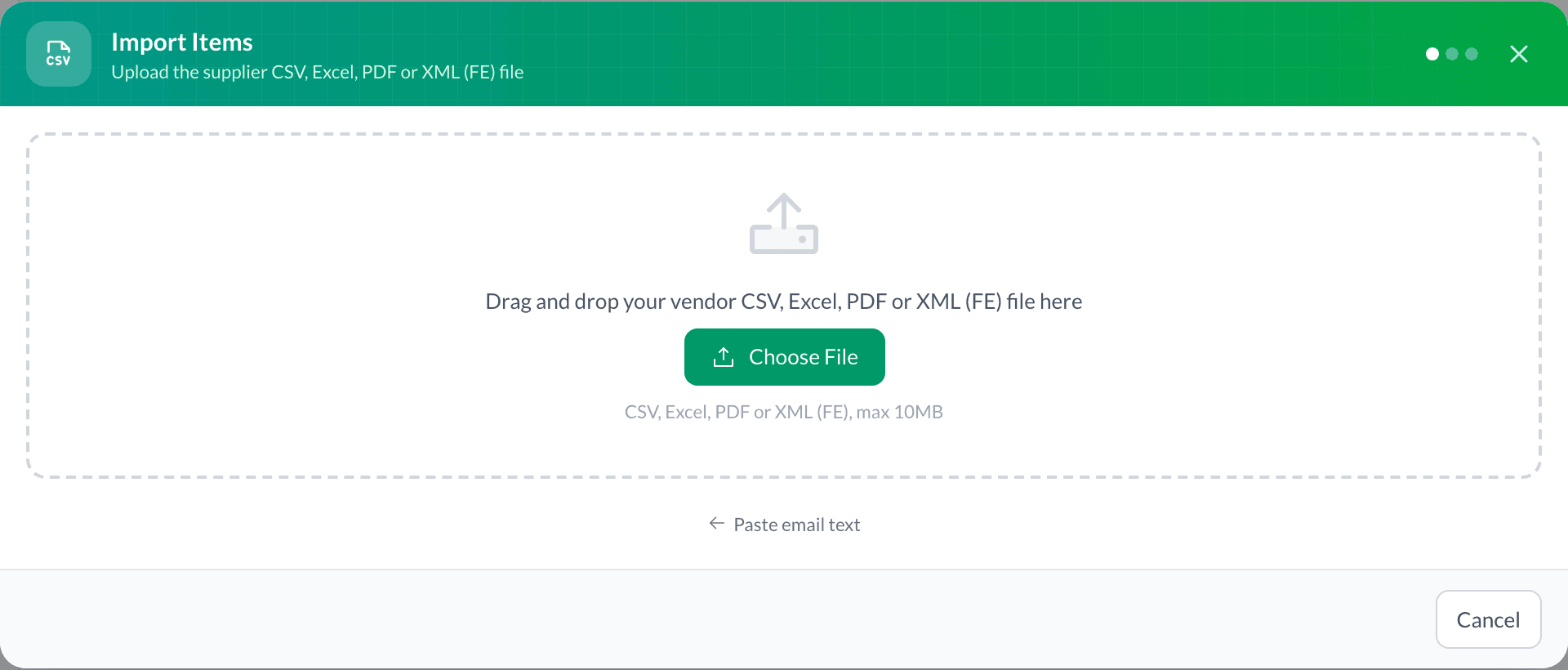
In Overview, click Import Items. Upload PDF, XML, CSV, Excel (.xlsx), or ODS, or paste the supplier text. PDF and text use the AI add-on; XML and tables are read without AI. The same wizard serves purchase orders: it detects supplier and currency, finds active products, and lets you review lines, link unmatched items, or add them as free descriptions. Assign an existing supplier or create one, choosing Costa Rican or foreign. Confirm only the lines you want to add.
The preview shows amounts before VAT. Astra uses the purchase VAT treatment and retains CABYS from the linked product or XML. For a foreign supplier without a VAT treatment, choose it before confirming. Review the lines before issuance; importing does not issue the FEC or change its date. Prices in a different currency are blocked, and documents with existing lines or payments cannot have their currency changed by the importer.
What about the VAT credit?
The invoice stores the VAT rate of each line. The VAT condition of an electronic document (credited, to the expense or to an asset) is decided in the Classify purchase window, together with the category and the purchase class: Classify with Astra, on the path's Classify the purchase step, opens it right there, with what Astra suggests already selected and the question of whether it is a business expense for income tax. See The Classify purchase window. To review the whole month at once there is still Tax Review's Purchases tab. And if you record an expense without an electronic invoice from Payments, Astra doesn't claim the VAT: it folds it into the expense cost.
Treating VAT as creditable when it isn't causes filing errors. If you're unsure about a purchase, check with your accountant before classifying the document.
This purchase, step by step
A purchase invoice made from a document has the box This purchase, step by step at the top: accepted with Hacienda, the purchase invoice, the category, the VAT, inventory if it is goods, and the payment. The next step is highlighted, and its button takes you to where it's done. It is the same path the document's page shows in Reception, and its first step carries View comprobante to open it; what each step means is in The path of a purchase.

The purchase's category
The category says what the expense was for: parts, rent, fuel. Each purchase invoice has one place to choose it, depending on your company:
- Without automatic purchases, or when the purchase already has a category: on the Category card in the sidebar. Choose the category, leave Remember the category for its next purchases ticked if that supplier always sells you the same thing, and press Classify. To change it later, Change.
- With automatic purchases and the purchase waiting for a category: in the amber To classify notice below the tabs. The Category card doesn't repeat the picker: it says Choose it in the notice above.
The path's Choose button takes you to the right place. If the invoice mixes things from different categories (the supermarket with food, cleaning and paper), Split by line gives each line its own category: see Split it by line.


With Remember ticked, that supplier's next purchase invoices created from Reception already arrive with that category (with automatic purchases, also the ones that create themselves). Each supplier's category can also be set once in Expenses → Suppliers. If someone chose the category in Tax Review before the purchase invoice existed, it arrives with it. Classifying needs the permission to classify purchases or to edit purchase invoices.
The category says what the expense was for; the VAT condition says how much VAT is credited, and it is decided in the same Classify purchase window on the path, each in its own place. See Lines and VAT.
When the purchase no longer matches its document
A purchase invoice made from a document must add up to the same as the document: that is what the supplier will charge you. So Astra looks after it:
- When you delete a line, it asks Delete this line? and reminds you which document it comes from and for how much. If the line really has to go, Delete anyway. If the supplier leaves goods with you on consignment, don't delete the consigned part: link the whole purchase to its settlement (see Linking the consignor's invoice).
- If the purchase no longer adds up to what the document says, the notice This purchase no longer matches its comprobante appears above the lines, with both amounts. Restore the comprobante's lines replaces the lines with the document's and the purchase goes back to its total; the XML amounts and descriptions are restored, while the categories, chosen accounts, linked products and consignment links for those same lines are preserved. A purchase already received into inventory can't be restored: its lines already moved stock.
While it doesn't match, the path says The purchase invoice does not match the comprobante and the Reception row, Check purchase.

Invoice detail
Clicking an invoice opens its detail. At the top you see the reference and, if it has a FEC, the electronic document's status. The content is organized in tabs:
- Overview — lines and totals.
- Payments — the Payment History: date, method, amount; edit or delete a payment from here.
- Activity — who changed what and when.
- Files — attachments (vendor PDF, receipts).
In the sidebar: Supplier (with Change Supplier, except on a purchase that came from a received document: there the supplier is whoever issued it to Hacienda and does not change), dates, Currency, amounts (subtotal, tax, total, Paid and Amount Due), Tax support on purchases without the supplier's e-invoice, Category (or how it spreads if you split it by line), Tax treatment, Foreign VAT on FECs to foreign suppliers (see who collected the VAT), Payment Status, the Purchase Order if it came from one, and internal notes.
VAT on credit (90 days)
If the supplier sold to you with the VAT on credit up to 90 days (sale condition 10, art. 27 of the VAT Law), the purchase carries the VAT at 90 days tag in the list and falls due with the invoice's term, not on the day it was issued. In the sidebar, the VAT on credit (90 days) box lists the electronic payment receipts the supplier issues as you pay, with their amount and VAT. The VAT credit is taken in the invoice's month.
Payments abroad
If your company withholds the remittance tax (turned on in Withholdings), purchases from foreign suppliers carry the Payments abroad box: choose Withhold from the payment or The company bears it, and what it is paid for — each concept brings its rate and, below it, when it applies (advice given from abroad is 25 %; fees for work done in Costa Rica, 15 %), or type another rate (0 if exempt or covered by a treaty). The box shows the calculation before you save. Withheld, the supplier is owed less and the amount stays as withholding payable; borne, the supplier gets it all and the tax goes to the expense. Remember the concept for this supplier has it ready on its next purchases.

Tax treatment
Lines that bill a consignment settlement belong to the company and cannot be classified as Personal. Before correcting a purchase linked to a settlement, review that link and which lines bill it.
If the month of the purchase, its document or an associated payment or applied credit is closed, ask your accountant to reopen it in Accounting first. Astra protects the categories, VAT, income tax and payments included in that close, even when the purchase has no journal entry yet.
The sidebar's Tax treatment box has two switches, which only someone with the Tax adjustments permission can change:
- Non-creditable VAT — puts every VAT line of the document at condition 04 (current expense that generates no credit): the VAT stops counting as credit in the Tax Summary and stays in the cost in the entry and operating profit. Turning it off takes the lines back to unclassified. It only shows on purchases with an e-invoice or an FEC: without a document, the VAT is already part of the cost.
- Non-deductible (income tax) — the purchase stays in the books but is left out of the income-tax projection and of Income tax · 101/102, which takes it out of the expenses by itself. Credit notes also reduce the non-deductible amount, so a returned expense is not subtracted twice. The projection uses the period of the supporting document. The Accounting Purchases tab export marks it in the No Deducible column.

Actions
- Record Payment — while the invoice isn't paid or voided.
- Email, Print and Download — the purchase invoice PDF.
- Duplicate — creates a new invoice with the same lines.
- Void Purchase Invoice — it stops counting in expenses, reports and accounts payable. You can't void an invoice that has an electronic document (issue a FEC credit note instead), a credit or debit note, one that documents a direct expense already paid, or one with payments recorded: delete the payments from its Payments tab first.
You can edit the invoice even after it has payments. It is locked only when voided or when its FEC has already been submitted to Hacienda.
Record a payment
When you pay the vendor, log the payment to keep accounts current.
- Open the invoice and click Record Payment (on the Payments tab, or the button of the Record the payment step on the purchase's path).
- Amount — prefilled with the balance; lower it for a partial payment.
- Currency — defaults to the invoice's. If you pay in another one, Astra converts the amount at the exchange rate; if you pay in the same currency, it uses the invoice's rate.
- Funding account or card — Astra proposes how you pay that supplier: the account it remembers for them or, if it remembers none, the one from your last payment to them, with the same method. Without either, it preselects an account in that currency, never a card. Confirm it or choose the one you actually used (see Astra remembers how you pay and Bank Accounts).
- Payment Method — Bank Transfer / Deposit, Cash, Check, Credit Card, SINPE Móvil or Other.
- Payment date, optional Reference (transfer confirmation, check number) and notes.
- Save. Astra updates the account balance or the amount owed on the card, and the invoice moves to Partially Paid or Paid.
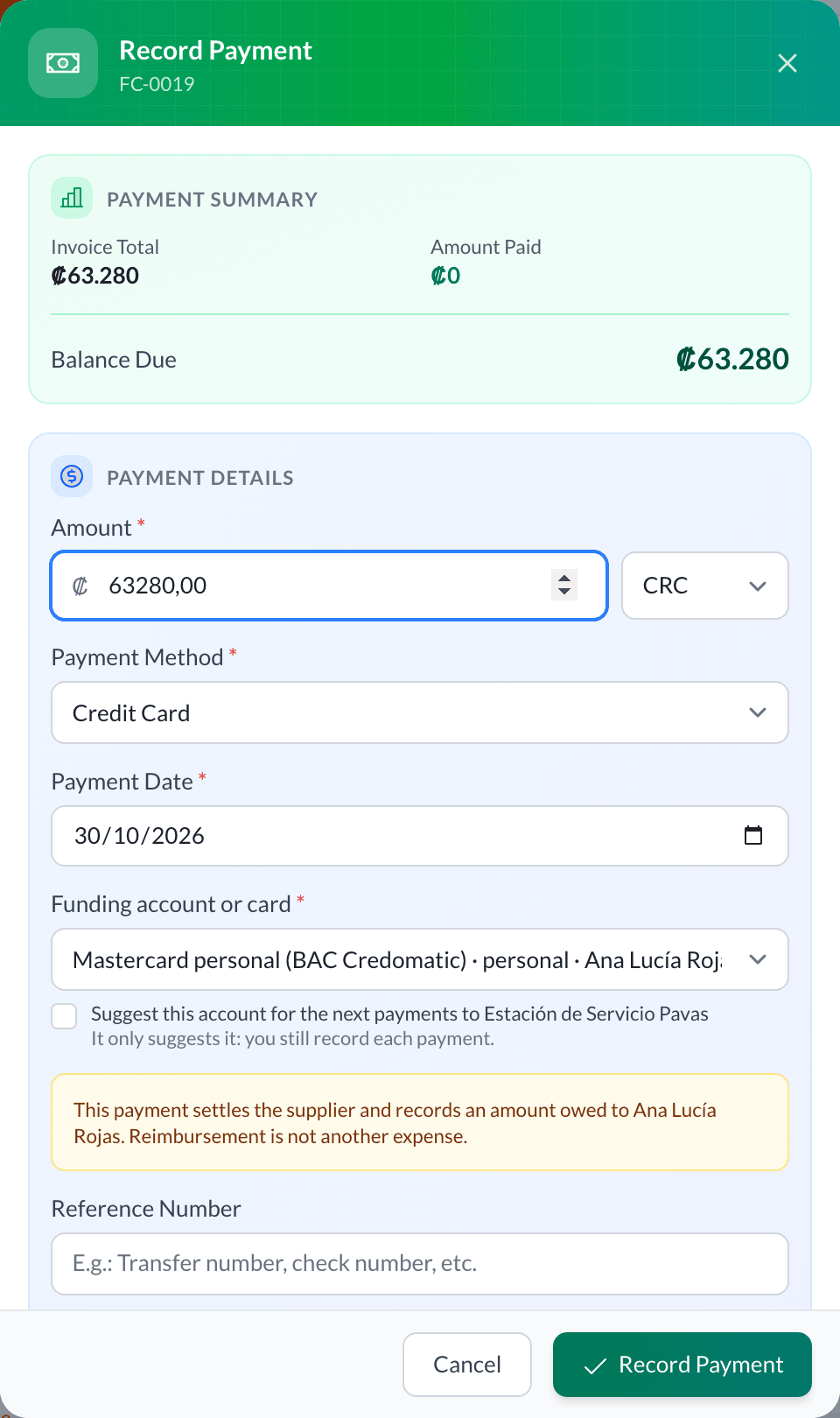
The summary shows the total, amount paid, and balance before recording. Under Funding account or card, choose the account actually used, in the payment currency. Personal cards retain their name and holder: one person may have several cards. The payment settles the supplier and increases the amount owed to that person; a later reimbursement does not record the expense again.
Astra remembers how you pay each supplier
Under the account, the window says where the proposal came from: This is how you pay …: Astra remembers it, or Same as the last payment to …. When Astra doesn't remember that account for the supplier, a box appears, and it always comes unticked: only you decide whether Astra remembers it. With automatic purchases on, the box says Record the next cash purchases from … as paid from this account: tick it and every cash invoice from that supplier that you accept in Document reception is recorded paid from that account, without you recording the payment. Tick it only if you always pay that supplier at the time of purchase (the gas station, the supermarket). If you pay them days later, leave it unticked: their invoices stay pending in Accounts payable until you record the payment. Without automatic purchases, the box says Suggest this account for the next payments to … and only suggests it. If Astra already remembered another account, the box says so: (instead of …). When you save, the payment-recorded notice confirms what Astra remembered.
It is the same account as in Suppliers ("how you pay them"): Pay several and Pay on the list propose it too. If a supplier's purchases are being paid on their own and shouldn't be, pick On credit / don't know in their row in Suppliers: their next invoices stay pending. An invoice already recorded paid that way is fixed in its Payments tab, with Delete Payment.
Several invoices from the same supplier
From the list, click Pay several and select the supplier to see their invoices. If their open invoices are only in USD while the form is in CRC, Astra selects USD and refreshes the funding account and exchange rate. Choosing a currency without open invoices shows which currency has them and offers a switch. Each payment covers invoices from one supplier in the same currency. After changing supplier or currency, enter the amount and select invoices again. Controls are disabled while Astra refreshes balances.
If the supplier has other purchase invoices to pay in the same currency, the window says so at the top —how many, what they add up to and how many are overdue— and offers Distribute across … invoices. That button opens Pay several with what you already filled in (account, method, date, reference) and preserves the payment amount and selected invoice. The others are available for you to check and distribute that amount without automatically increasing the total. Review the balances and record the payment. It stays as a single movement in the bank and a single payment in Astra, split among the invoices.

To pay an invoice's full balance in one go, use Pay on the list row: it comes out of the account you pay that supplier from, if Astra remembers it, and otherwise from the default account in that currency (never from a card nobody chose). The confirmation says which. To apply a single payment to several invoices from the same vendor, use Pay several — see Payments.
Supplier credit notes and credit
When a supplier sends you a credit note — for a return, a discount or a mistake on their invoice — Astra turns it into a purchase credit note, tagged NC in the list, and applies it by itself to the purchase it corrects: that purchase owes less. Astra finds the purchase from the reference the note carries; if the purchase doesn't exist yet, the note waits for it and applies when it appears. The note isn't paid and isn't a debt, and in the books it reverses the part of the expense and the VAT it gives back. It takes the category and the VAT condition of the invoice it corrects, so it gives back the same VAT that invoice credited: when you classify the invoice, the note is classified too. A note doesn't take anything out of inventory by itself: see Return to supplier.
If the note is larger than what remained on an unpaid purchase, the rest stays as credit with that supplier. The same happens with an advance: a payment you made before having the invoice, or the leftover of Pay several. The credit applies by itself to the supplier's next purchase in the same currency, before any automatic cash payment. An advance also counts for an invoice dated up to 7 days before the payment, because sometimes you pay before the invoice reaches Astra; an older purchase never takes a later credit.
If the original invoice was already paid, the note is held for review and cannot be applied to other purchases. Open the note and follow the original purchase link to check whether the supplier canceled and reissued the invoice. Once you establish that it is usable credit, click Confirm usable supplier credit; then apply it to the replacement invoice from its Supplier credit box, or leave it for future purchases. If you received a refund, record it on the note.
If you paid the invoice outside Astra and haven't recorded that payment yet, the note has already brought it to zero. To keep the money as supplier credit, open the invoice and click Undo in its Supplier credit box: the invoice owes its full total again. Record the payment you made, and the note stays available for the supplier's next purchase.

The sidebar's Supplier credit box shows what was applied to the purchase — each application with its date and whether it was automatic — and the Undo arrow, which returns the amount to the credit: the purchase owes it again. If the supplier has credit and the purchase still owes, you apply it by hand right there with Apply to this purchase. The Payments tab lists it too, next to the payments, and under Total paid says how much the credit covered: a purchase settled only by supplier credit shows "Paid" with $0 in payments.

On the credit note, the same box says which purchase it corrects, how much it has left and which purchases used it. If the supplier returned the money instead of taking it off another purchase, click The supplier returned the money, choose the account it came into, the amount and the date — and the exchange rate if it's in dollars — and Record refund: the account's balance goes up and the credit goes down. Everything left in your favor with each supplier is in Accounts payable. Applying, undoing and recording refunds take the permission to edit purchase invoices.
Return to supplier: the units leave stock
If the note is for goods you sent back to the supplier, open the credit note and, in its lines, tick Return to supplier on each line whose units went back. Next to the box Astra says which product leaves and from where, for example «Casco MTB · taken from Bodega Norte»: from the location the corrected purchase brought it into, or the main location when it can't find one, never a consignment shelf. Once ticked, the units leave stock and the line says «3 taken from Bodega Norte». If that location doesn't have enough, its stock goes negative, as with a sale.
The units leave only once, even if the note is saved again. Untick the box, cancel or delete the note, or remove the line, and they come back to the same location. On a credit note to a FEC they leave when Hacienda accepts the note; until then the line says «taken from … once Hacienda accepts the note». In the product's History the movement shows as Return to supplier, with the note as its reference.
The box appears only if your plan includes inventory, on lines of a product that keeps stock, and only when the note gives those goods back to the same account the purchase booked them to (Inventory, for example). A supplier's note comes with lines without products: the box appears when exactly one line of the purchase has the same description and a product that keeps stock. Once ticked, the note's line takes that product and the note takes that line off Inventory, the account the purchase booked it to; if the note's month is closed, Astra doesn't allow it. If you untick it later, the units come back but the line keeps the product. Taking the units out makes no entry of its own, since the note already reverses the purchase in the books. Ticking or unticking the box needs permission to edit purchase invoices.

Statuses
- Draft — no supplier or issue date yet.
- Pending — no payments recorded.
- Partially Paid — at least one payment and a balance above zero.
- Paid — balance covered.
- Overdue — pending or partial with the due date in the past.
- Voided — voided with Void Purchase Invoice: it no longer counts in expenses, reports or accounts payable. Its path says Purchase invoice voided.
Astra updates the status automatically as you record, edit or delete payments and as the due date passes. The only manual change is Void Purchase Invoice.
Create from a received document (recommended)
If your organization issues FE, the documents your vendors invoice you arrive in Document Reception. Converting them to purchase invoices is the fastest, typo-free path. With automatic purchases it creates itself when you accept the document; without them:
- Go to Expenses → Document Reception. The menu shows how many received invoices still have no purchase invoice.
- Accept the document: the row says Answer. The purchase invoice is made from an accepted document.
- The row changes to Create purchase: open it and press Create purchase invoice on the path.
- Astra creates the invoice instantly and opens it: vendor matched by ID number (or created if it didn't exist), lines, taxes, totals and currency, linked to the original document.
- Follow its path: the category, the VAT, inventory if it is goods, and the payment.
If the document already has a purchase invoice, View Purchase Invoice in its panel opens it. A received credit note becomes a purchase credit note that applies by itself to the purchase it corrects (see Supplier credit notes). A document you used as an import cost on a purchase order, or one in a foreign currency without an exchange rate, can't be converted until that is resolved.
Suppliers that don't invoice: issuing a FEC
Both flows above assume the supplier can invoice you. When they can't — Meta Ads, OpenAI, AWS, a simplified-regime vendor — recording the purchase invoice in Astra isn't enough: review whether FEC is required and which supporting documents apply. Recording or accepting a document does not by itself guarantee deductibility.
Astra spots it from the supplier: if it is abroad, isn't a taxpayer or, per Hacienda, is under the simplified or agricultural regime or isn't registered, the purchase is marked Needs FEC and the sidebar's Tax support box offers Issue FEC (opens the submission window) or No FEC needed, if the purchase is already backed some other way — the foreign supplier's own invoice, for example. Undo brings the suggestion back.

For imported goods, Back with a customs declaration keeps the declaration number (the DUA, or the courier's declaration) as the purchase's support; attach the document in Files. The declaration doesn't change the purchase's amounts and doesn't replace the FEC: imported purchases keep their FEC, so the suggestion stays until you issue it.
In that case you issue the Purchase Electronic Invoice (FEC) yourself — a document that comes out of your own numbering, is signed with your certificate, and formalizes the purchase. It's built on top of the same purchase invoice you created here, with two extra requirements on the supplier's contact: an ID of 13 characters or more and a foreign address.
The step-by-step procedure is in Purchase Electronic Invoice (FEC): how to create the supplier, what to put in the reference, and how to correct a FEC you've already submitted.
Need more help?
Our team is ready to assist you.