Your company's VAT profile
Updated October 24, 2026. Screenshots of a fictional company.
The VAT profile says whether your company sells exempt and at which rate it sells. With it, Astra only offers condition 05 (proportionality) when you need it, and credits the VAT on your purchases as it should.
What it is for
There are sales with VAT, sales without VAT that keep the right to credit (exports, exonerated sales to a free trade zone, 0% rate sales to the CCSS or a municipality), and exempt sales without the right to credit (private education, residential rent, books…). Only the last ones change how much VAT on your purchases you can credit. The profile has three options:
- Everything I sell gives the right to credit. You sell with VAT, export or sell exonerated. The VAT on your business purchases is credited in full, and condition 05 appears nowhere.
- I sell with VAT and also exempt. A school with exempt tuition and materials with VAT, for example. A purchase that serves both kinds of sales takes 05 and is credited by the yearly proportion of your sales.
- Everything I sell is exempt. Nothing you buy gives credit: every purchase takes 04 and its VAT is part of the cost.
Do you export or operate in a free trade zone? Your exports are exempt, but they keep the full right to credit (VAT Law, art. 21). Your profile is the first one: proportionality doesn't apply to you.
What Astra suggests
Astra reads your sales accepted by Hacienda over the last 12 months, line by line, and separates those with the right to credit from the exempt ones. From that it suggests a profile. If you have no sales in Astra, it suggests none. A stray exempt sale doesn't change the suggestion: it takes at least 1% of exempt sales.
Until someone confirms it, Astra offers the suggested profile's conditions but keeps crediting your purchases as before. If the suggestion doesn't match what was confirmed, the Inbox tells you.
Confirm the profile
- Open Settings → Sales and purchases and find the VAT profile card.
- Check the suggestion and the amounts: sales with the right to credit, exempt sales and, if any, not-subject or unclassified sales.
- Click Use the suggestion, or pick another option and click Save the profile.
- Astra explains what changes and asks you to confirm.
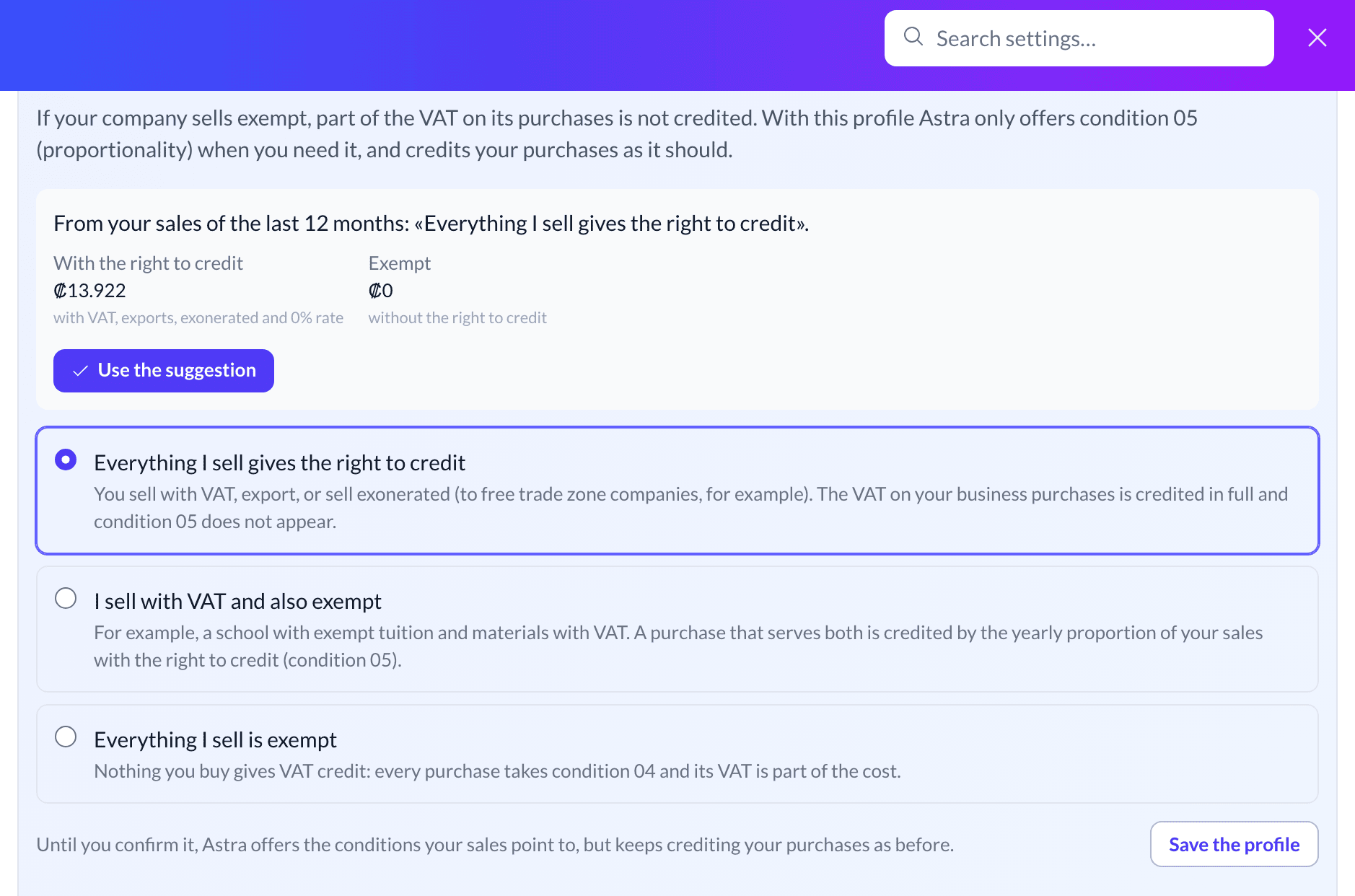
The card is on plans with Accounting, for the company's admin or whoever can change its settings.
What confirming it changes
- The conditions offered. The Classify purchase window and the Purchases tab of Tax Review show 01 to 04 when everything you sell gives credit; 01 to 05 when you also sell exempt; only 04 when everything is exempt. A line that already had another condition keeps it.
- Unclassified purchases. They count as 05 when you also sell exempt and as 04 when everything is exempt. When everything gives credit, they stay at 100%.
- The acceptance message to Hacienda. With 05 it goes without the credit and expense amounts, as Hacienda asks: the return computes the credit with the proportion.
- AI and remembered rules. They only suggest or apply conditions your profile offers.
Rate of your sales
If your company sells at a reduced rate —4% or 2%, for example medicines or private education—, the VAT on its purchases is credited only up to that rate (art. 26 of the law and 32 of the regulation). From a ₡1,000 purchase with 13% VAT (₡130), a company that sells at 2% credits ₡20; the other ₡110 stay as cost or expense, in the books and in the tax summary. Sales at 1% (basic food basket, farm inputs) keep full credit: the regulation leaves them out of this cap.
- In the same VAT profile card, go down to Rate of your sales.
- Astra tells you which rate you sell at going by your sales of the last 12 months. A stray 13% line doesn't change the suggestion.
- Click Use the suggestion, or choose 13% (general rate), 4%, 2% or 13% and a reduced rate and click Save the rate. Astra explains what changes and asks you to confirm.
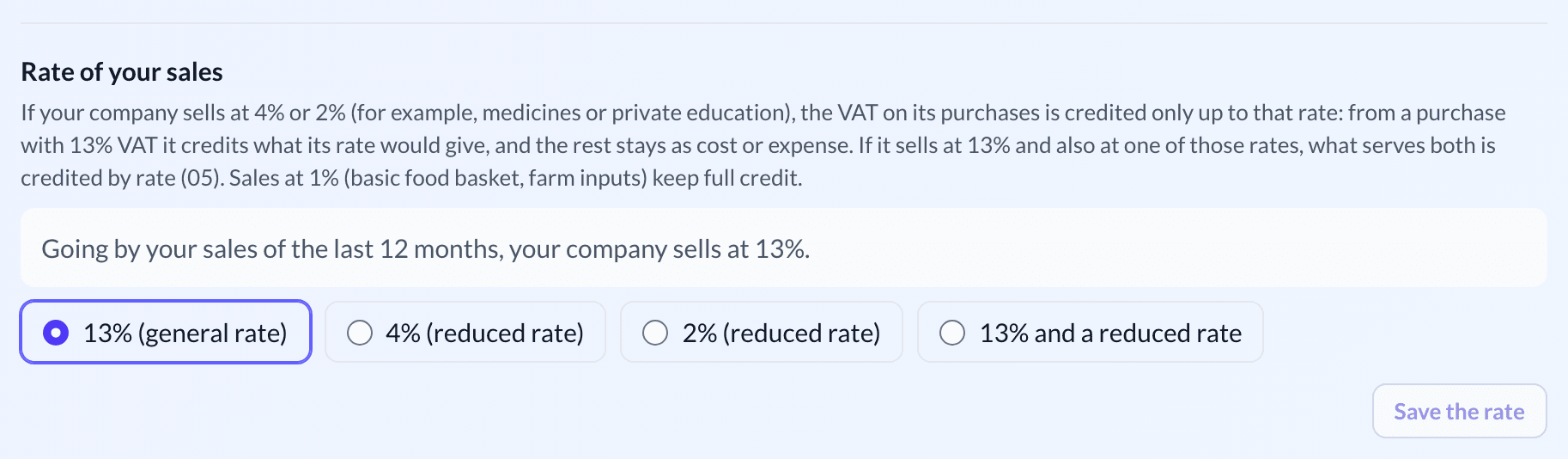
Like the profile, the rate only changes the numbers once confirmed. With it:
- The Classify purchase window credits each line up to your rate and says so under the VAT bar. A line charged at your own rate, or less, is credited in full.
- The journal entries and the tax summary credit the same, and the rest goes to the line's cost or expense.
- The acceptance message to Hacienda of a purchase with 01 is sent as 02 (partial credit), with the amount credited and the amount that goes to expense.
Do you sell at 13% and also at a reduced rate? Astra tells you so in the suggestion. Choose 13% and a reduced rate: purchases that serve both sales take condition 05 and are credited by rate, as art. 34 of the regulation asks. For the share of your sales at 13% all the VAT is credited; for the share sold at 2%, only up to 2%. A purchase that serves only your 13% sales stays 01. See mixed use.
Even if your company sells exempt, a purchase that only serves your sales with VAT takes 01, and one that only serves the exempt ones takes 04. 05 is for what serves both or can't be told apart.